Introduction
Introduction to the Policy Module
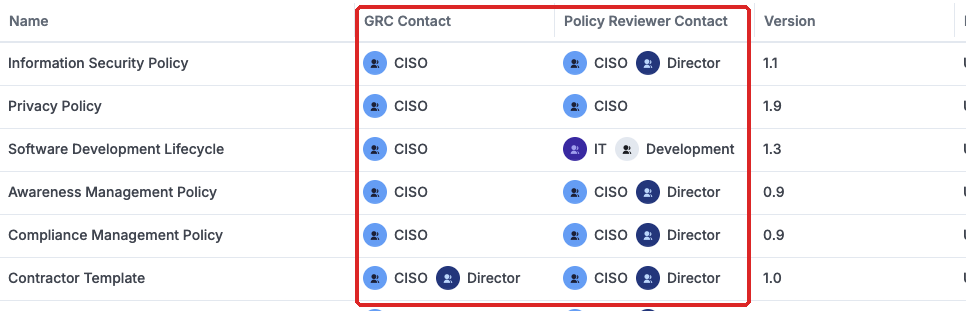
The Policy module allows you to store and review all sorts of documents such as Policies, Standards, Procedures, Diagrams, etc. There are three ways to store the actual document content:
- Using a built-in editor
- Providing a URL to the actual document (Sharepoint, Google Drives, etc.)
- Attachment (PDF, etc.)
As well as the content and/or reference to the actual document, you can also record document attributes, such as owner, reviewer, type of document, etc.
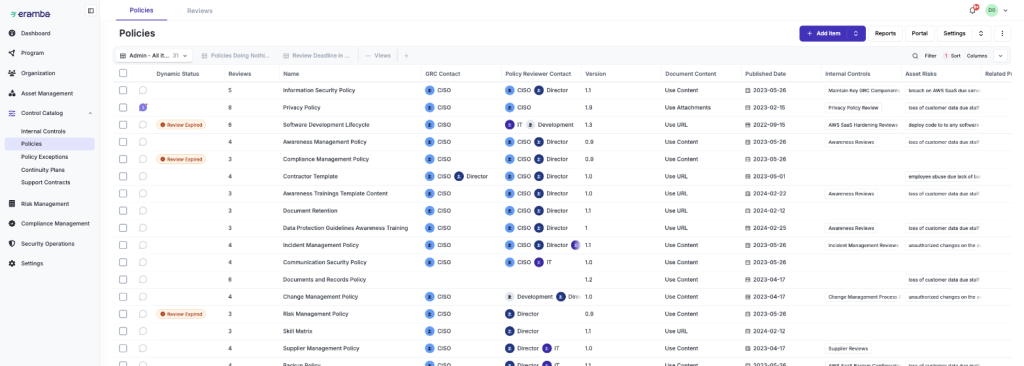
Every document will have teams (Finance, HR, IT, etc.) associated with it, there are two roles you must specify on every document you create in eramba:
- GRC Contact: this is typically the GRC team that has an interest in this document to be created in eramba.
- Policy Reviewer Contact: this is typically the team that wrote the document as it reflects an activity they perform. This could be Finance, HR, IT, etc.
If you do not like these titles you can use customisations to change them to match the terms you or your organisation would normally use. Customisations in eramba allow you to rename, add, hide, and move fields and tabs in any form and any module.

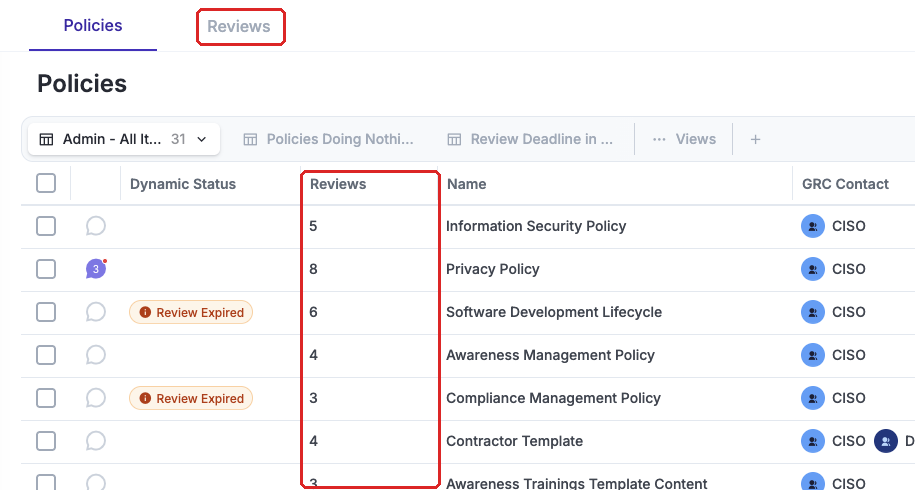
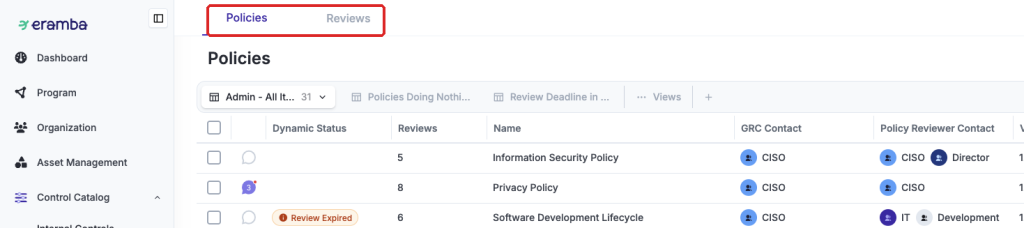
Each document added to the module will have review records automatically created by eramba based on your review deadlines. Reviews have their own tab at the top and each document will have a review counter that, if clicked, will automatically redirect you to the review records.
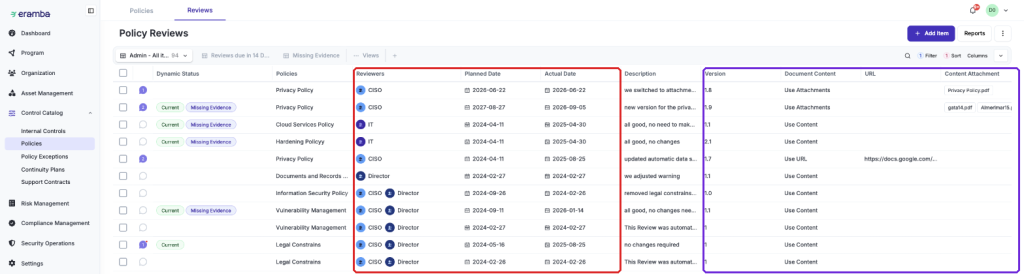
Review records describe when the review was supposed to be carried out, when it was actually completed, by whom (typically the reviewer role is automatically assigned), the document version and the content.
Like any other module in eramba, each record supports comments and attachments that allow you to record all review interactions (including approvals) by users keeping a detailed trail.
The use of configurable notifications (that can trigger emails or REST APIs) that will trigger a user-definable number of days before and after the expected review of the document, or whenever someone writes a comment or adds an attachment for a review means all people associated with a particular document are updated on any changes.

Like any other module in eramba powerful filters allow you to query the system in many different ways. Examples of filters are:
- List expired policies
- List policies expiring in two weeks
- List all policies used in PCI-DSS that are owned by this person and expire next week.
- Etc.

Filters can be saved and emailed automatically at regular intervals in PDF or CSV format so users do not have to log in to eramba to know what work is due to be carried out.
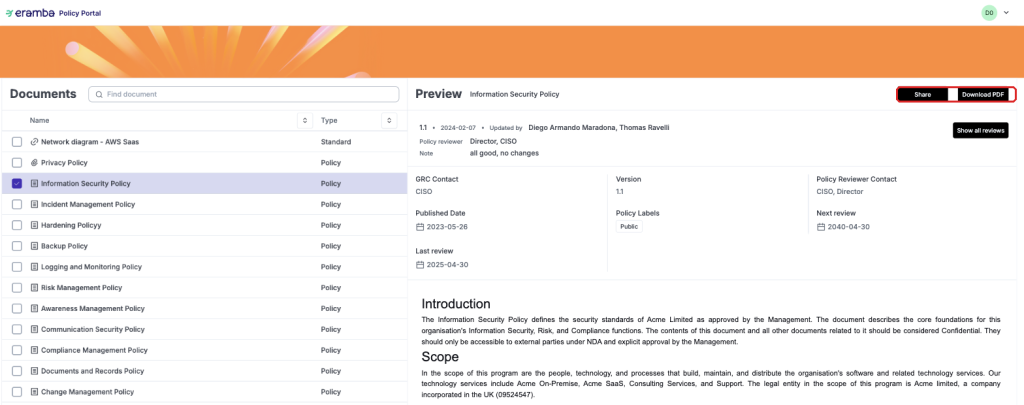
Since all of your policies will be stored here you can launch a policy portal that will let unauthenticated or authenticated (LDAP) users see your documents. You can search, view, and download documents (PDF reports) on this specific portal.
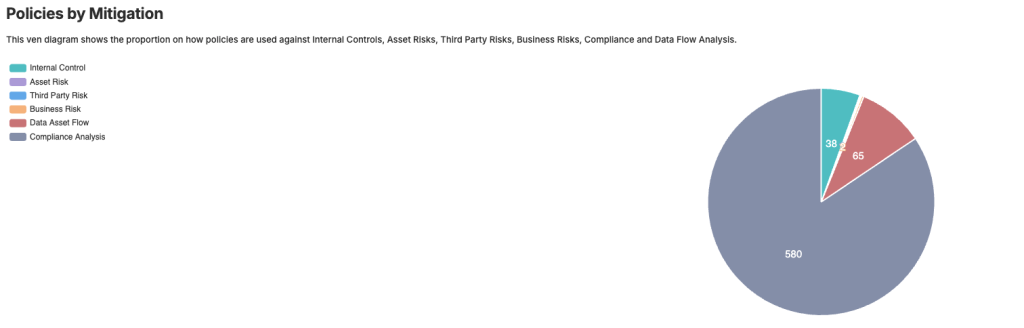
Reports also are available as charts showing your policies in a graphical way, not just as items in a table.

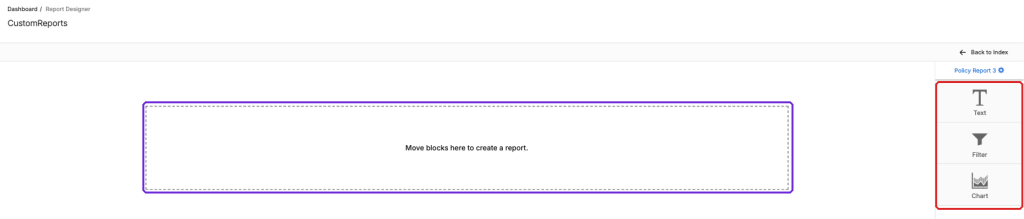
You can create your own reports with a report builder. Widgets can be added to a template using drag and drop. Widget types include text, tables, filters and charts.
The result will be a graphical report with your desired data. These reports can also be sent by email in PDF format as often as you want so you don't have to log into the system just to get an updated report.
You can flag items based on your own set of conditions: Examples of these conditions include:
- when a policy expires,
- when a review is missing evidence,
- when a policy has no linked control,
- when the associated controls are not tested or not working, etc.
We use statuses across all modules to highlight these flags and eramba is shipped with hundreds of them preconfigured for you.
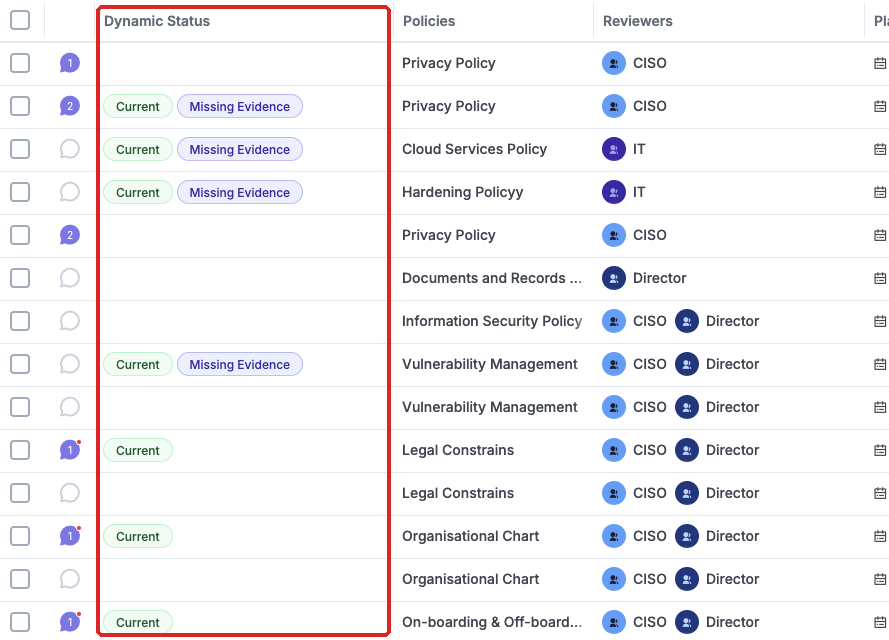
You can also create your own statuses based on your own conditions. You have access to thousands of possibilities to meet your exact needs with the status configuration tool.

Every time a status matches (or fails to match) a label will be shown or hidden in those policies affected by the status. Optionally an email or REST API call can be triggered when a status switches on or off.
For example, you can notify the policy owner and reviewer when the policy-associated controls are not passing audits. The options are endless and it is really up to you what level of complexity you wish to use
Web forms are used in eramba to create items and enter data. These forms have been predefined for everyone. The good news is that eramba ships with custom fields in every module so you can add, hide, rename, and move fields on the form to match the data you need to collect and the layout that works best for your processes.
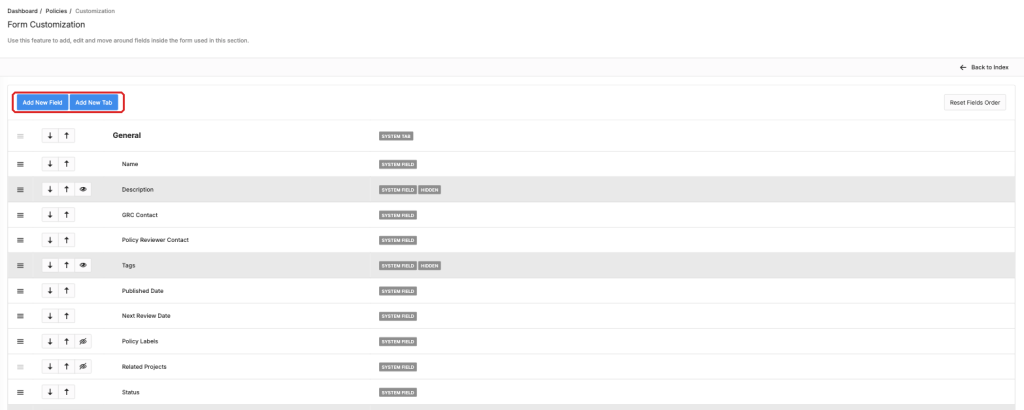
A user-friendly interface lets you make customisations without needing to know how to code software.
Policy Related Modules
The Policy module is one of the “Solutions” in eramba and it links to different modules doing different things. In the Policy module, you will find two tabs, Policies and Reviews, this is because one policy will have one or more reviews associated.
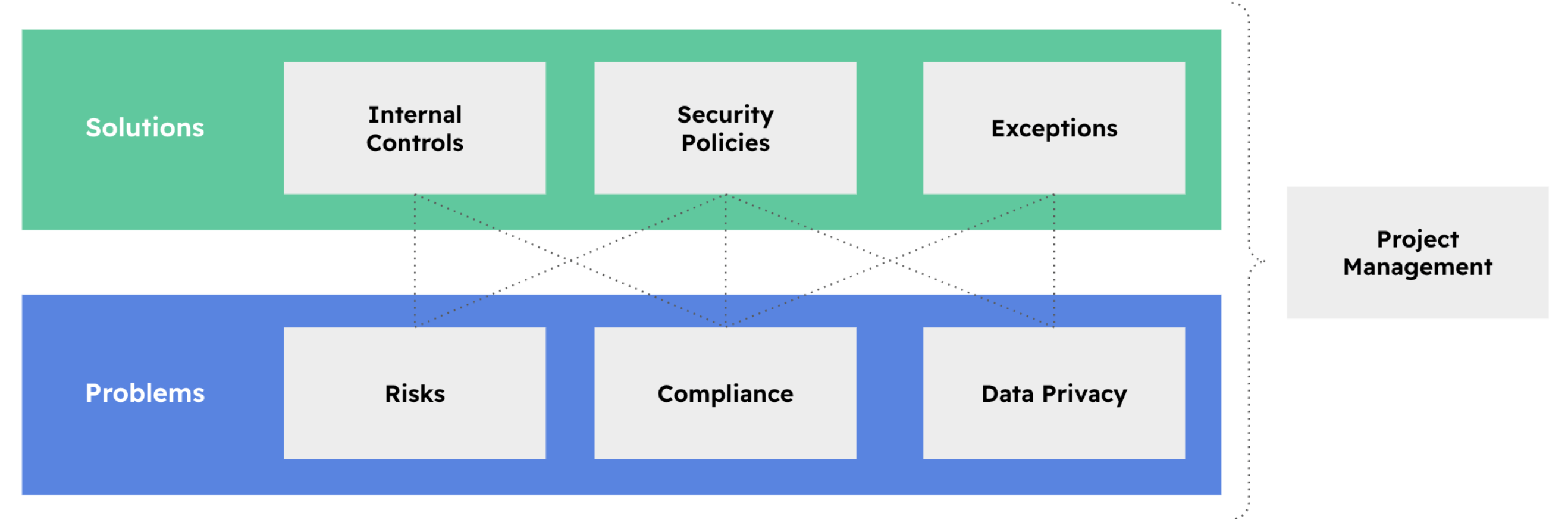
The diagram below shows the key relationships of the policy module with other modules in the system:
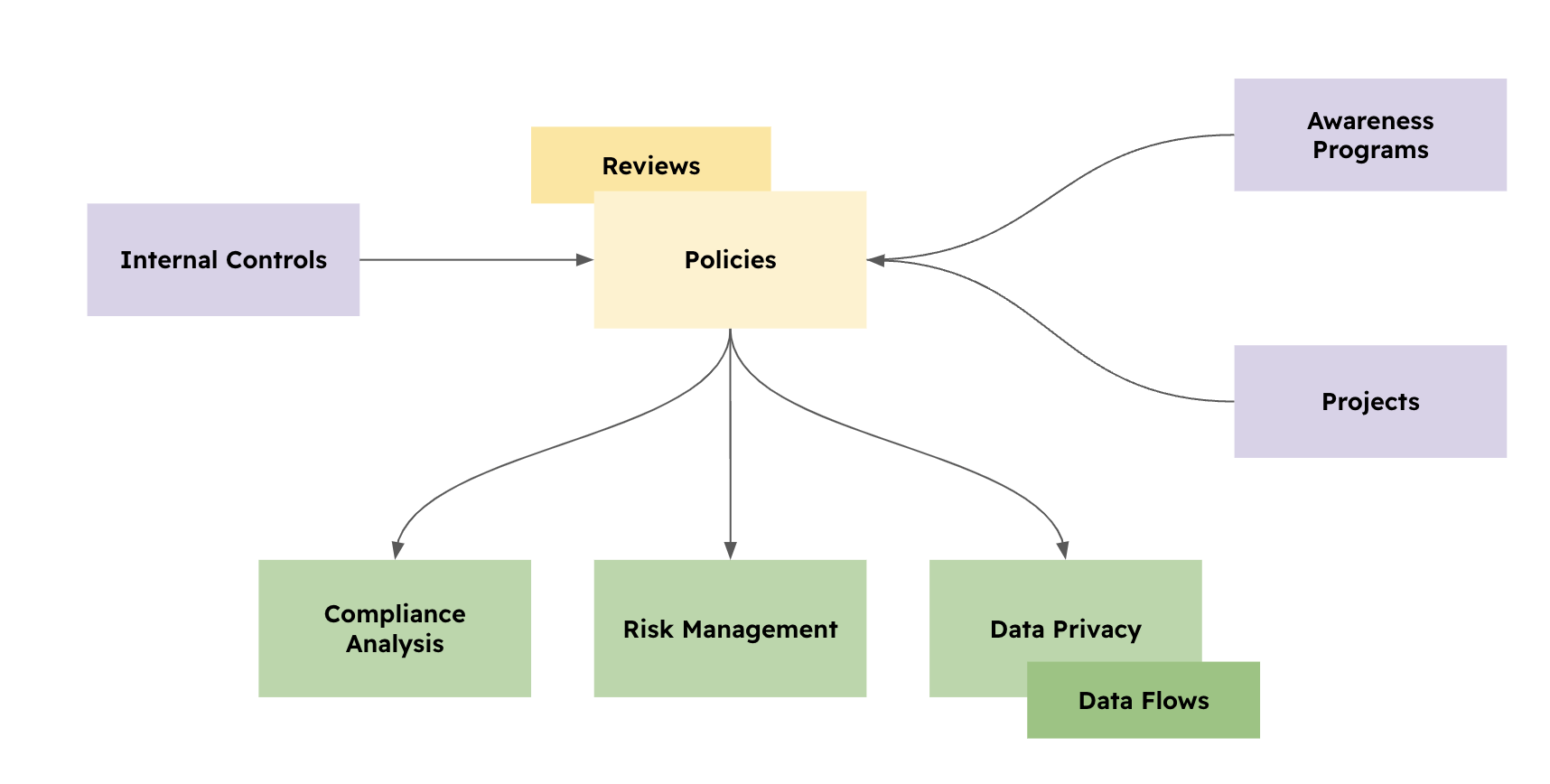
- Internal Controls: since controls are activities they require a procedure, standard and many times a policy. Without these documents, the activity lacks governance and therefore is likely to be non-systematically executed.
- Risks: some risks might be mitigated with a process or a contract stored on the policy module.
- Compliance Analysis: many compliance requirements simply ask for Diagrams, Policies, etc.
- Data Flows: some flows might be mitigated with a process or a contract stored on the policy module.
- Awareness Module: some awareness training might link back to a policy, for example, if you created an awareness training for the "Acceptable use of Assets" policy you could then know how many people have accepted these terms.
- Projects: policies might be working ok and they might need a project to improve.
Typical Policy Questions
Multiple Use Cases
The policy module is used for different use cases:
- Risk Mgt
- Compliance Mgt
- Data Privacy
- Awareness Programs
Policies link as well with projects, but this is not a use case in itself, this is simply an association in eramba used when your policies are not in top shape and need a project to improve them.
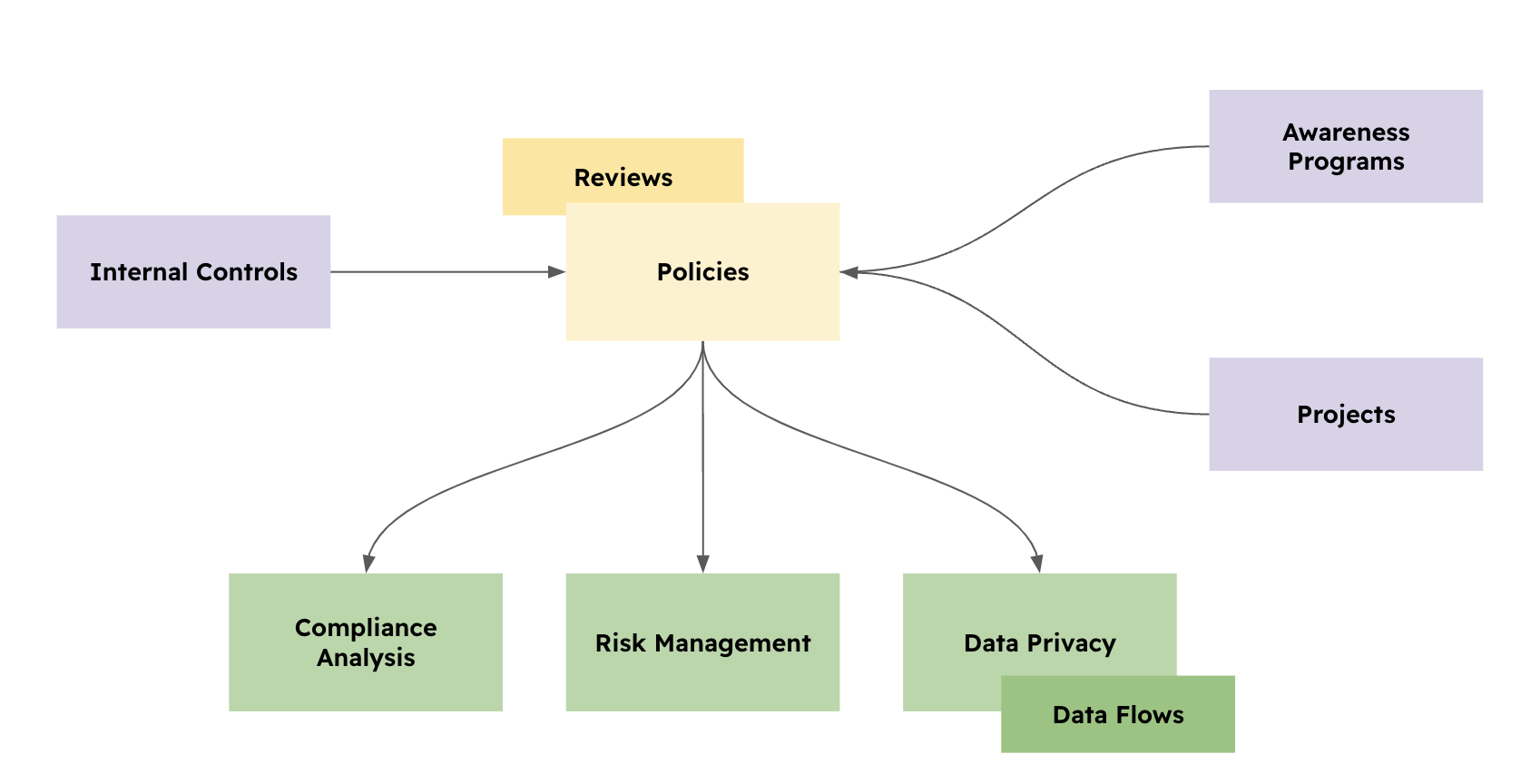
There is no point in using the policy module in isolation, this means uploading policies and not linking them to other modules. As explained in this course Policies are "solutions" that should only be created after a "Problem" has been identified. The course will also explain in which order you need to use these modules.
Link to Controls
Policies link with Internal Controls because these are activities that must be done systematically. Anything systematic requires a procedure and is that document that is typically stored in the Policy module and linked to the Internal Control.
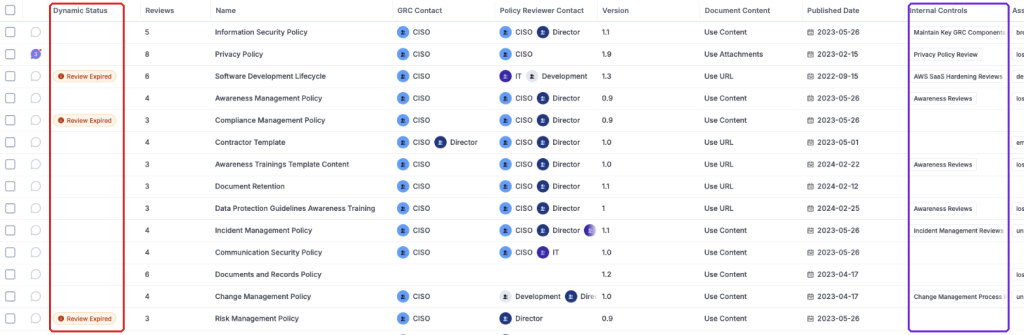
The combination of these two modules will allow you to answer questions such as "Are my policies or procedures being followed up?". The screenshot above shows a custom label in blue created that triggers when the associated controls to a policy are not tested.
Accountability
Among other things, the typical GRC department is tasked with dealing with problems (Risks, Compliance and Data flows) across the organisation. The solutions (Internal Controls, Policies, Exceptions and Projects) used in eramba to deal with these problems are therefore everywhere in the organisation.
For example, if an Internal Control is required to meet a hiring-related risk then an Internal Control will be created where all hire background checks are reviewed and their contracts are tightly organised and signed. HR might have a "Hiring Policy" and a "Hiring Procedure" that they follow for that process. They are the authors of that document, not the GRC department.
This is why two roles are always needed in eramba when creating a document:
- The GRC department needs a solution to a problem
- The HR department implements and operates a solution that among other things, deals with the problem the GRC department has
Is very important in eramba to set accountability right from the beginning.
Policy Content
eramba will store your policy attributes, things like:
- name
- description
- version
- owner
- etc
It will also store a reference to the actual document content. When you create a Policy that content will be defined in three possible ways:
- Using a content editor built in eramba where you can write policies
- Using a URL that points to your Sharepoint or Google Drives
- Uploading attachments, things like PDFs, Etc
The idea of having your policies in eramba is that if anyone asks at any time where a policy is you can find the source.
Remote URLs
If you store your policies in a remote repository the question is how you manage reviews of that policy. Reviews are easily managed when the content is in eramba or when using attachments, but when using a remote repository things are bit a trickier.
If someone changes the document in that remote repository, how would you (or eramba) know about it?
Here are our thoughts:
- Whatever repository you use, it should have some form of version control where your (GRC) team is involved (as an approver, notified, etc). When a version changes you will be notified and then you can create a new review in eramba with that new version (even if the URL remains the same), we recommend attaching a PDF of that new version as a comment to the review in eramba.
- If your document management repository has APIs you could also trigger a new review for this document in eramba. This requires a lot of coding work so is clearly not an option for everyone.
Theory
Problem vs. Solution Principle
GRC is a management practice like Sales or Marketing, we all do it and we all do it in slightly different ways to accommodate our organization's circumstances: budget, resources, maturity, localization aspects, Etc.
eramba does GRC in a certain way and is important you understand what that method is so you can compare it with your methods and decide if this is a good fit or not.
eramba organizes its core modules in two: Problems and Solutions.
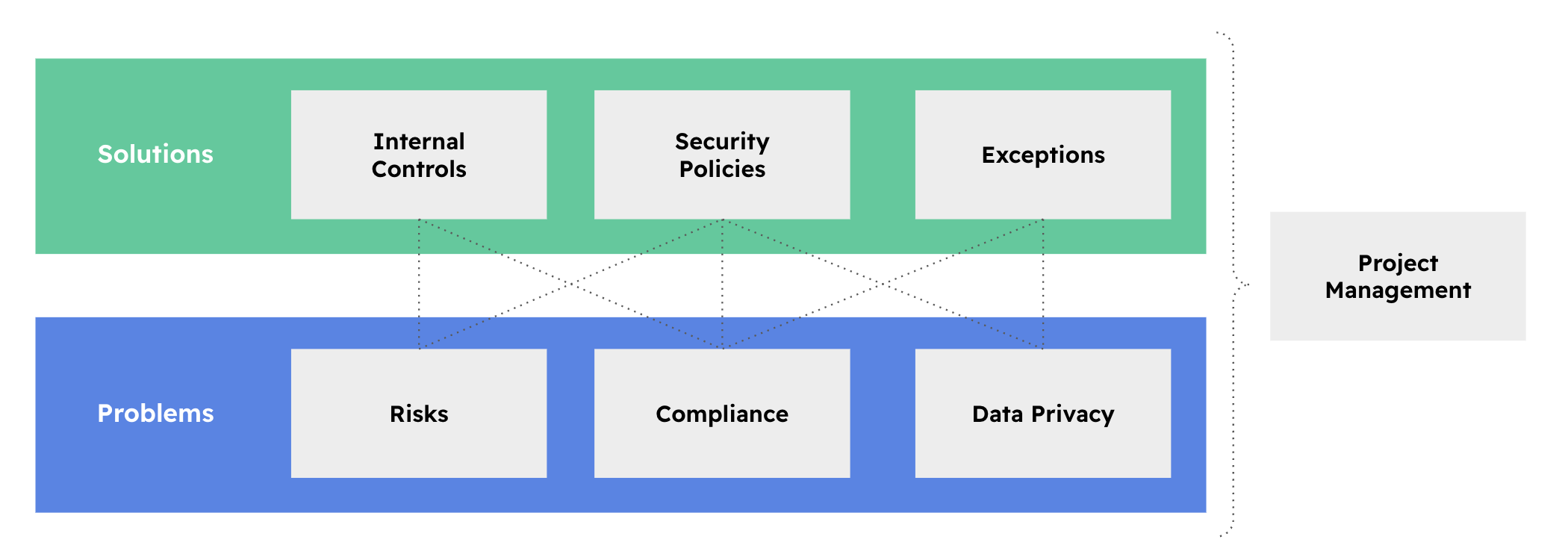
Problems (Blue) are:
- Things we need to be compliant with, for example, ISO 27001, SOX, SOC2, PCI-DSS, Etc
- Organization Risks
- Answering the question: How do we protect Data?
Solutions (in Green) are:
- Policies such as a Network Diagram, Encryption Standards, Security Procedures etc.
- Internal controls are activities such as Firewall Reviews, Laptop Encryption, Access rights audits etc.
When a problem has no available solution there are two options:
- Exceptions: if the organization decides it does not want to deal with the problem for the time being.
- Projects: are used when the solution is not available now but will be in the future.
The important thing to understand at this point is that you implement eramba by doing two very important things:
- First tell what problems your organisation has.
- Then for each one of these problems, ask yourself what solutions (Internal Controls and Policies) exist in your organisation. If there are no solutions what do you want to do next (Projects & Exceptions)
Reflecting Reality
When looking at the solutions and problems (compliance is the exception) is important to remark that we are talking about the actual solutions and problems that exist in your organisation. There are no templates for this.
For example:
- Everyone has an Internal Control called "End Point Encryption" because everyone is encrypting endpoints, but we all use different technologies, procedures, teams to implement them, Etc.
- Everyone has a procedure to provision and de-provision accounts to a system, but again while they will all look similar they will all be different.
- Everyone is subject to theft, but circumstances will be different again for everyone. The impact and likelihood will also be different.
In eramba we want you to reflect the reality of your organisation and there is no template for that. The only thing all organisations have are compliance requirements, things like ISO, PCI, Etc. The rest needs to come from you.
First Principle
The first principle in eramba is the one that states that for every problem there will be a solution.
- If an auditor asks you how you meet PCI requirement 1.1.1 (does that even exist?) you can simply follow the arrows "upward" to whatever solution it has associated.
- If someone challenges you as to why you need a Policy or an Internal Control, you can follow the arrows downward to whatever problem is driving the need for that solution.
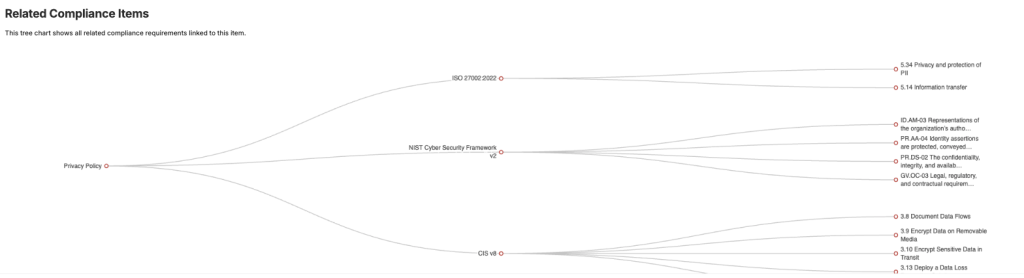
The chart below shows the typical chart eramba uses to depict these relationships. The Privacy Policy (in the policy module) is used to meet three compliance requirements from two different packages. The same report can be obtained for Risks, Controls, Projects, Etc.
Let’s review further examples:
| Problem | Solution |
| A risk scenario that describes the issue of laptops being stolen or lost. | An Internal Control that describes how end-point systems are encrypted and have access controls using strong authentication. A policy about Endpoint encryption and a procedure on how the job is carried out on each laptop. |
| The data flow describes how customer data is downloaded to laptops to make a report. | The solutions above could be reused in this scenario. |
| Compliance requirement 3.4.1 from PCI-DSS. | The same control mentioned above can be reused for this problem. We could upload an encryption standards policy onto the system too and link it to the control and compliance requirements. |
| Compliance requirement 5.1.1 from ISO 27001. | Information Security Policy uploaded on the system. |
Leverage
Is not that complicated for any organization today to have 500 or more problems. PCI has 260 requirements, and ISO some 150. Add to that 100 risks and 100 data flows you could easily be in the 500 problems range.
If you have 500 problems you do not need 500 solutions because solutions will be re-used across your problems multiple times. The agreed leverage in the community says that for every solution you will address anywhere in between 5 and 15 problems. An example of this situation is demonstrated in the table above.
Second Principle
As shown in the diagrams below (yes, you will see this diagram pretty often in eramba), we think of GRC as an ecosystem.
Whatever happens to your solutions, your problems should be affected. If a solution is not really implemented, is not working, is partially working, etc. that should reflect in your problems because perhaps that is not even a real solution.
Say you have a problem, a risk, that your "Website could be hacked". You created the Risk and then you document that the solution to that problem is an Internal Control called "Vulnerability Scans" where a scan runs every checking for potential issues. So far you have completed the first principle (problem and solution).
Now imagine, that someone forgot to perform audits on that Internal Control and your website gets hacked. People will think you are not aware of what is happening (to put it politely) in the organisation and this is of course very unprofessional. If you claim there are solutions, then they should be there. If they do not work you should also know.
To avoid this situation we have the Second Principle which is all about the "Status" of everything, in particular your solutions.
- Projects, Exceptions and Policies have mandatory deadlines for review. If you don't do them on time they will get a "Yellow" status.
- You can (optionally) describe a testing methodology and calendar for your Internal Controls. If you don't test on time they will get a Yellow status. If the testing fails, they will get a Red status.
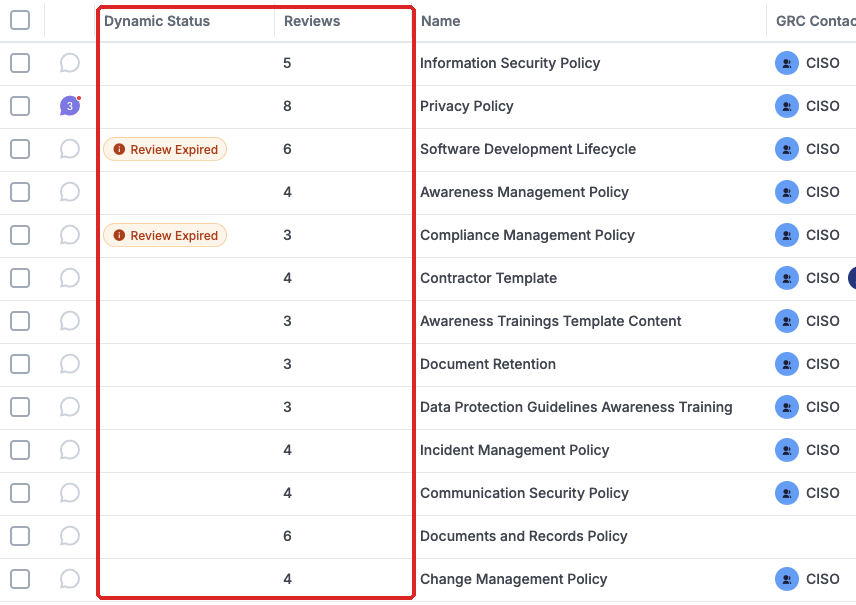
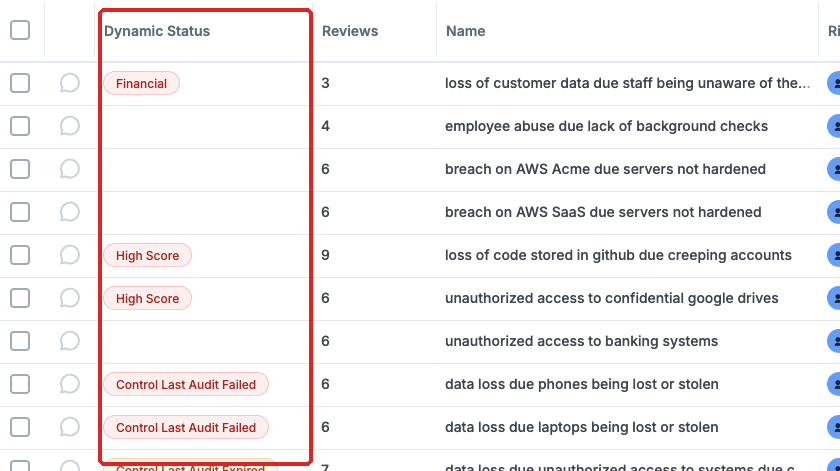
The screenshot above shows clearly policies with their reviews and the labels that tell us which ones are okay and which ones are not. The same applies to any module in eramba.
Is only when all is reviewed on time and passed that labels are green. If any "Solution" gets a "Yellow" status, whatever problem will inherit that status as well. The Risks shown in the screenshot below clearly show those labels.
Using the Second Principle is very easy to tell:
- Am I compliant with PCI?
- Are these Risks mitigated?
Remember everyone can tell there are solutions, but most can not diligently prove it.
Identifying Policies
Introduction
Policies, procedures, standards, etc are tangible things that are very easy to understand and identify in the organisation.
We oftentimes see people upload them quickly to eramba and then not knowing exactly what to do with them. In this guide, we will share with you the method we use to identify policies (regardless if they exist or not in your organisation) that will later be used to create them in eramba.
Is fundamental to this episode that you clearly understand the problem/solution principle in eramba.
The method described here is one of many, you can use any method you want to identify and document controls in eramba.
Requirements
Policies should only be documented in eramba if three conditions are true:
- They fully or partially address a problem (Risk, Compliance Requirement or Data Flow). You might also create them if you have an Awareness Program already on the system and would like to track awareness against that document.
- A team in your organisation can be identified as the one that wrote the document and maintains it updated.
- The document reflects the reality of what is being done in the organisation.

The key to identifying documents that will be stored in the Policy module is to start with a Problem (Risk, Compliance Requirement or Data Flow) or an existing Internal Control (which will be linked to a Problem). We strongly advise you not to upload policies to eramba just because you have these documents in your organisation.
By all means, avoid creating Policies in eramba just because you know they exist in your organisation.
Identification
The process we use to identify Policies in eramba is shown in the diagram below and depends on the use case you are giving the Policy module:
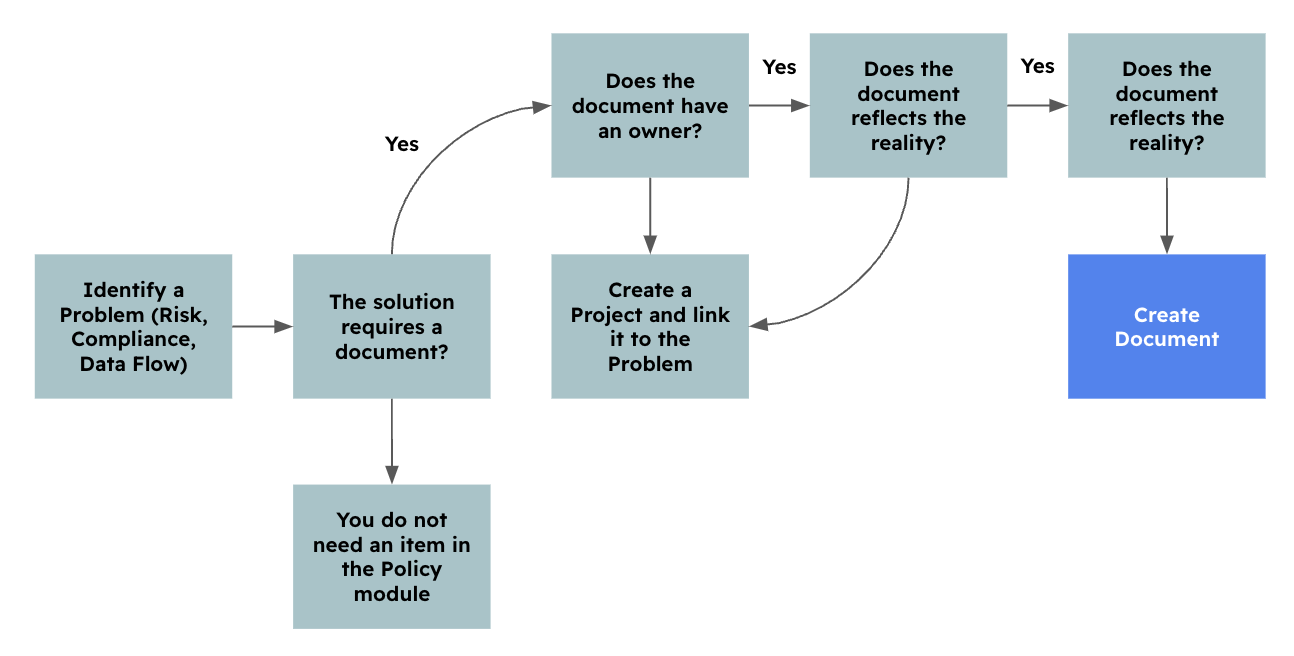
- You always start with a problem:
- A Risk, Compliance Requirement or a Data Flow
- The solution to this problem MUST require a document. For example, if the problem is a compliance requirement that requires you to have "A network diagram", then the solution to this problem is a Document, not an Internal Control.
- You need an existing document:
- You must identify an existing document in your organisation to deal with this problem
- The document must not be a draft or loosely reflect the reality of the organisation
- If no document in the organisation addresses this problem, then is best to create a Project and link that project to the problem. This indicates that at this point the problem has no solution (gap).
- The document needs an owner:
- Whoever wrote that document must be identified, typically this is a Team (IT, Finance, etc.)
- You must explain to the owner what problem is being addressed by the document they wrote and maintain
- If there is no owner for that document this is a sign of a lack of maturity and is best to create a project
At the end of the process, you end up with two scenarios:
- You have identified a document that will be stored in the Policy module
- You do not have a document and you end up with a Project
Whatever documents are created they will be linked to the problem you analysed. As you see you do not create policies in eramba without having clear problems first.
Attributes
Once you have identified a document that meets the criteria to be created in eramba, you will need the following attributes discussed with the owner of the document:
- Where will be a document stored (eramba, URL or Attachments)
- What is the current version of the document
- When will be the next review and with whom
Is best to clarify these items before creating anything in eramba, as you would want that discussion to be recorded in eramba right from the beginning.
Summary
In the end after the identification process is completed, you have the following scenarios:
- You identified a problem and through interviews, you identified a valid document in the organisation, who owns it and is now created in eramba and linked to the problem.
- You identified a problem that requires a document but that document does not exist or is not accurate and therefore you have a new project linked to the problem instead of a document.
In the next episode, we will explain to you how to create this document, the important thing for now is that you have all you need to do that! The identification phase is over!
Policy Portal
Introduction
You have the option to display your policies in a single, public portal called the Policy Portal. The portal by default is disabled but can be enabled with or without authentication.
Enabling Portal
The Policy portal is by default disabled (System/Settings/Authentication), so no matter what attributes you set on your policies they will not be displayed on the portal while it's disabled.
If you decide to enable the portal, by default eramba will enforce the same authentication mechanism defined on the Main portal.
In addition, and only if you set policies as "Public", eramba will let anyone (without authentication) access the portal but they will only see those policies that have been explicit as "Public". We call this mode "Guest" access.
Policy Attributes
You can configure every policy you upload to eramba with your preferred portal settings.
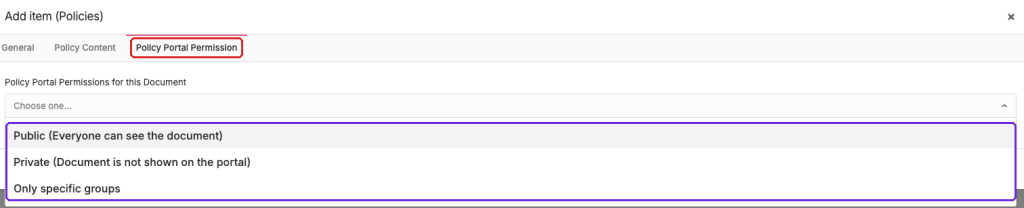
You have three options:
- Do not show the policy on the portal
- Show the policy on the portal, to anyone (even those without authentication)
- Show the policy on the portal, only to those that authenticate and relate to the policy (are reviewers of the policy or part of the GRC team)
Related Documents
The related policies field is used to link policies in between so when a user accesses the policy portal and displays a policy, all related policies are shown as optional policies.

This field might be hidden by default as "Customisation" settings.
User Account Attributes
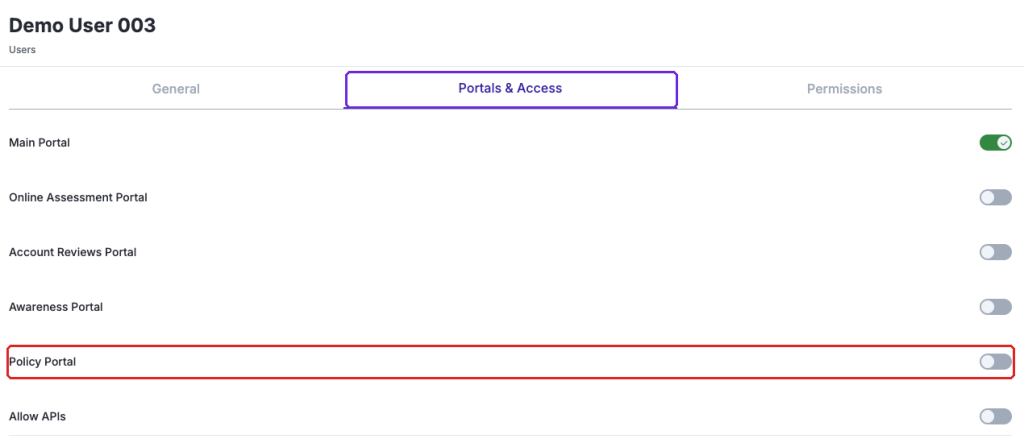
If you want users to authenticate on the portal their accounts will need to include the Policy portal on their settings. Only guest access to the portal will of course not need any type of account on eramba.
Operation
Creating a Policy
Introduction
Policies can be created one by one using the Web Interface (Actions / Add) or multiple Policies can be imported at once using CSV Imports. In this episode, we will review how policies are created using the web interface and which fields on the form are particularly important.

Before creating documents please make sure you have reviewed this course in detail from the beginning.
Title and Description
The title and description of the document are of course important and most times simply reflect the current name of the document plus some description.
Policy Roles
This is very important to do well, your identification process should have clearly set an owner (Policy Reviewer Contact) for the document you are creating. In the policy module, you have two roles:
- GRC Contact: the person who has an interest in the document to be created in eramba since it addresses a problem
- Policy Reviewer Contact: the team responsible for writing the document and reviewing its content at regular intervals. For example, if the document is a “Network Diagram,” the collaborator could be the “Network Team"

Is very important you have a systematic approach to these roles because you will be using notifications and you want the right people to receive them. We also typically advise the use of groups (as opposed to users, as shown in the screenshot above). Groups can contain more than one user ensuring more chances of getting feedback.
Reviews
As part of the identification process, you should have discussed with the owner when the document was created and most importantly when it will reviewed next time.
When creating policies you will need to tell eramba when the policy was first published and when the next review will take place. This is very important as eramba will create review records based on this future date which could trigger notifications.

Policy Content Type
Your identification process should have clearly discussed where the actual content of the document will be stored. The content of the document can be defined in three ways:
- Attachments (e.g. PDF, Word)
- URL (e.g. SharePoint, wiki, Google Docs)
- HTML Editor (built-in HTML editor)
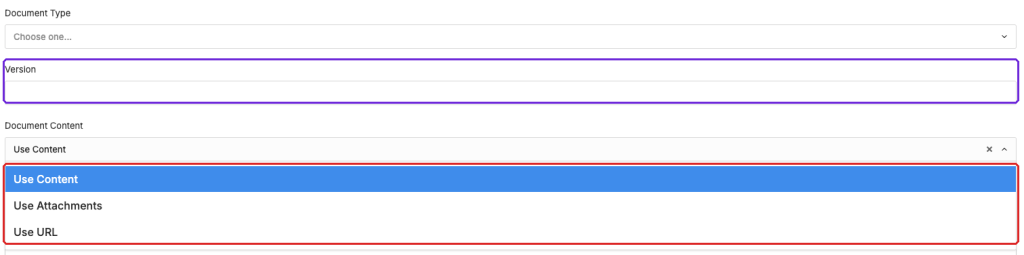
Further changes to this tab (Version and Document Content) can not be done from the Policy itself but from its reviews. So if you want to change the version or the content of a document you will need to create a new review. This is explained in detail in the coming episodes.
Policy Portal
If the policy portal was enabled this tab will show allowing you to choose if the document should be made public on the portal or not.
Reviewing Policies
Introduction
Every time an item is created in the Policy module, eramba will automatically create two reviews for that document.

- One will be automatically completed and will be used by eramba to track the starting point of that document version, content, etc.
- The other will be incomplete, with a "Planned Date" set on the day you asked eramba to review the document in the future.

All changes to the document content, version and next review date will be handled by working with reviews (as opposed to simply editing the policy item). For this reason is very important you understand how reviews work.
Review Tab
Your reviews will be stored in the Review tab, not in the Policy tab.
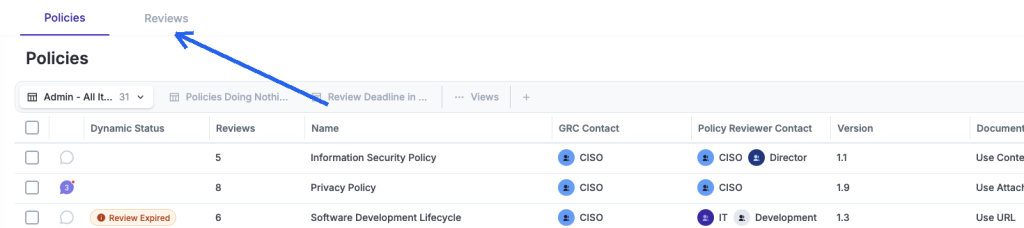
If you want to access all reviews for any given document you can always use the shortcut counter.
Reviewer Role
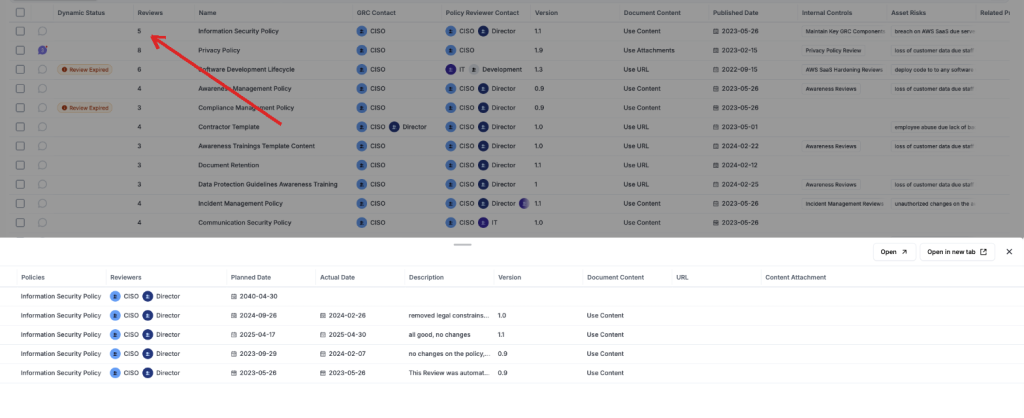
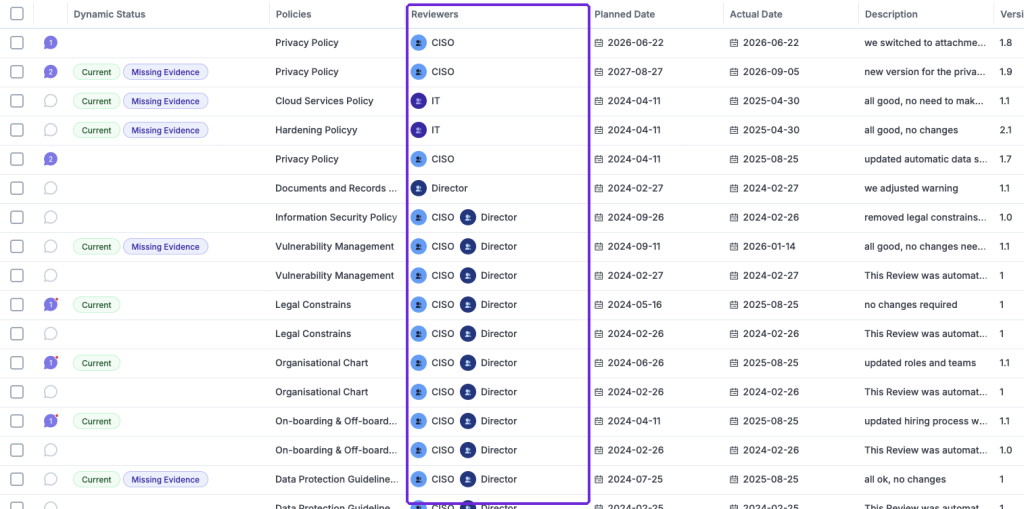
When eramba or you create review records, by default eramba will assign to the reviewer role of the review record whoever was set on the parent policy as "Policy Reviewer Contact".
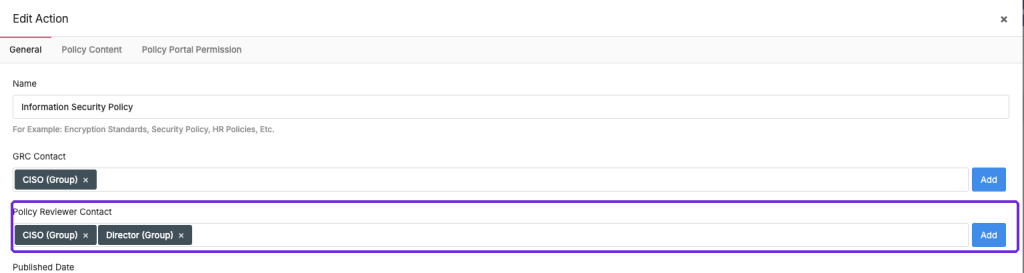
In the screenshot above we show a policy where the role is taken by the groups "CISO" and "Director". In the screenshot below, at the review records for this policy, we can see the "Reviewers" field is owned by those same groups.
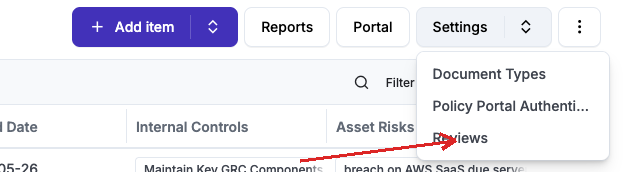
Changing the role in the parent item will automatically update all incomplete reviews. You can define who inherits review records from the Policies module header: click Settings and then Reviews. The field is called "Review Inherit Role".
Changes to this setting will take effect immediately updating all incomplete reviews. All new review records will use this setting. Remember that you can create custom roles in the parent item (Approver, Supervisor, etc) and include those custom roles as well as part of your reviews.

Review Attributes
A review record is composed of the following fields:
- Planned Date: when the review is supposed to be completed
- Actual Date: when the review was completed
- Description: a brief description of this review, this field is filled once the review is completed.
- Reviewer: the team who is meant to lead the completion of the review. This field by default inherits whoever you set on the policy on the role "Reviewer Contact"
- Next Review: when you complete a review, the "Next Review" tab is where you record the planned date and the reviewers of the following review
- Version: the version of the document
- Document Content: where the document is stored, this could be in eramba (Content Editor), a URL or attachments
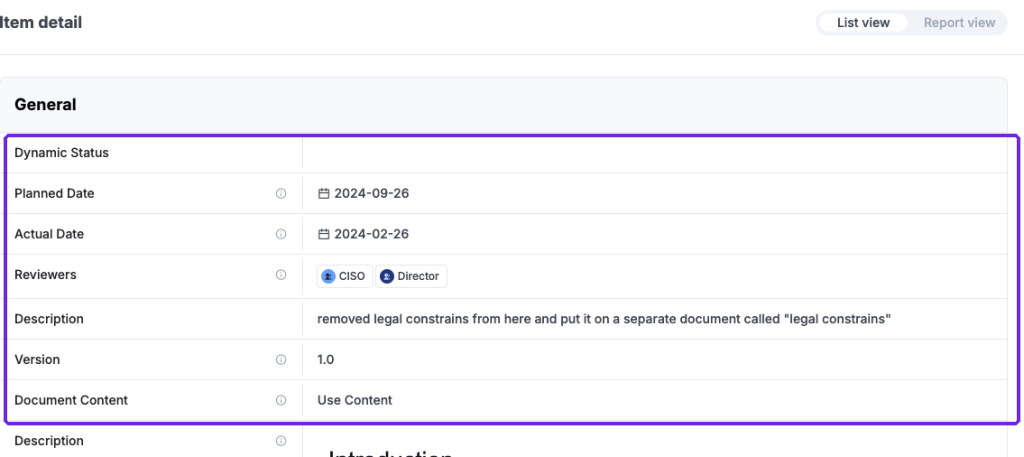
A completed review will have all those fields completed. An incomplete review will have all fields incomplete except "Planned Date" and "Reviewers".

Comments & Attachments
Each review record holds a review and its attributes (version, when it was done, by whom, etc) - you will also need to record the interactions that took place to get all that done (approvals, discussions about the content, etc).
For these types of interactions, we use Comments & Attachments. Every review should have in theory some discussions recorded that explain interactions in between both parties (the GRC team and whoever the review is being done with).
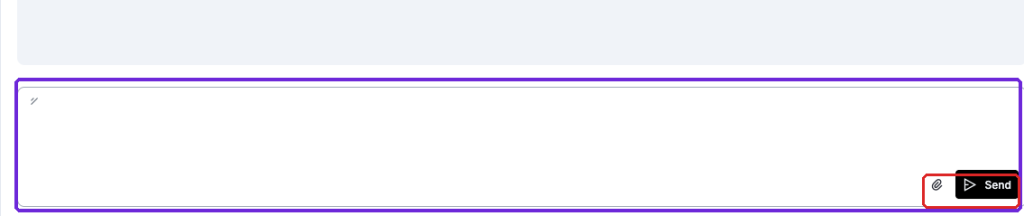
Open the review record and use the Activity Log on the right. Write in the text box at the bottom and click Send; use the clip icon to attach evidence, for example, "We are reviewing the document, we will let you know". The other party can reply from the same box. Each entry in the log can also hold its own nested comments through the "Comments & Attachments" toggle. In the end, a trail of conversations will be logged where "who", "wrote what" and "when" will be evident.
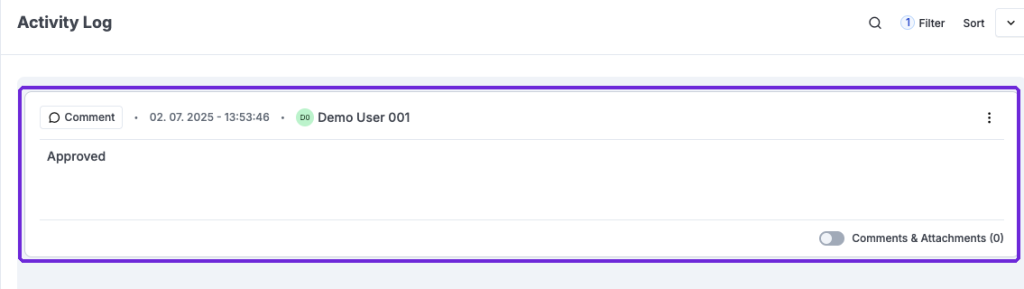
Is of course important to remind you that accessing those menus is completely controlled by Access Lists, so you can remove the "Remove" function, etc to those that provide you with feedback.
Review Status
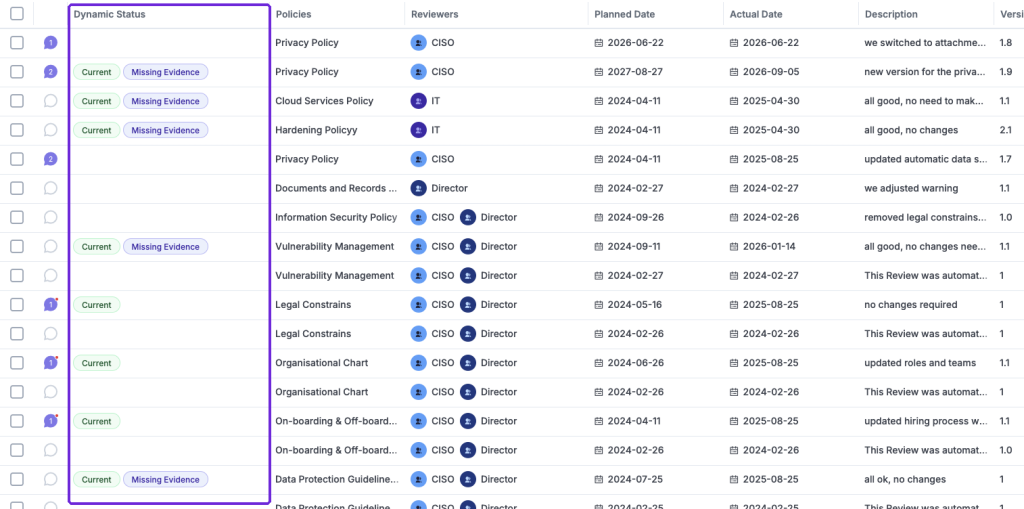
eramba ships with pre-defined statuses that distinguish between the current review and past (completed) or future (planned) reviews. These statuses are defined on the "Status" menu and can of course be renamed to whatever works best for you.
- Planned: an incomplete review with a planned date in the future
- Completed: a completed review record
- Current: the last completed review record (based on the actual date)
Review Scenarios
When a Policy is created for the first time (using the web interface or CSV templates), two “review” records will be created automatically and stored on the “Reviews” tab.
From this point onwards the following typical scenarios might trigger:
- A non-planned (Ad-Hoc) review must take place to correct any of the current Review attributes mentioned before:
- The content must be corrected
- The version must be corrected
- The reviewer must be corrected
- The planned review is due or is about to be due and you would like to complete the review record
- An existing, incomplete review with a Planned Date in the future needs to be corrected because the review date or the "Reviewer" is wrong
- You would like to delete a review record
- You don't want to track reviews in eramba
For each one of these situations you can handle reviews with the following process explained in the coming sections of this episode.
Ad-Hoc Review
If you need to create an Ad-hoc review, go to the Reviews tab and click Add Item.
On the "Policy" tab you will tell eramba which existing document in the Policy module requires a new review.

The form will only ask you which document needs the review. Once saved, select the new review and click Edit: on the "Current Review" tab you describe the review you are creating now, for example, version 1.1.
- The "Planned Date" and "Actual Date" will be today set by default by eramba
- You can adjust the "Reviewers" to whoever is that you are doing the review with
- You will provide a "Description" of what the review is all about
- Then you can set the "Version" (for example, 1.2) and Content of the document.
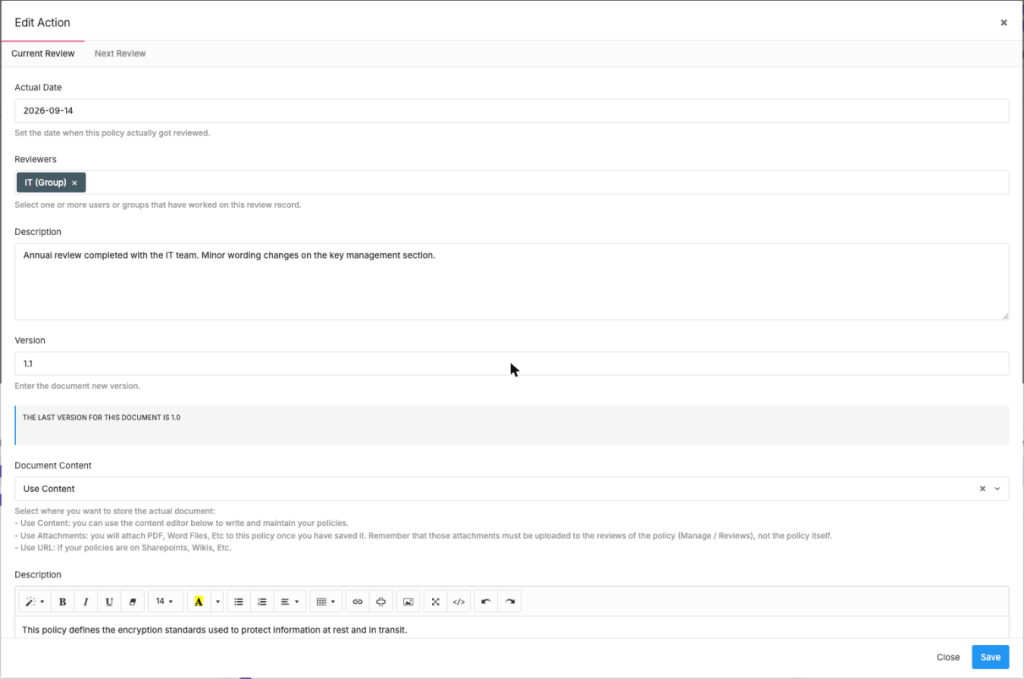
Planned Review
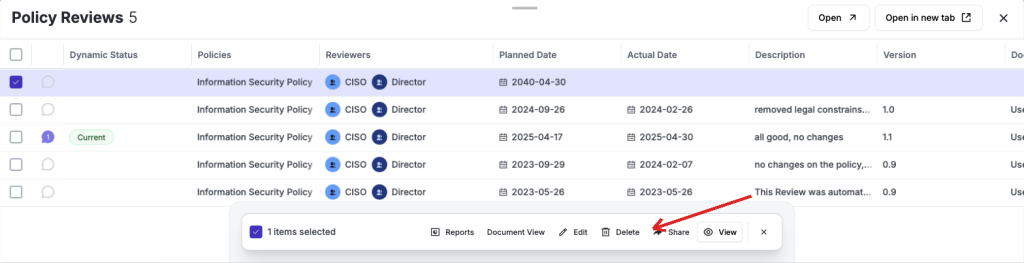
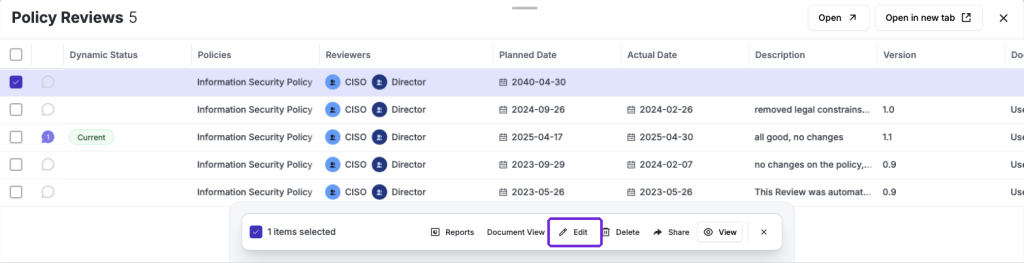
If you want to complete a planned review because is just about to be due or is already past, then you just need to tick the checkbox of that review — in the Reviews tab or in the reviews panel of the policy — and click Edit on the action bar that appears at the bottom of the screen, completing the fields as requested:
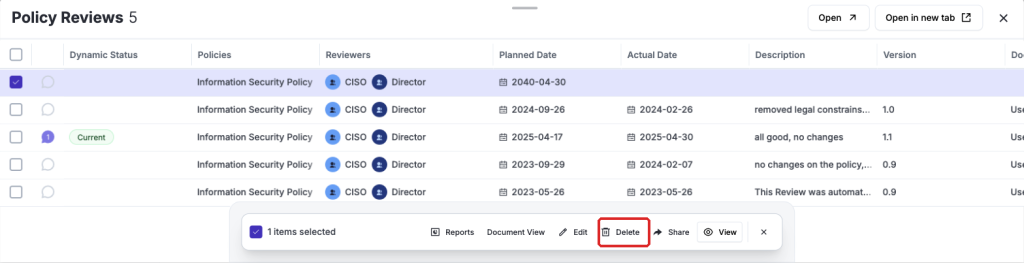
Note that Edit and Delete are only available for incomplete reviews (those without an "Actual Date"). On a review that is already completed the action bar only offers Reports, Document View, Share and View.
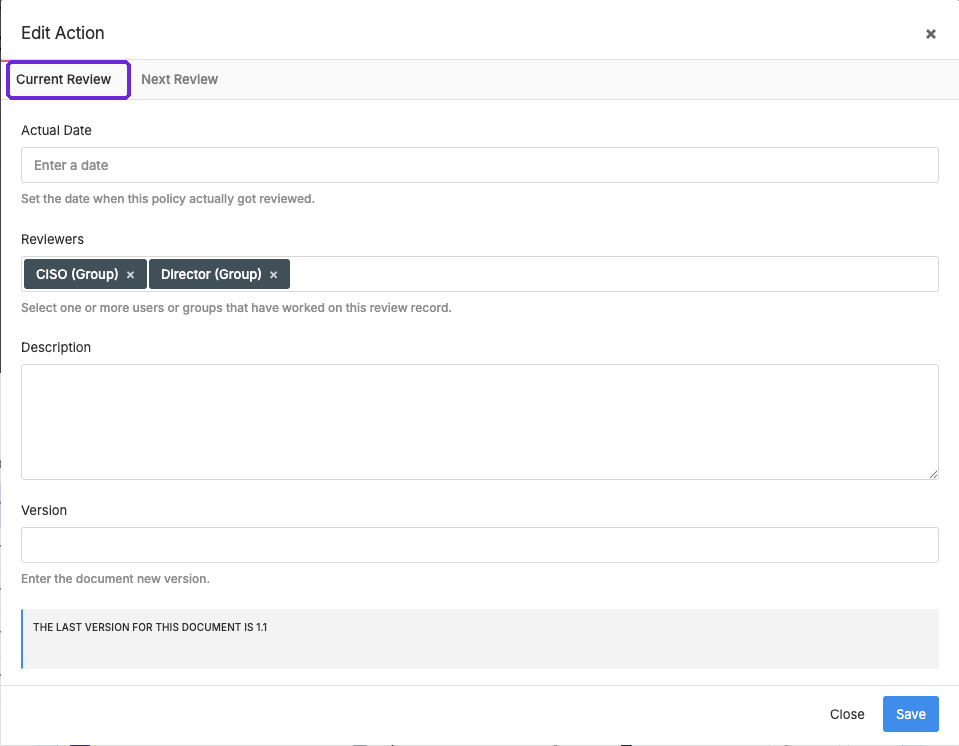
You must complete all fields on the "Current Review" - these fields reflect the review you are working on (version, content, etc).
The "Next Review" tab is used to tell eramba when the next review must be completed and by whom.
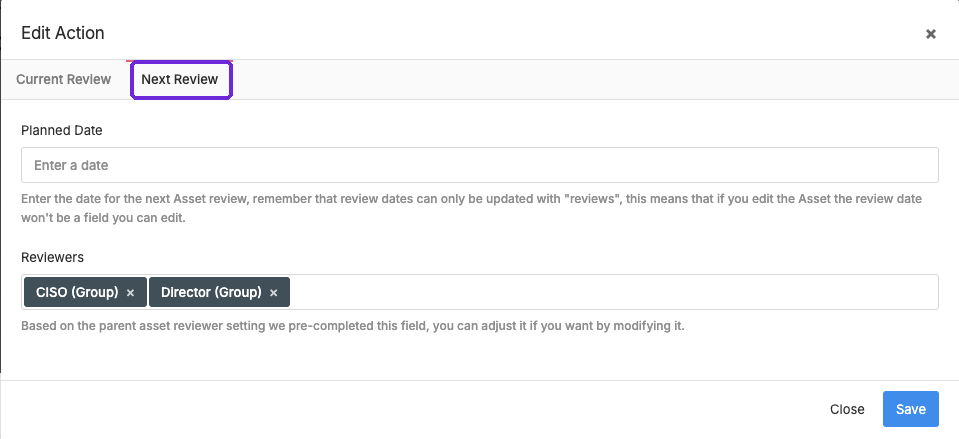
Once you save this review record you will have completed the Review and added a new, incomplete, review for that date in the future.
Updating Planned Reviews
If a planned review date or the assigned reviewer is not ok, then you need to simply follow the same steps as when a normal planned review is completed (previous section). Just keep versions and on the description field mention the date is wrong and that it needs to be updated.
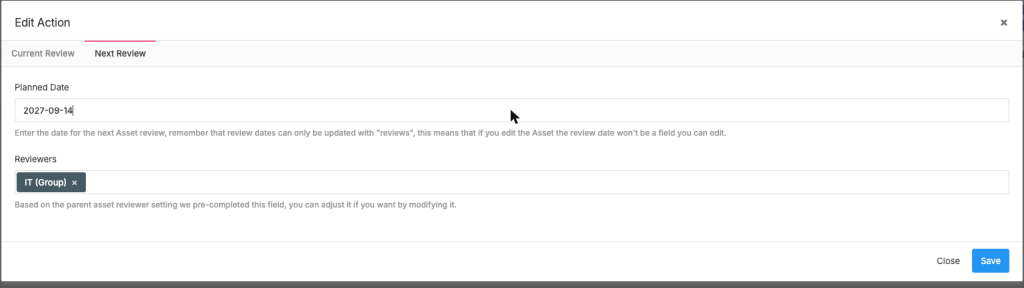
On the "Next Review" tab you will be able to provide a new future review date and reviewer.
Deleting Reviews
In some cases you might need to delete reviews, for example, we have an incomplete review in there that could be deleted as we have newer reviews defined already. Simply tick the checkbox of that review and click Delete on the action bar. Remember that only incomplete reviews can be deleted.
Avoid Doing Reviews
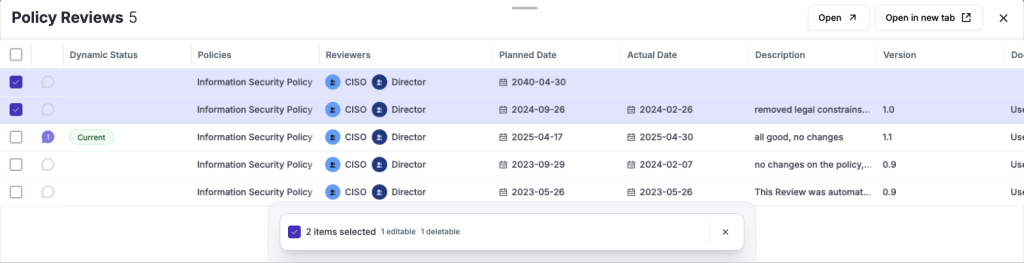
If you don't want to do reviews in eramba, simply delete them. You can use the bulk delete function for this. When you select several reviews at once, the action bar tells you how many of them can actually be edited or deleted.
Review Process
As mentioned before the review process is typically an interaction between two roles, the "GRC Contact" and the "Policy Review Contact". For example, the "Encryption Standards" document would be reviewed between the GRC team and the IT team.
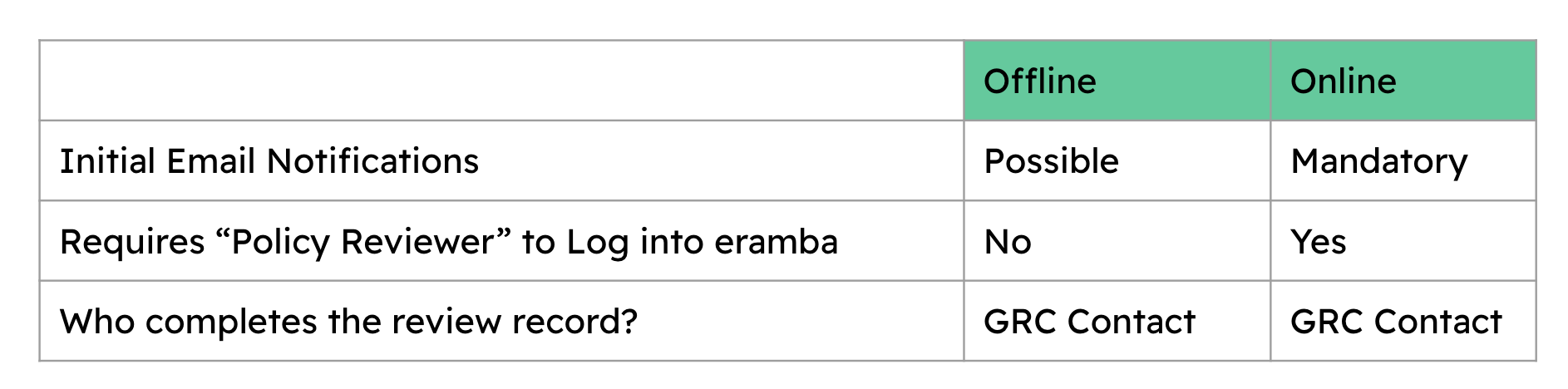
There are two ways on how the review process can be executed, Offline and Online:
Off-line
This is the recommended method for organisations that are not used to eramba or have not been doing reviews in an automated way. The review process is:
- eramba may or not send notifications to both roles letting them know about the upcoming review
- The "GRC Contact" discusses the review with the "Policy Review Contact" over email, in person, etc
- The "GRC Contact" completes the review record in eramba
- The "GRC Contact" updates evidence as Comments & Attachments to the review
Online
This is the recommended method for organisations that are used to eramba or have been doing reviews in an automated way. The review process is:
- eramba must send notifications to both roles before or after the review planned date
- The email notification includes a link where the "Policy Review Contact" must click and log into eramba.
- eramba will show the review record, the "Policy Review Contact" click on Comments & Attachments and provide feedback
- eramba triggers a notification to both roles that a new comment has been created
- They both repeat these interactions until the review is defined
- The "GRC Contact" edits the review and completes it. All evidence of the review is already on the review record as Comments & Attachments.
Still have questions?
Write to support@eramba.org or ask the community on the forum.