Introduction
Introduction to CSV Imports
There are three ways in which you can create items (Risks, Controls, etc.) in eramba:
- Web forms
- CSV Imports
- APIs
Most users will use CSV imports when they are starting to implement eramba because spreadsheets are easy to work with and quicker than creating items one by one using web forms. The CSV import has some limitations:
- CSV imports are used to create data in eramba, not to update existing data (with the exception of the Compliance Analysis module).
- CSV imports do not check what data is already in the system. If you import the same CSV file twice you will duplicate data on the system.
Most modules in eramba have their import functionality under “Actions” and “Import”.

When you click on the Import function you can download a CSV template from eramba with spaces for the data needed for that module. You can download the template and open it in your spreadsheet application (Excel, Numbers, Sheets etc.).

The first row of the CSV template explains what input is expected in each column. You must follow these instructions carefully, in particular:
Optional or Mandatory: you can leave “optional” fields empty, but mandatory must be completed

Date Format: the date format must be followed exactly. Most times it is YYYY-MM-DD, for example “2021-04-12”

Multiple Values: some columns accept more than one value. For example “Tags”. If more than one value is needed separate the values with the “|” (pipe) character.
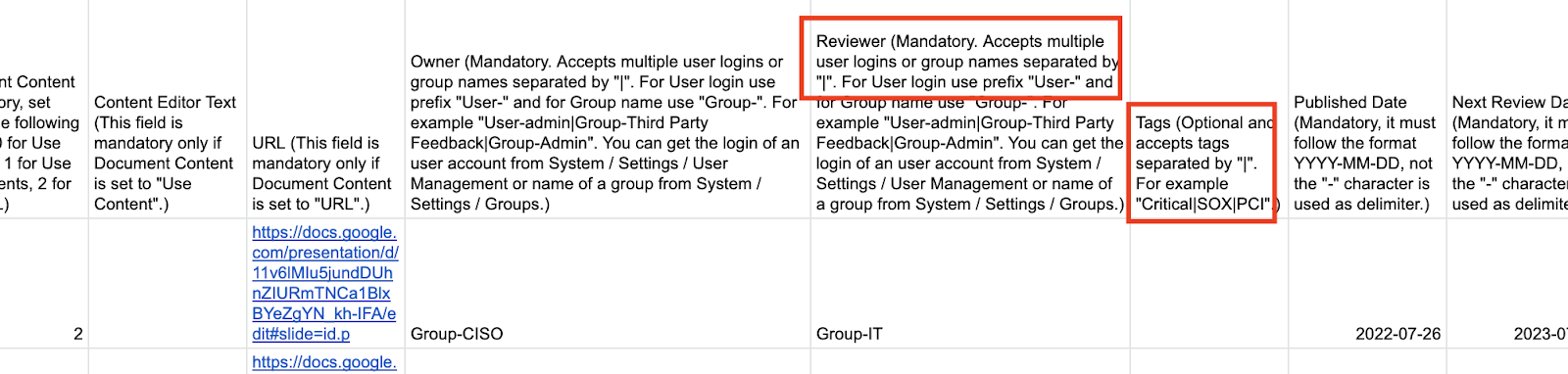
ID’s Vs. Names: sometimes you will need to use numbers (the ID) instead of names. Follow this carefully.

Once you have created your CSV import you can click on Import and try importing it. The file will be uploaded by eramba and checked to let you know if there are any issues.
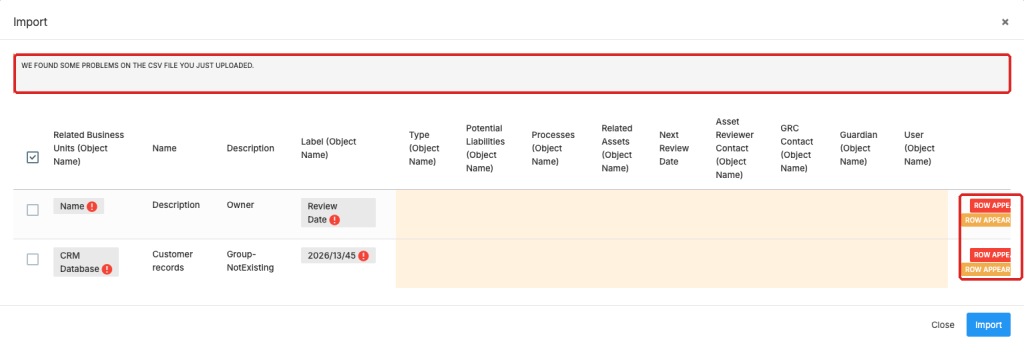
Review any issues reported and make appropriate corrections to your spreadsheet. Once the CSV has rows correctly formatted you will be able to import the file.
Still have questions?
Write to support@eramba.org or ask the community on the forum.