Introduction
Summary
Awareness Programs help you assign training to groups of people and keep evidence of their participation, completion dates, and results.
A program can combine policy attestations, a questionnaire, a video, and a disclaimer. Participants complete the required content through the Awareness Portal.
Administrators select the audience, prepare the content, and configure the schedule and notifications. Depending on these settings, eramba invites participants, reminds those who have not finished, and records the results of each training cycle.
Typical uses include onboarding new employees, providing training for specific roles, collecting policy acknowledgements, and repeating training at regular intervals.
This course explains how Awareness Programs work, guides you through a test program, and shows you how to launch and manage training for your organisation.
Supported Versions
Awareness Programs are available in eramba Enterprise.
Workshops
If you are an enterprise customer, you can purchase 8-hour implementation workshops delivered by GRC professionals. Contact support@eramba.org for more information.
Theory
Module Relationships
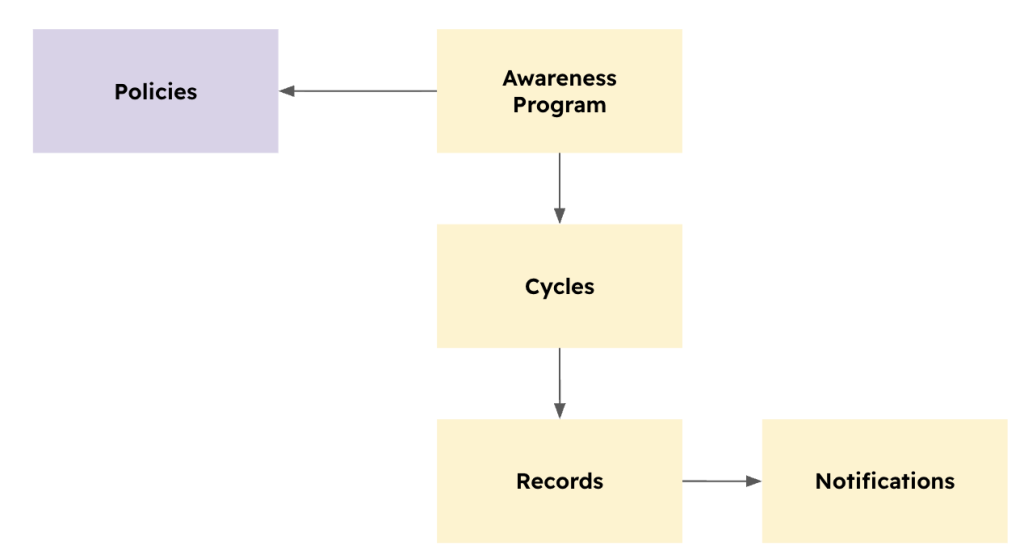
The Awareness Programs module organises information into four related areas:
- Awareness Programs: define the training content, audience, schedule, and notifications. For example, you could create a program called “Developers: OWASP Top 10 Training.”
- Cycles: represent individual rounds of training within a program. A program that repeats every 30 days creates a new cycle for each 30-day period. As an example that would mean the participants of the program must re-certify every 30 days, this will include new participants (for example new employees).
- User Records: record each participant’s progress and results within a particular cycle, including completion status, questionnaire results, and relevant dates.
- Notifications: record emails sent to participants, such as invitations and reminders.
- Policies: your programs can optionally link to your policies (Policy module) so these documents are displayed as part fo the awareness program.
One program can contain several cycles. Each cycle has its own participant records, allowing you to distinguish results from different rounds of training.
Cycles
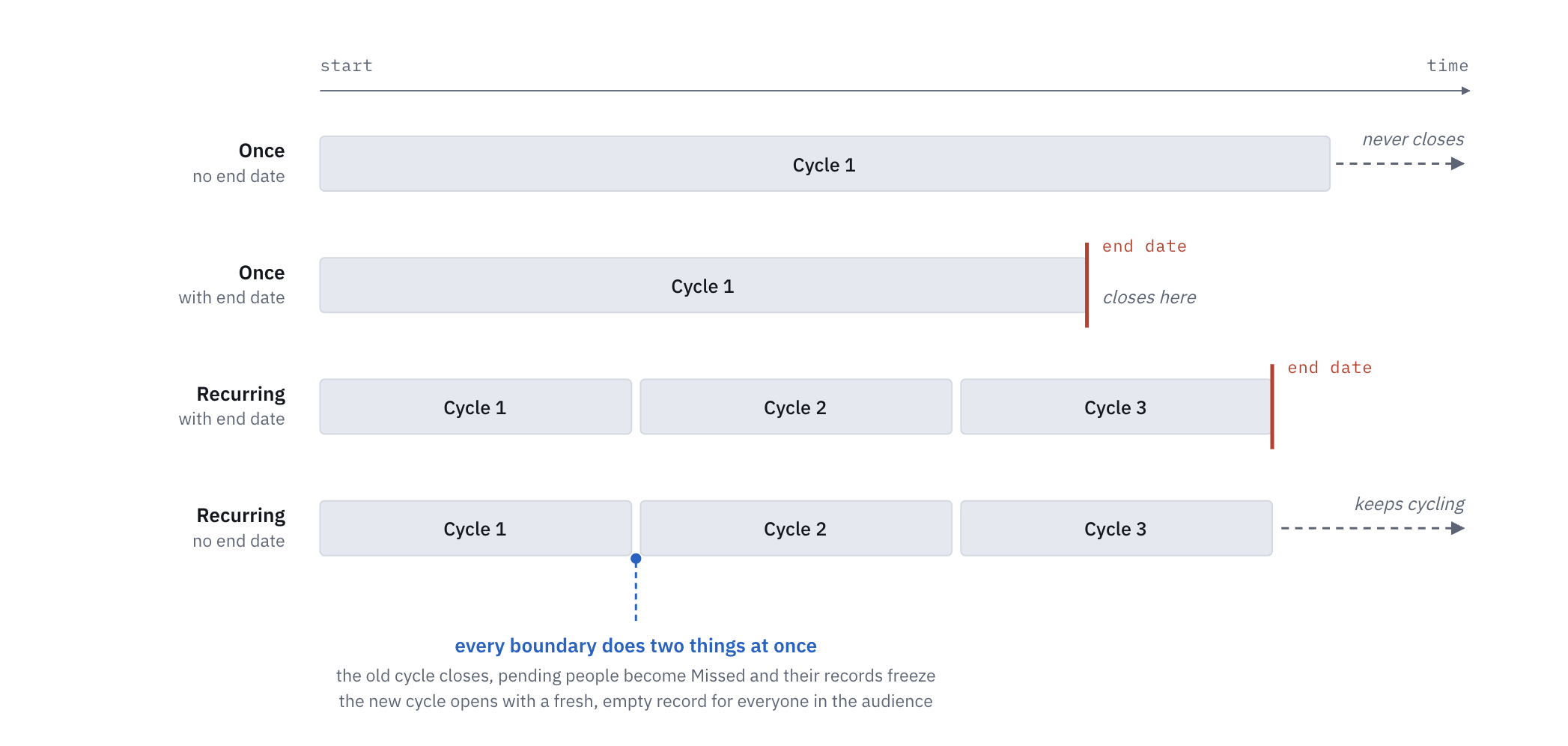
A cycle is one round of training. The program’s schedule determines whether it has a single cycle or repeats over time.
- Once: the program has a single cycle. You can define a completion deadline or leave it open without an end date. For example, if you wish to run a one time training about a new policy you could use a single cycle.
- Recurring: the program creates a new cycle at the interval you configure. Participants must complete the training again in each cycle. You can optionally define when the recurring program ends. For example, every year accept the company policies.
There is an optional end-date for both, if that date is not determine the cycle(s) never stop.
Choose Once when participants need to complete the training once. Choose Recurring when they must repeat it periodically.
Content Types
A program must contain at least one content item. You can combine the following four types and arrange their order on the Portal Settings tab:
- Policy Attestation: select up to three policies from the Policy module. Participants read each policy and acknowledge it. The policy may contain text written in eramba or a PDF attachment. Each acknowledgement is recorded with a timestamp.
- Questionnaire: upload a multiple-choice test using the CSV template. You can configure a question pool, passing score, and attempt limit.
- Video: upload a compatible video file or provide a YouTube or direct video URL. The participant can continue when the video ends.
- Disclaimer: upload a text or HTML file for participants to read and accept.
Each content type has a Continue Button Text setting. Use it to define the button label participants see when completing that step, such as “I acknowledge.”
You can also configure a Welcome Message before the first content item and a Thank You Message after the last one. Both support rich text and macros.
Questionnaire Logic
A questionnaire helps you assess participants’ understanding of the training. Prepare the questions using the CSV template and import them into eramba.
The following settings control how the questionnaire works:
- Questions Per Attempt: present a random selection from the imported questions. For example, you can import 100 questions and show 10 in each attempt.
- Display Incorrect Answers: show participants which answers were incorrect after an attempt. Correct answers are revealed once they pass.
- Set Passing Score (%): allow participants to pass with fewer than 100% correct answers.
- Attempts: limit how many attempts participants can make when a passing score is configured. Leave this field empty to allow unlimited attempts.
Reaching the passing score completes the questionnaire requirement. For a participant to become Compliant, they must complete the questionnaire successfully and all other content uploaded on the program (Video, Etc). A participant who uses all permitted attempts without passing is marked Not Compliant.
User Records
A User Record tracks one participant’s progress within each cycle. Its status indicates whether the participant still needs to act, completed the training, failed the questionnaire, or missed the deadline.
- Pending: the participant has not yet completed the training.
- Missed: the cycle closed while the participant’s record was still Pending.
If Questionnaires are used on the Awareness program, then the following two statuses are included:
- Compliant: the participant completed all required content and passed the questionnaire, if one is included.
- Not Compliant: the participant used all permitted questionnaire attempts without passing.
Program Lifecycle
Programs have four lifecycle statuses:
- Created: the program is configured but has not started.
- Running: the program is active and participants can complete the current cycle.
- Paused: the program is temporarily suspended. Resume it when you are ready to continue.
- Stopped: the program has ended. Any participant records that were still Pending are marked Missed.
You can start a program manually or configure it to start automatically:
- Enable Start immediately to start it when you save.
- Set a future Start Date to schedule its start.
A program with a configured end date stops automatically when that date is reached.
A stopped program cannot be resumed. The Reset action returns it to Created and deletes its generated cycles, user records, and notification logs. Use Reset only when you intend to remove that history, such as when clearing a test program.
Notifications
Participant notifications help people know when training is available and when they need to complete it. You can adjust each notification’s subject and body to suit your organisation.
Invitation: Invites a participant when their cycle starts. Participants added to the audience during an active cycle are also invited when their membership is processed.
Reminder: Reminds participants who have not completed the training. Configure the initial delay using First reminder after (days) and the repeat interval using Reminder Recurrence. Leave the repeat interval empty for a single reminder.
Non-Completion: Notifies participants when a cycle closes before they complete the training and their record becomes Missed. This notification do not apply to a cycle that remains open indefinitely
Closing a cycle manually with Finish Cycle does not send the Non-Completion notification. Stopping the program or allowing the cycle to expire follows the configured non-completion notification behaviour.
The Notifications view records sending activity, with one row per email and participant, including its type and date. Use it to investigate notification issues. A sending record does not, by itself, confirm delivery to the participant’s inbox.
Awareness Portal
Participants open the portal (from the invitation link, or directly at /portal/awareness-programs) and sign in. They see a card per assigned training with its due date.
Demo Mode
Testing a training by mailing real users is painful, so every program has a Demo Mode. Enable it from the program's actions and open the Demo Portal (button in the section header): you go through the exact participant experience - steps, questionnaire, attempts, pass and fail - but nothing is written to User Records and no emails are sent. A finished demo run resets when you reopen it. Remember to disable demo mode when you are done. While it is enabled the program is flagged "Demo Mode Active".
The demo list shows programs in any state, so you can preview before starting. The real portal only ever shows Running programs.
Old Awareness Programs
Programs migrated from the previous versions of eramba are kept as read-only historic evidence - flagged "Migrated", permanently stopped, and excluded from all processing. They cannot be edited, started or reset. Their cycles, User Records and notification logs remain browsable for audits, deliberately unchanged (including records that were still pending at migration time). Their uploaded content (video, questionnaire, disclaimer) can be retrieved with the Download Content action. To continue training, create a new program - the old content download gives you the material to start from.
Implementation
During implementation, you will create multiple test Awareness Program aimed at the IT team and the entire organisation:
- One cycle (no end) Disclaimer acceptance only for existing and new employees (all Staff) in regards to our corporate privacy policy
- Multiple cycle (no end), one week in duration, for IT teams in relation to OWASP Top 10 Agentic Practices
This will let you check the training content, portal access, notifications, and recorded results before inviting real participants.
Access Management
Before continuing, review the Access Management documentation.
- If this is a new eramba installation, complete the initial Admin account setup, including its password and email address. Use an organisation-managed email address.
- Create a group for your GRC team. Name it according to your department. If an appropriate group already exists, reuse it. (Video)
- Create individual user accounts for the GRC team carrying out the implementation, or use their existing accounts. (Video) Configure each account as follows:
- Groups: assign the Admin group and the GRC group identified in step 2.
- Portal: enable the Main and Awareness portal.
- Authentication: use local authentication unless you have already configured an external authentication method.
- Log out of the Admin account and continue using your individual GRC account.
- Enable the Awareness Portal under Settings / Authentication Methods. (Video)
- Create groups for the Awareness program audience, such as IT Team and All Staff. (Video)
- Create three participant accounts, two for the IT Team and all three on the All Staff. Use them as a reference when configuring future participant accounts. (Video) Configure it as follows:
- Groups: assign the test audience group created in step 6.
- Portal: enable only the Awareness Portal.
- Authentication: configure a sign-in method you can use during testing, the easies option at this stage is to use local authentication, set a password for the account.
- Email: use an address whose inbox you can access so you can verify invitation and reminder delivery.
- Optionally configure SAML, Google OAuth, or LDAP authentication. Confirm that the test participant can sign in using your chosen method. (How-To)
At this stage, create only the accounts and groups needed for implementation and testing. Add real participants to your production audience groups AFTER the test program has been completed successfully.
Prepare for Production Account Creation
Before continuing, review the Access Management documentation.
For the initial test, we are using a small number of accounts, but when production time arrives we recommend you using SCIM to provision participants from your identity provider and maintain their membership in the groups used as training audiences.
- Identify the identity-provider groups containing the employees who need training. Start with a small pilot group whose accounts and inboxes you can use for testing.
- Configure the SCIM connection between your identity provider and eramba. Include the required users and groups in its provisioning scope. (How-To)
- Map the received groups to the eramba groups you will use as training audiences, and enable Awareness Portal access for their members. Participants who only complete training do not need Main Portal access. (How-To)
- Configure the external authentication method participants will use. SCIM creates and maintains their accounts; it does not sign them in. Confirm that a provisioned pilot account can access the Awareness Portal. (How-To)
- Check the pilot accounts’ names, email addresses, audience-group membership, and portal access. Test a group-membership change and confirm that eramba reflects it. Review what happens when an account is removed from provisioning. (How-To)
- Complete the test program described in the following chapters before expanding provisioning to the full audience. Confirm that provisioned participants receive invitations, can complete training, and have their results recorded.
Prepare Training Content
Before continuing, review the Content Types and Questionnaire Mechanics sections of this course.
For your first test program, you can use the predefined content available in eramba (this will be displayed when you create the Awareness program). This lets you practise configuring and completing a program before preparing your organisation’s training material.
A program requires at least one content item. Choose the content types you want to test:
- Policy Attestation (Optional): select the policies you want participants to read and acknowledge. If you include this content type, make sure the policies are available in the Policy module. Refer to the Policy Management documentation if you need to create them.
- Questionnaire (Optional): To prepare your own questionnaire, use the CSV template provided in the form. (Video)
- Video (Optional): use the predefined video available in eramba or prepare your own supported video file or URL (Youtube). Check that the video plays correctly before using it in the program.
- Disclaimer (Optional): use the predefined disclaimer available in eramba or prepare your own text or HTML file for participants to read and accept. (Video)
You do not need to include all four types. Select the ones relevant to your intended training and test each selected type from the participant’s perspective.
Once you understand the complete workflow, replace the sample content with material appropriate to your organisation before launching a real program.
Create a Test Awareness Program
Before continuing, review the Cycles, Content Types, and Program Lifecycle sections of this course.
Create two test programs using the test audience group and content prepared in the previous steps. Keep Start immediately disabled so you can configure notifications and preview the program before inviting the test participant. We will describe the settings we recommend using for each test course:
- Go to Security Operations / Awareness Programs and select Add Item. (Video)
- On the General tab, configure:
- Title: use a recognisable name:
- IT Awareness Program: "OWASP Training"
- Privacy Disclaimer: "Privacy Acceptance Policy"
- Description: explain that this program is for testing the configuration and participant experience.
- Audience: select only the test audience group created earlier
- IT Awareness Program: IT Group
- Privacy Disclaimer: Staff
- Title: use a recognisable name:
- On the Content tab, add the content prepared for these trainings:
- IT Awareness Program:
- Policy Attestation: none
- Questionnaire: eramba sample or one custom built by you in the previous step
- Video: eramba sample
- Disclaimer: eramba sample or one custom built by you in the previous step
- Review the Continue Button Text for each selected content type.
- Privacy Disclaimer:
- Policy Attestation: none
- Questionnaire: none
- Video: none
- Disclaimer: eramba sample or one custom built by you in the previous step
- Review the Continue Button Text for each selected content type.
- IT Awareness Program:
- On the Portal Settings tab, arrange the content in the order participants should complete it. Optionally add a Welcome Message and a Thank You Message. (How-To)
- On the Schedule tab:
- IT Awareness Program
- Type: select Recurrent.
- Start immediately: leave this disabled.
- Start Date: choose a future date to prevent the program from starting automatically while you prepare it.
- Completion deadline: two days.
- Review What will happen and confirm that the dates match your intended schedule.
- Privacy Disclaimer
- Type: select Once.
- Start immediately: leave this disabled.
- Start Date: choose a future date to prevent the program from starting automatically while you prepare it.
- Completion deadline: one week.
- Review What will happen and confirm that the dates match your intended schedule.
- IT Awareness Program
- Review the Notifications tab. Configure these messages using the instructions in the next chapter before starting the program.
- Save the program and confirm that its status is Created.
You now have two test programs ready for notification configuration and a Demo Mode preview. You will start it manually when you are ready to test the participant experience.
Test the Awareness Program
Before continuing, review the Demo Mode and the Demo Portal, Notifications, and User Record Statuses sections of this course.
Test the program in two stages. First, preview the content in Demo Mode. Then use your test participant account to verify access, notifications, and recorded results.
Preview in Demo Mode
- Enable Demo Mode from the test program’s actions
- To access the demo portal you need to click on the open the Demo Portal button on the top right corner. (How-To)
- Work through the program as a participant. Check that: (Video)
- The welcome message and instructions are clear.
- Content appears in the intended order.
- Selected policies open correctly and can be acknowledged.
- The video plays correctly.
- The disclaimer displays correctly.
- Button labels and the thank-you message make sense.
- If the program includes a questionnaire, test its settings. Check the questions, answer options, passing score, and any configured question pool or attempt limit. Try both correct and incorrect answers to understand the participant experience. (How-To)
- Correct any issues and repeat the preview as needed.
- Disable Demo Mode when you finish.
Demo activity does not send participant emails or create User Records. The next stage verifies these parts of the workflow.
Start & Complete a Participant Test
- Confirm that the program’s audience contains only your test group and that its notifications are configured.
- Start the program manually and confirm that its status changes to Running.
- Check the test participant’s inbox for the invitation. Confirm that the subject, instructions, and portal link are correct.
- Make sure you are logged off from eramba.
- Open the invitation link and sign in using the test participant account, complete the Awareness program.
- Return to eramba using your GRC account. Open the program’s cycle and locate the test participant’s User Record.
Test Reminders and Other Outcomes (Optional)
Use additional test accounts or a separate test program when checking different outcomes, so you can inspect each result independently. (Video)
- Reminders: leave a test participant’s training incomplete until a configured reminder becomes due. Check the email and its entry in the Notifications view.
- Failed questionnaire: if an attempt limit is configured, use a test account to exhaust the permitted attempts without passing. Confirm that its User Record becomes Not Compliant.
- Missed deadline: leave a test participant’s training incomplete until the cycle expires. Confirm that its User Record becomes Missed and that the configured Non-Completion notification is sent.
- Recurring programs: if you intend to use recurrence, test a separate recurring program with a suitable short interval. Confirm that the next cycle creates its own participant records and invitations.
Allow scheduled processing to run before checking time-dependent notifications and statistics.
The test is complete when participants can access and complete the training, the expected emails are received, and the recorded outcomes match your test scenarios.
Understand Awareness Statistics
Before continuing, review the Cycles and User Record Statuses sections of this course.
Awareness statistics help you monitor participation and identify people who need follow-up. Review the figures for a specific cycle so you can distinguish one round of training from another.
- Open the Awareness Cycles view and locate the cycle created during your test. Review the following columns: (Video)
- Audience: the number of participants included in the cycle.
- Compliant: participants who completed all required content and passed the questionnaire, if one was included.
- Not Compliant: participants who used all permitted questionnaire attempts without passing.
- Pending: participants who have not completed the training and whose records remain open.
- Missed: participants whose records were still Pending when the cycle closed.
- Compliance %: the percentage of the cycle’s audience marked Compliant.
- Click a participant counter to open the User Records behind it. For example, click Pending to identify participants who still need to complete the training. (How-To)
- Open an individual User Record to inspect the participant’s progress, relevant completion dates, and questionnaire results, where applicable. (How-To)
Basic Module Configuration
Before continuing, review the User Interface, Customisations, Dynamic Status, Reports, and Notifications documentation.
Configure the views and reporting options your team will use to manage training. Apply the relevant steps to Awareness Programs, Awareness Cycles, User Records, and Notifications.
- Adjust the program form using customisations where needed. Keep the fields your team requires to configure and manage training. (How-To)
- Configure your default views (How-To) and select useful columns for the Awareness Programs: (How-To)
- Awareness Programs: program status, audience, and schedule.
- Awareness Cycles: cycle dates, participant counts, and compliance percentage.
- User Records: participant, cycle, completion status, score, and relevant dates.
- Notifications: participant, notification type, and sending date.
- Configure default views for other users so your team starts with a consistent view of the information. (How-To)
- Optionally pin useful system views for quick access. (How-To)
- Create additional filtered views for common tasks, such as identifying Pending participants, reviewing Not Compliant or Missed records, and checking notifications for a particular participant. (How-To)
- Optionally configure Dynamic Status rules to highlight records that need attention, such as cycles with low completion or programs with Demo Mode still enabled. (How-To)
- Create a report showing cycle completion and participant results. Include the information your GRC team or management needs to monitor the training. (How-To)
- Optionally schedule the report to be emailed to the appropriate team using report notifications. (How-To)
- Optionally configure warning notifications for administrators when records meet conditions that require action. These alerts are separate from the invitations, reminders, and Non-Completion messages sent to participants. (How-To)
Operational Steps Summary
omplete the test program before inviting real participants. Confirm that the content, portal access, notifications, and recorded results work as expected.
For ongoing operation, follow this process:
- Prepare the audience. Confirm that SCIM has provisioned the intended participants into the eramba groups selected for the program. Check their email addresses, Awareness Portal access, and sign-in method before launching training.
- Prepare the training content. Replace sample material with your organisation’s approved content. Review policies, questions, correct answers, videos, and disclaimers.
- Create the program. Select the audience, add the content, configure its order, and choose a Once or Recurring schedule. Check the dates and completion requirements.
- Configure notifications. Review invitations, reminders, and Non-Completion messages. Check their wording, timing, and portal links.
- Preview and launch. Preview the program in Demo Mode, then disable Demo Mode. Start the program manually or allow it to start on its scheduled date.
- Monitor participation. Review the active cycle’s statistics and identify Pending participants. Check notification records and follow up with anyone who needs assistance.
- Review results. Inspect Compliant, Not Compliant, and Missed records. Use questionnaire results and participant feedback to understand where further training or clarification is needed.
- Follow up on incomplete or failed training. Determine the appropriate next action, such as contacting the participant or assigning additional training through a separate program.
- Maintain the audience. Manage the provisioned audience through your identity provider as employees join, change roles, or leave. Monitor provisioning errors and confirm that group membership and account access in eramba reflect the intended changes.
- Report and retain evidence. Use cycle reports and User Records to communicate results and support audits. Do not reset production programs whose training history must be retained.
- Plan the next round. Review the content and schedule before future training. For recurring programs, monitor each new cycle and compare its results with previous cycles.
Repeat these activities throughout the program’s operation to keep training relevant and ensure outstanding actions receive attention.