Introduction
Summary
Notifications are available in all modules of the software, this feature is located under Common Features / Notifications in every module.
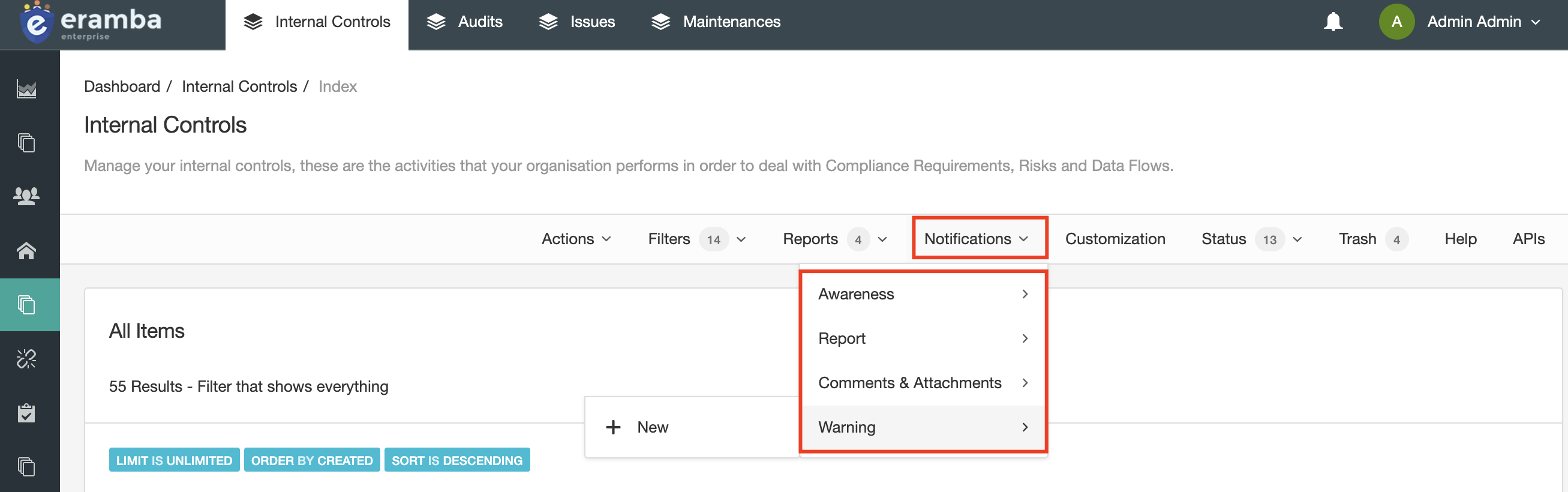
Once you know how notifications are used you can apply that knowledge to any module.
Just like spreadsheets, building a GRC program is simpler than operating it. The reason for this is that a GRC program is composed of many items (this is why eramba has so many modules) and these modules' data must be kept up to date in order to reflect the reality of your organisation.
For example:
- Policies must be reviewed
- Internal Controls must be tested
- Risks must be reviewed
- Projects have deadlines, and their tasks too
- Etc
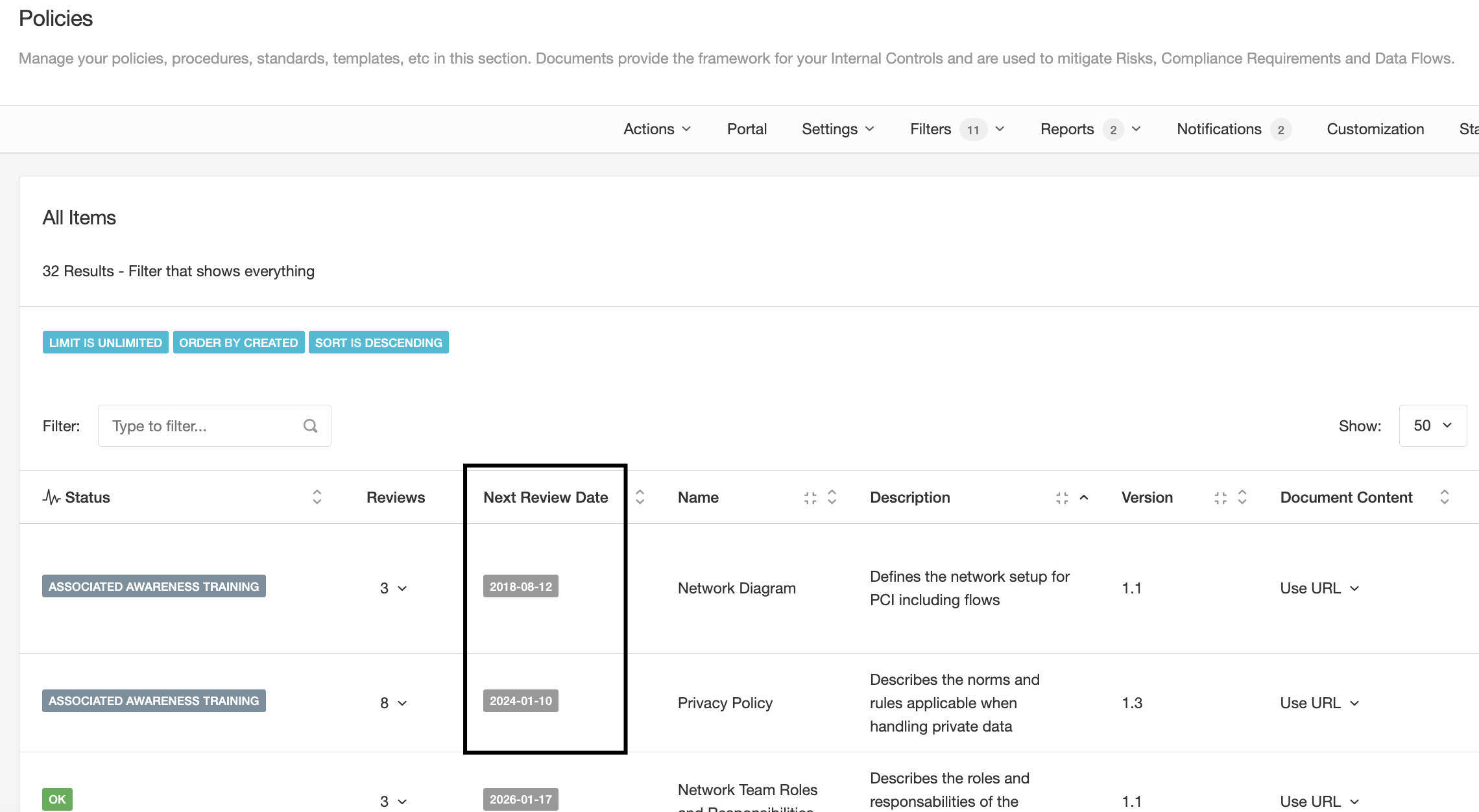
To keep up with all these deadlines and tasks you need two things:
- An owner for every task that understands what the task is all about
- A notification that reminds the owner when things are due
All items created in eramba will require you to assign an owner (typically a team), for example:
- The network policy is owned by the Network Team
- The CCTV Internal Control is owned by the Physical Security team
- The Risk "Website could be hacked" is owned by the Applications Team
- Etc
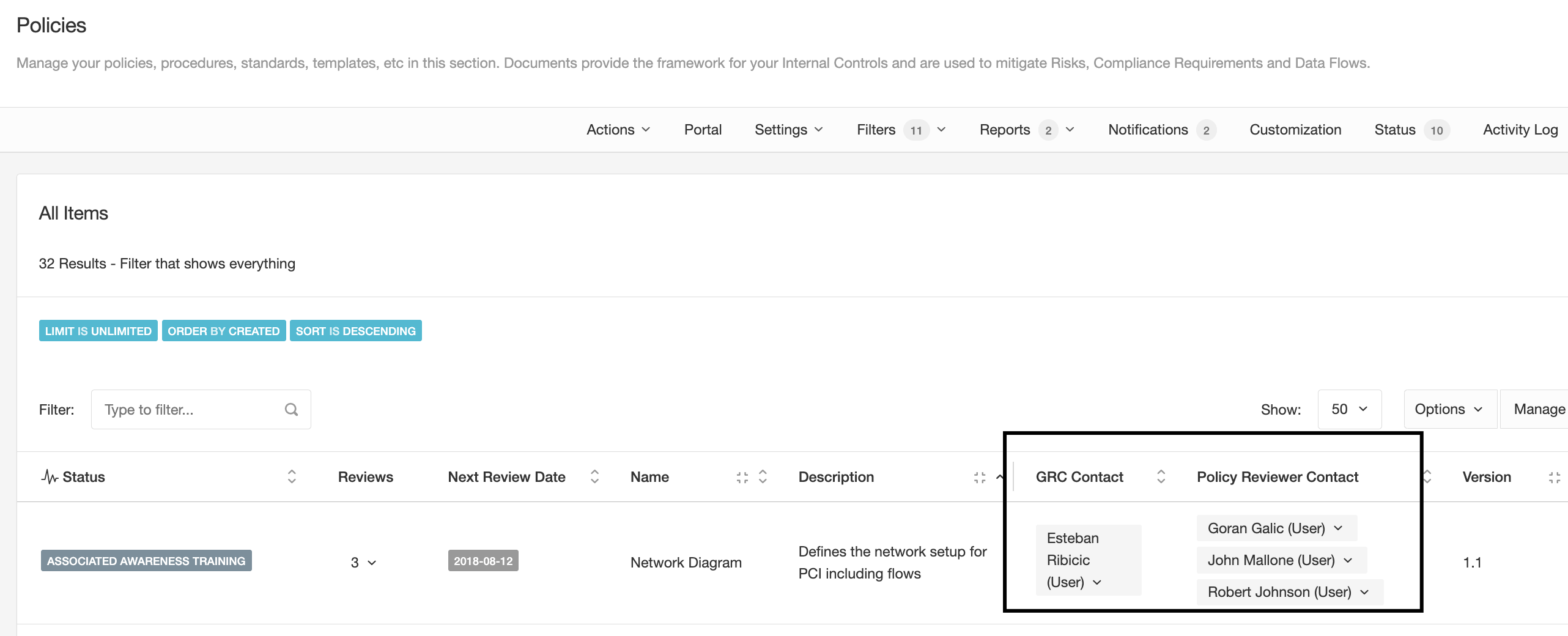
All these items will also have an additional role, one that tells eramba who in your GRC team is related to that object. In the end, you will have almost in every module two roles.
Typical Scenarios
You can configure, on every one of these modules, different types of notifications that will trigger specific events. The typical basic notification is called "Warning" and works the same way on every module.
- For any item (risk, control, policy, etc) with a deadline due, eramba will notify the "Owner" and (optionally) the "GRC Contact". You can actually define any recipient you want, but those are the typical ones.
- The "Owner" clicks on the email (which by the way can be fully customized), logs into eramba and provides feedback on the item.
- The "GRC Contact" gets a notification of the feedback, and replies.
- The two steps above can take multiple rounds until at some point the "GRC Contact" edits the item (Risk, Policy, etc.).
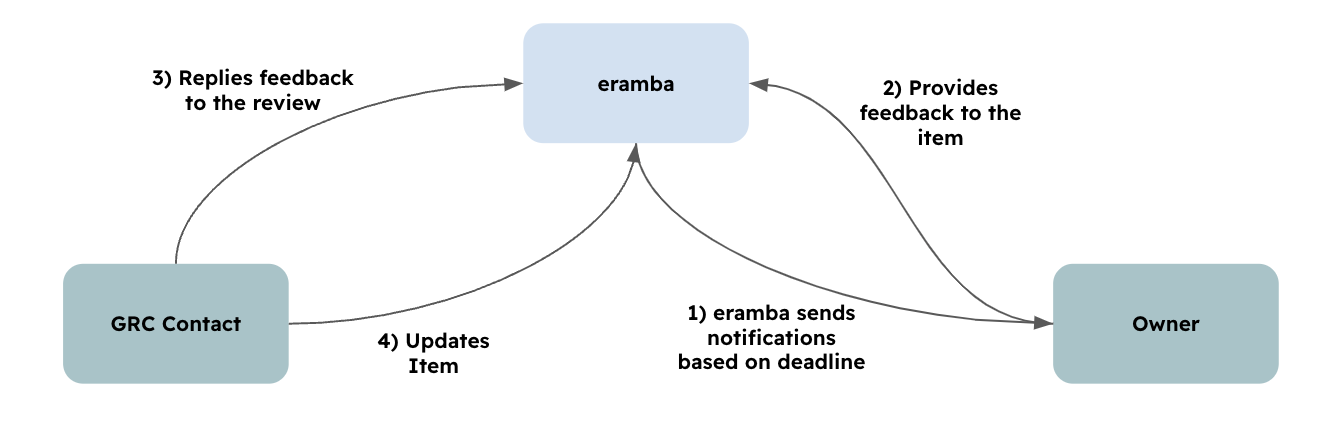
You can configure the workflow in any way you want, you could decide that the notification goes to the GRC Contact instead of emailing the Owner. The GRC Contact will then, offline (in person, email, etc) talk to the "Owner" and simply update the item a summary of those conversations.
Another, very popular type of notification in eramba is a "Report" notification. This is because sometimes you want a "list of things" that interest you sent to your email regularly so you can "keep up with tasks". For example:
- List of Policies that expire next week
- List of Risks owned by IT, which are "High Risk", that are expired
- List of all new Internal Control audits created last week
- Etc
The first step is to create this list, you will use the Filters built-in feature in eramba, there are million possible combinations. Once you have the filter created you will simply create a Report notification.
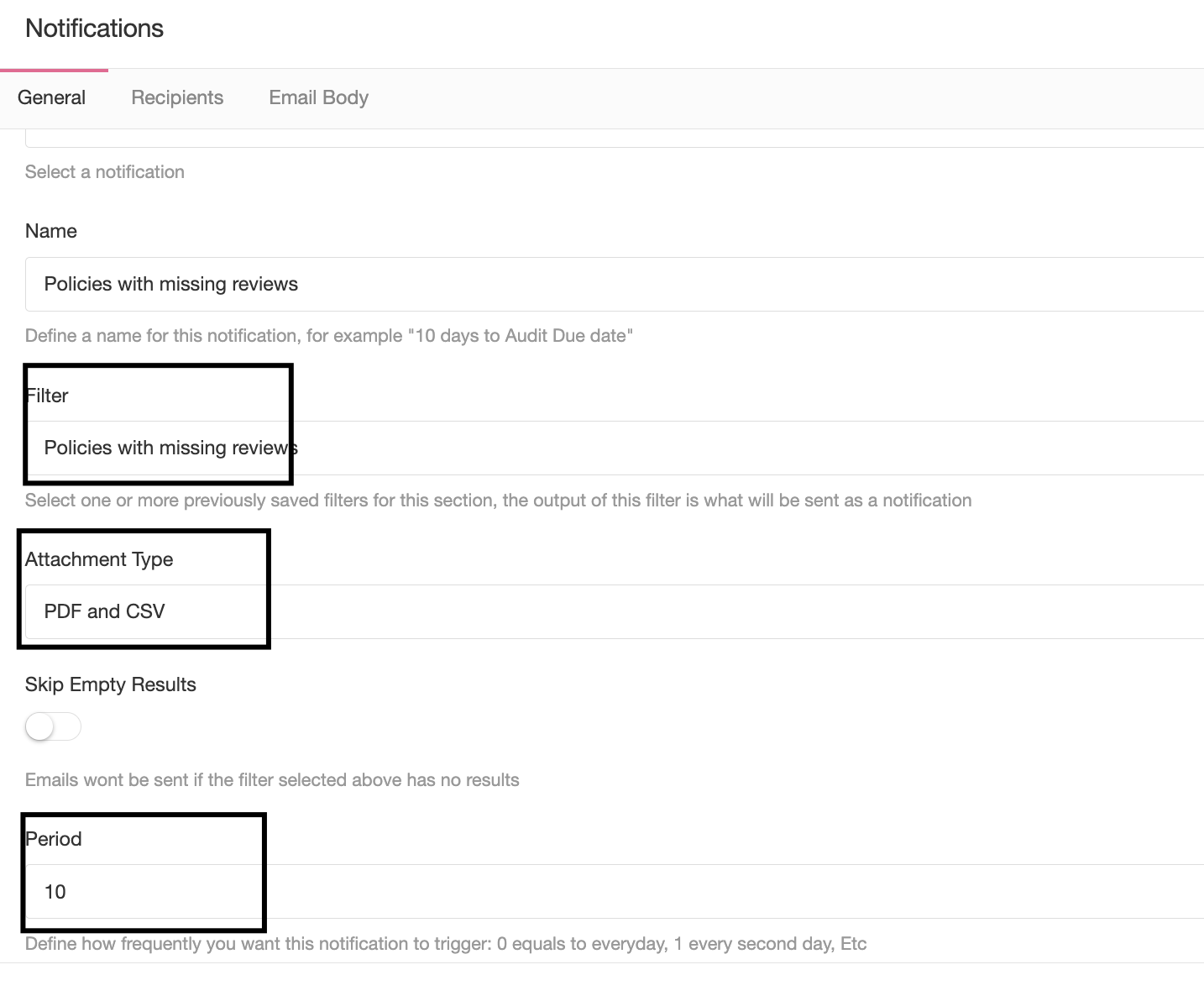
eramba will run that filter as frequently as you have defined and whatever the filter produces (it might be empty) will be sent by email to your desired recipients.
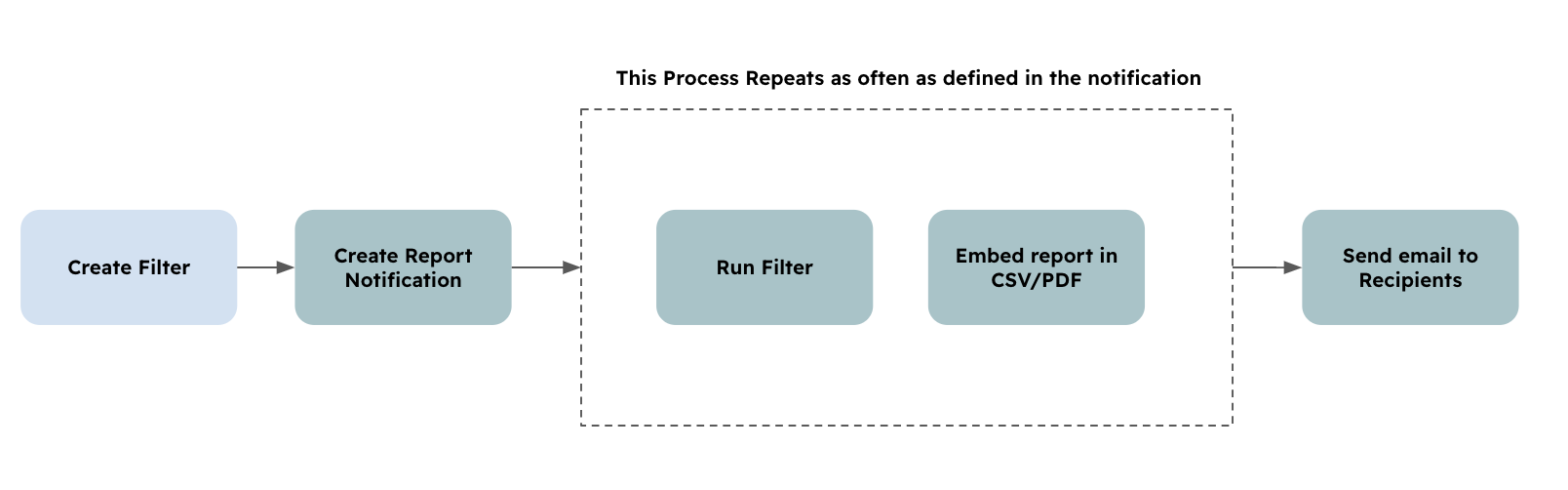
The typical module will include a combination of the two notifications explained above, warning and report.
The third and perhaps more interesting notification for those interested in advanced automation is a variant of the warning notification explained before, but the trigger in this case is not a deadline but any condition you define.
The condition is a Dynamic Status (please review the course, they are pretty flexible) something built into the core of eramba. Every module's first column will show the status configured on that module.
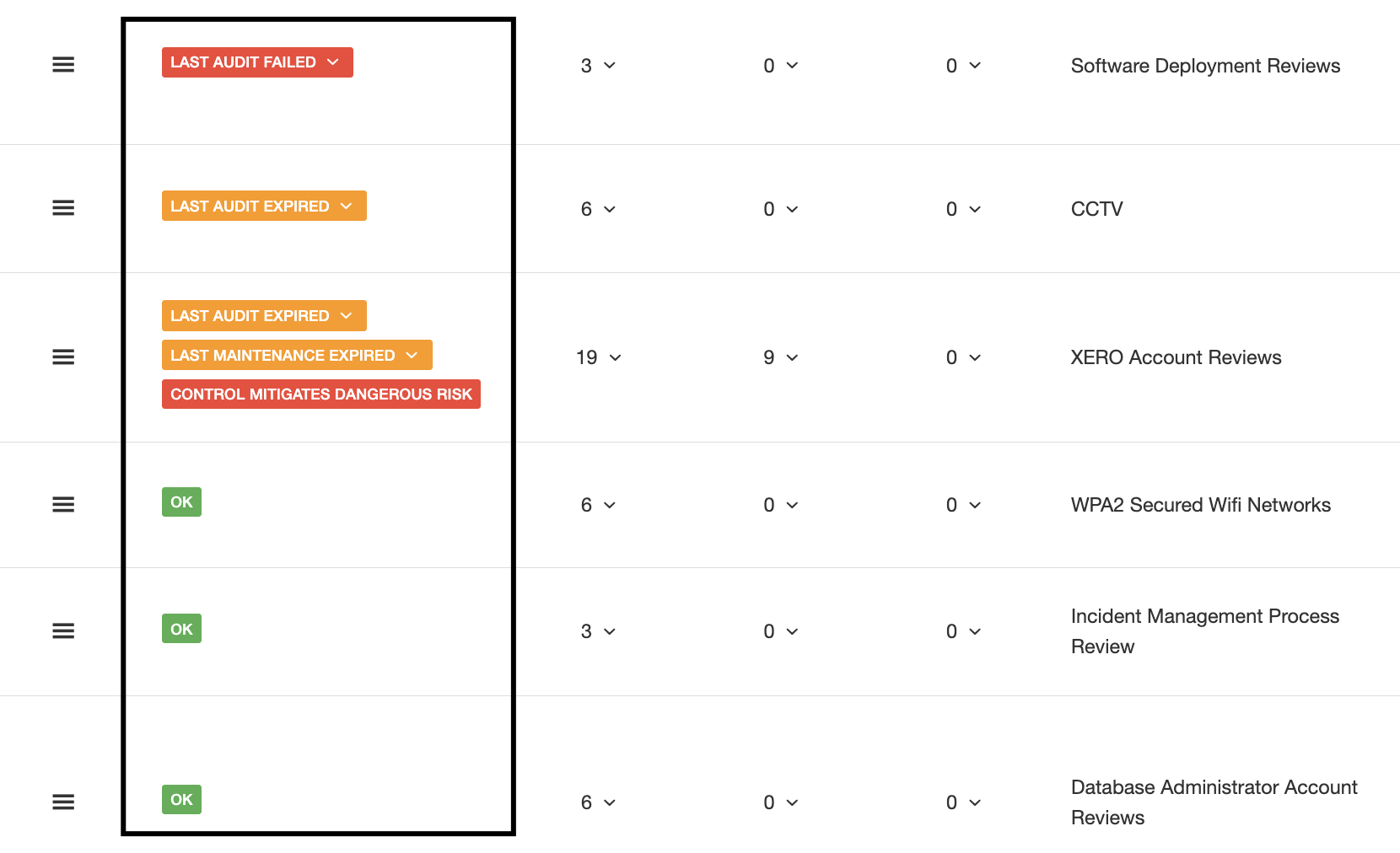
You can configure this status in any way you want with advanced conditions that include field comparisons, functions, etc. For example:
- When a Risk is "High" and the mitigating control last audit is Failed
- When a Policy name includes the word "Policy"
- When more than 30% of the audits of an Internal Control are set to "Failed"
- When a Risk status includes "Accept"
- Etc
When your conditions match, they will show a status. When they match they can also trigger notifications defined by you.
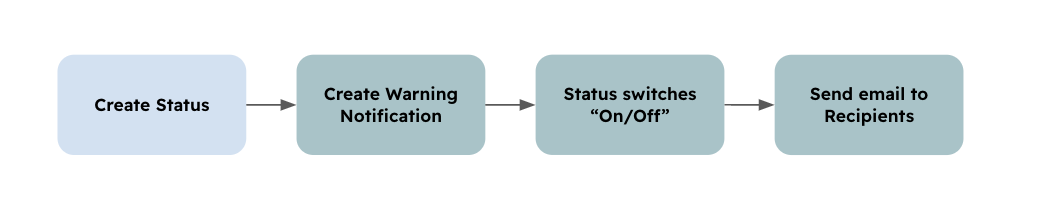
The notification is very simple, you just tell what status you want to track and where to send emails.
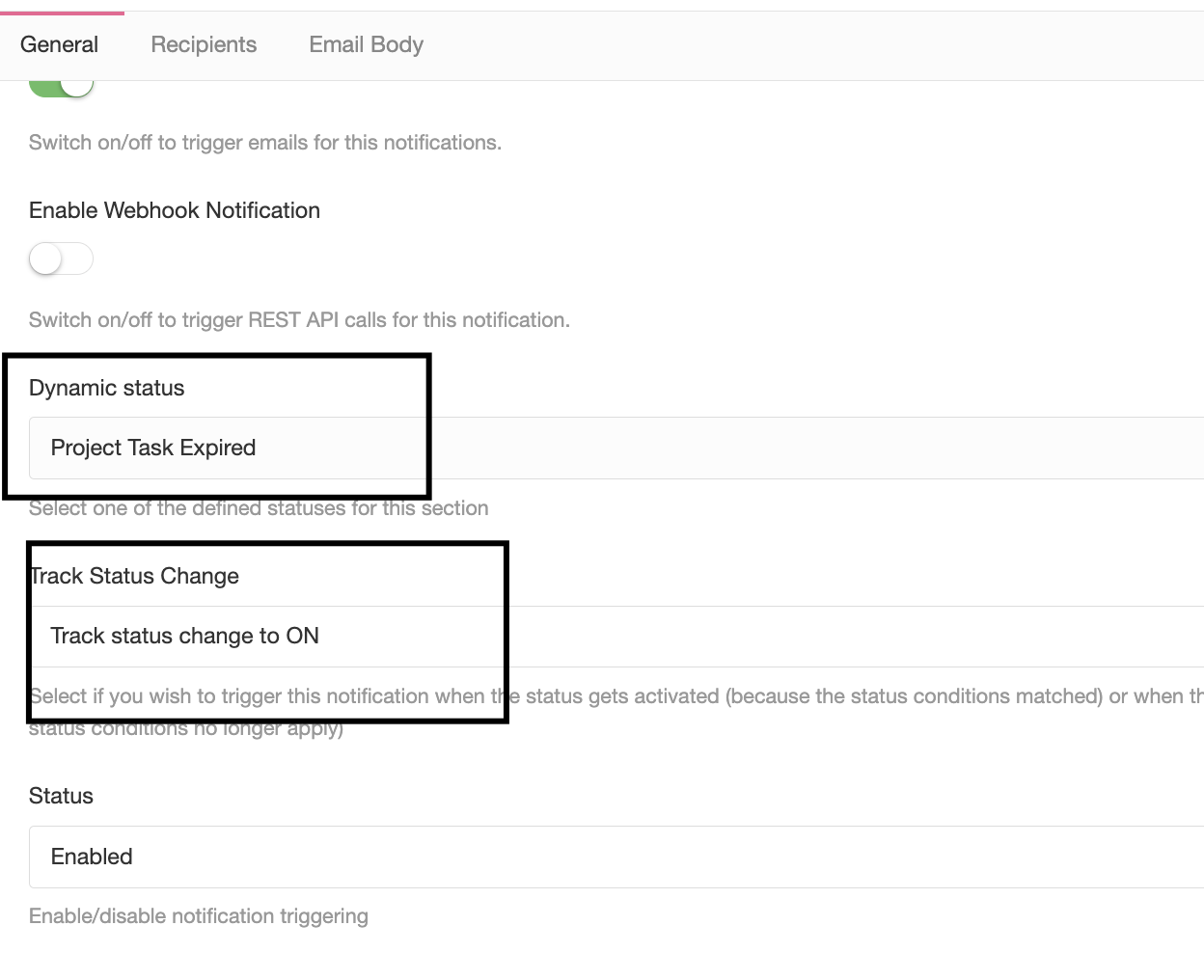
This notification offers a lot of flexibility because the trigger is fully configured based on your own settings.
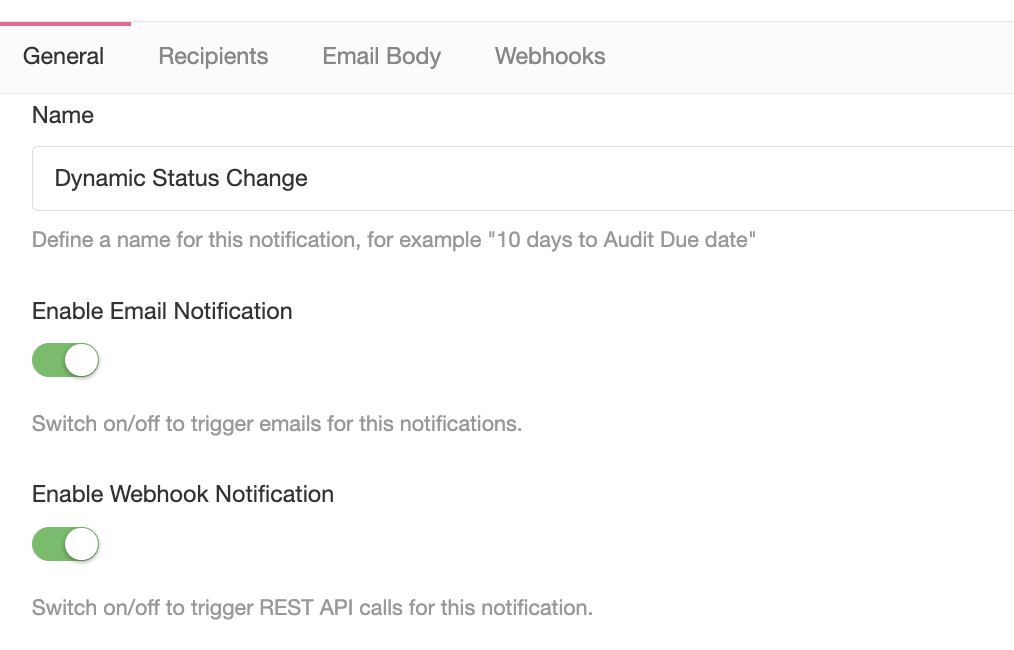
All warning notifications can be delivered in the form of Emails or/and REST APIs. You decide which will be the delivery method and the recipient. If you choose REST you will configure the endpoint, headers and payload.
Supported Versions
Notifications are available in all editions. Notifications triggered by custom Dynamic Statuses require the Enterprise edition, because custom statuses can only be created in Enterprise.
Theory
Where Notifications Are Managed
Notifications work exactly the same way no matter in which module or sub-module you are. This means you will open Common Features / Notifications and configure them as you wish.
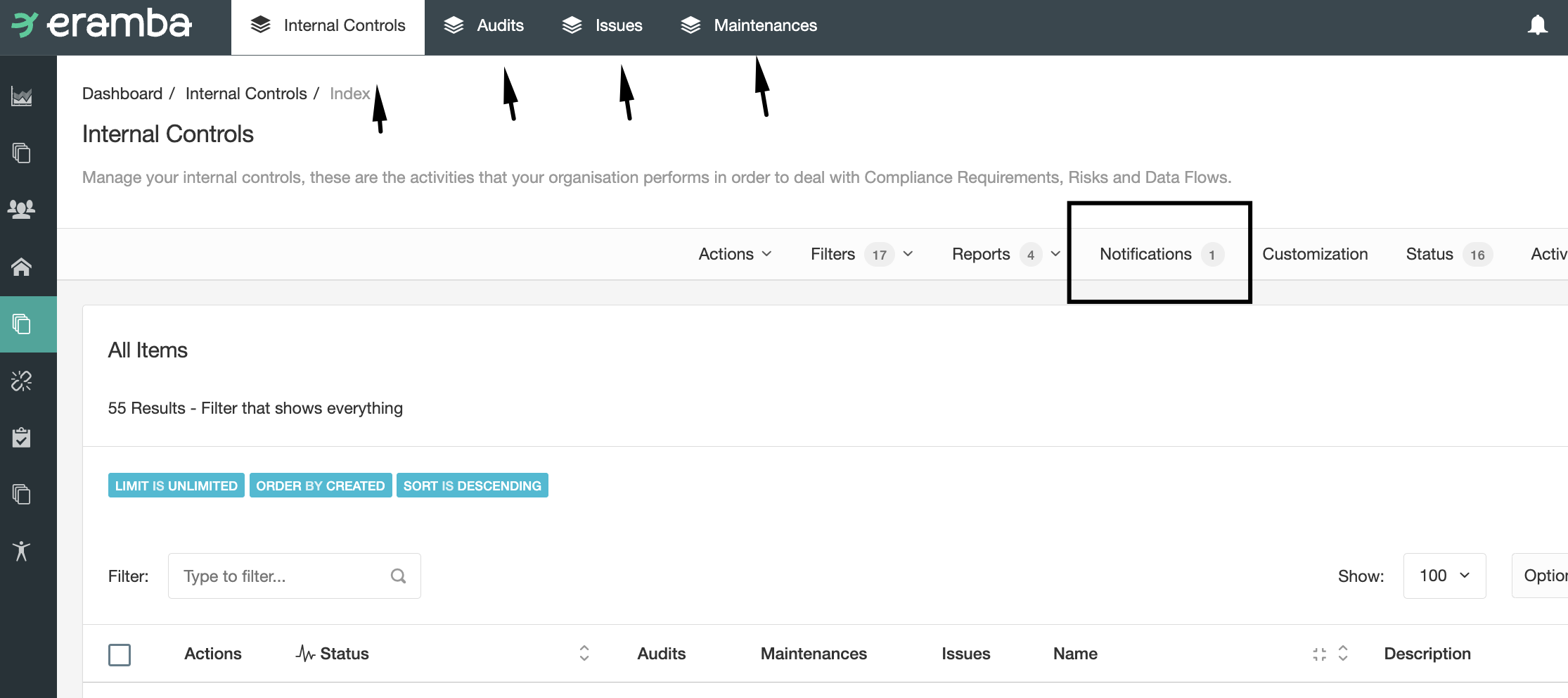
In the screenshot above, the Internal Control module has three sub-modules (Audits, maintenance and Issues). Each one of these four tabs has its own Notifications option.
Whatever notification you create on each module will affect ALL items on that module.
For example:
- If you create a -1-day (1 day before the deadline) warning notification on the Audit module, that notification will run every night, checking all audit records on the module and looking at those with a deadline the day after.
- If you create an awareness notification on the Internal Control module that reminds people they own a control every 10 days, then every 10 days eramba will send one email per Internal Control found on the module.
All notifications are configured from Common Features / Notifications.
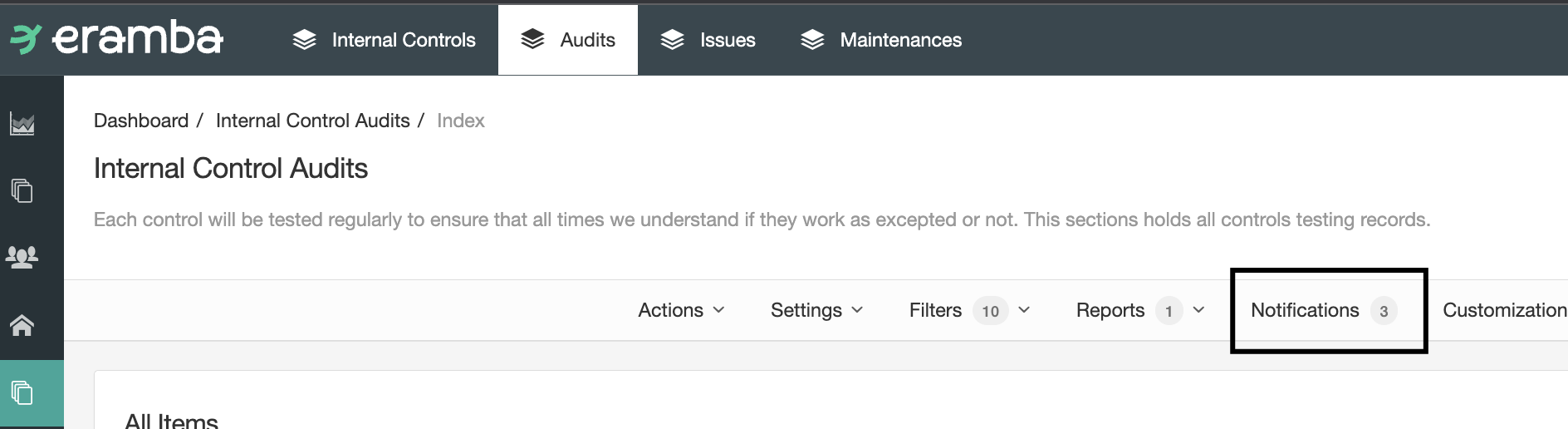
From there you can create notifications and see what notifications already exist (eramba ships with some default notifications)
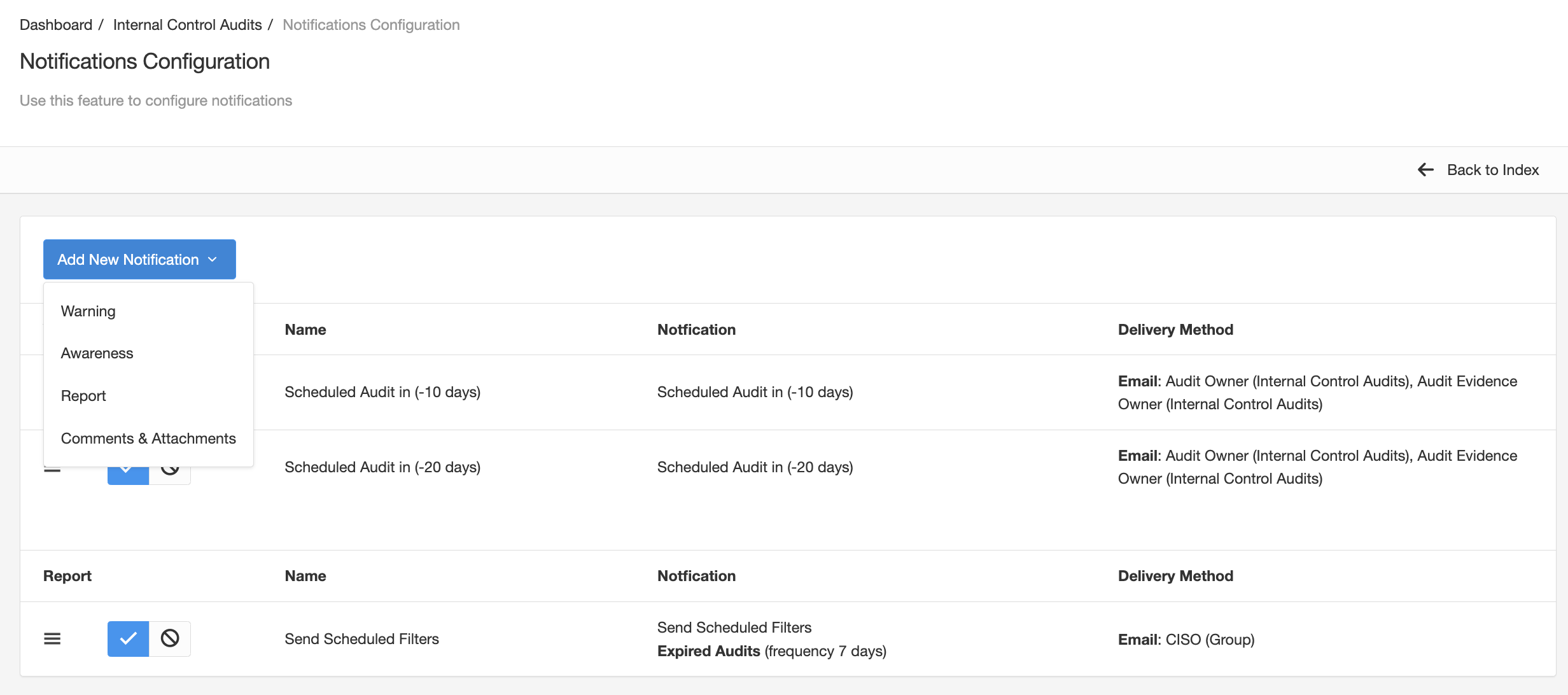
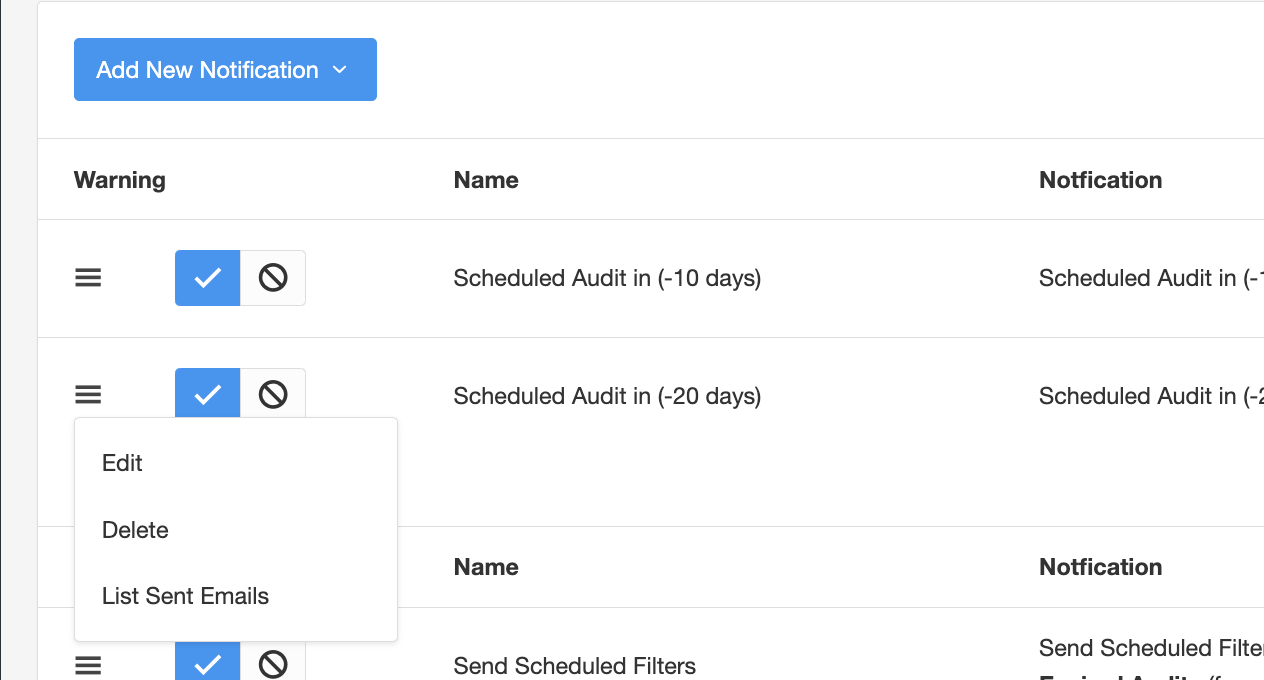
Notifications can be "Enabled" or "Disabled", this means that a notification listed might not be active. You can enable, disable, edit, delete and also see what emails the notification has sent.
Notification Types
There are four types of notifications:
- Warning: they trigger when a deadline is about to happen (or is already in the past) or when a specific situation happens, such as when an audit is completed or not.
- Comments & Attachments: they trigger when someone puts a comment or attachment in an item in eramba.
- Report: they regularly trigger a filter defined by you and email the output to whatever recipient you define
- Awareness: they trigger an email reminding people they own an item as often as you define
Warning
The warning notification has up to four possible tabs:
- General
- Recipients
- Body
- Webhook
On the general tab, the most important field is the first one where you choose the condition that will trigger the notification. The list of options depends on the module you are located.
- Deadlines: these are warning notifications that trigger against a deadline on that module.
- Hard-Coded Conditions: this triggers when a specific condition, one you can not change, triggers. For example when an Internal Control audit is completed, when an Account is created in eramba, Etc.
- Dynamic Status: this notification triggers when a Dynamic Status you selected triggers or stops triggering. This allows you to create any Dynamic Status you want and trigger against them a notification. This offers a lot of flexibility.
Deadline-related notifications only exist on those modules where a "Planned Deadline" or "Planned Date" exists. You will see other conditions as well, for example, the screenshot below shows that notifications can be sent when an audit is marked as "Passed" or "Failed".
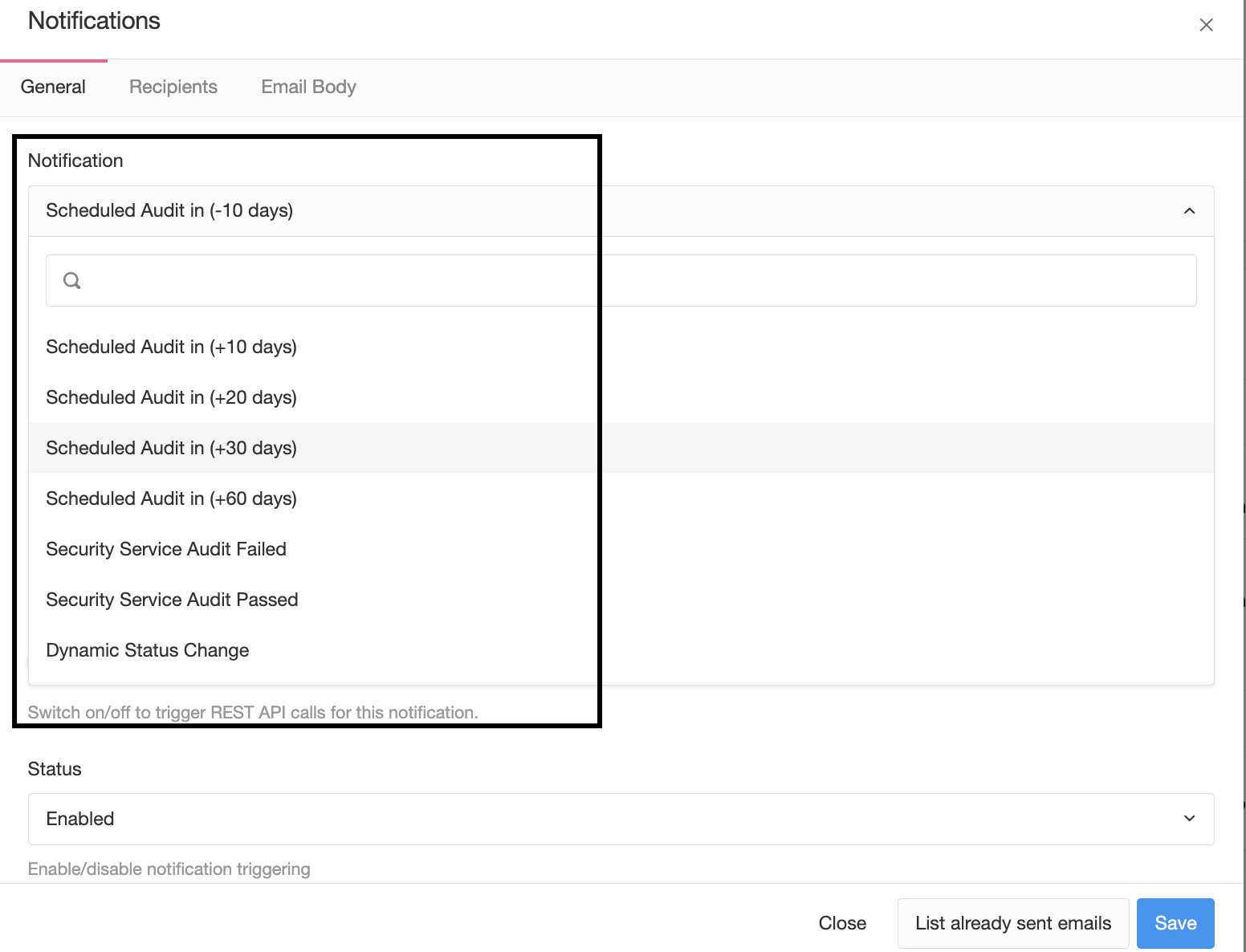
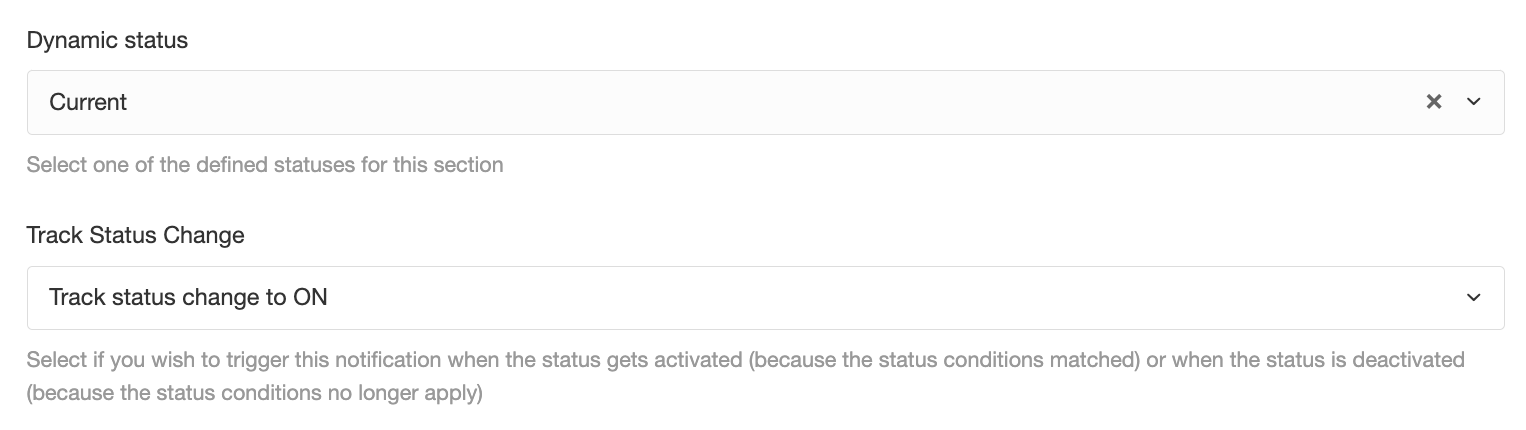
If you choose the option "Dynamic Status Change" eramba will let you choose the Status you wish to use to trigger the notification and if the trigger should occur when the status matches or not.
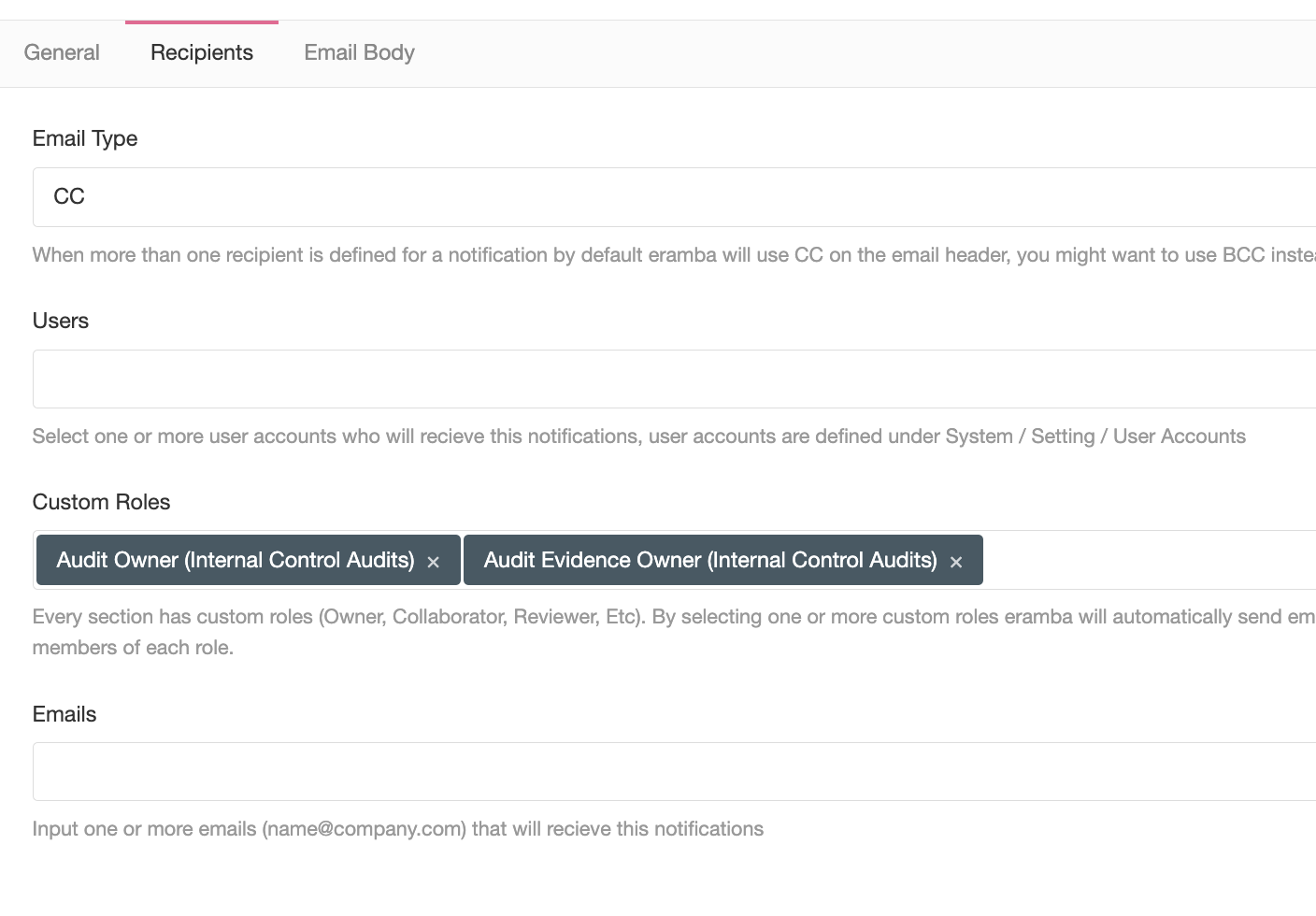
On the recipient tab, you will have three options. Remember that in most scenarios you will need to use a Custom Role.
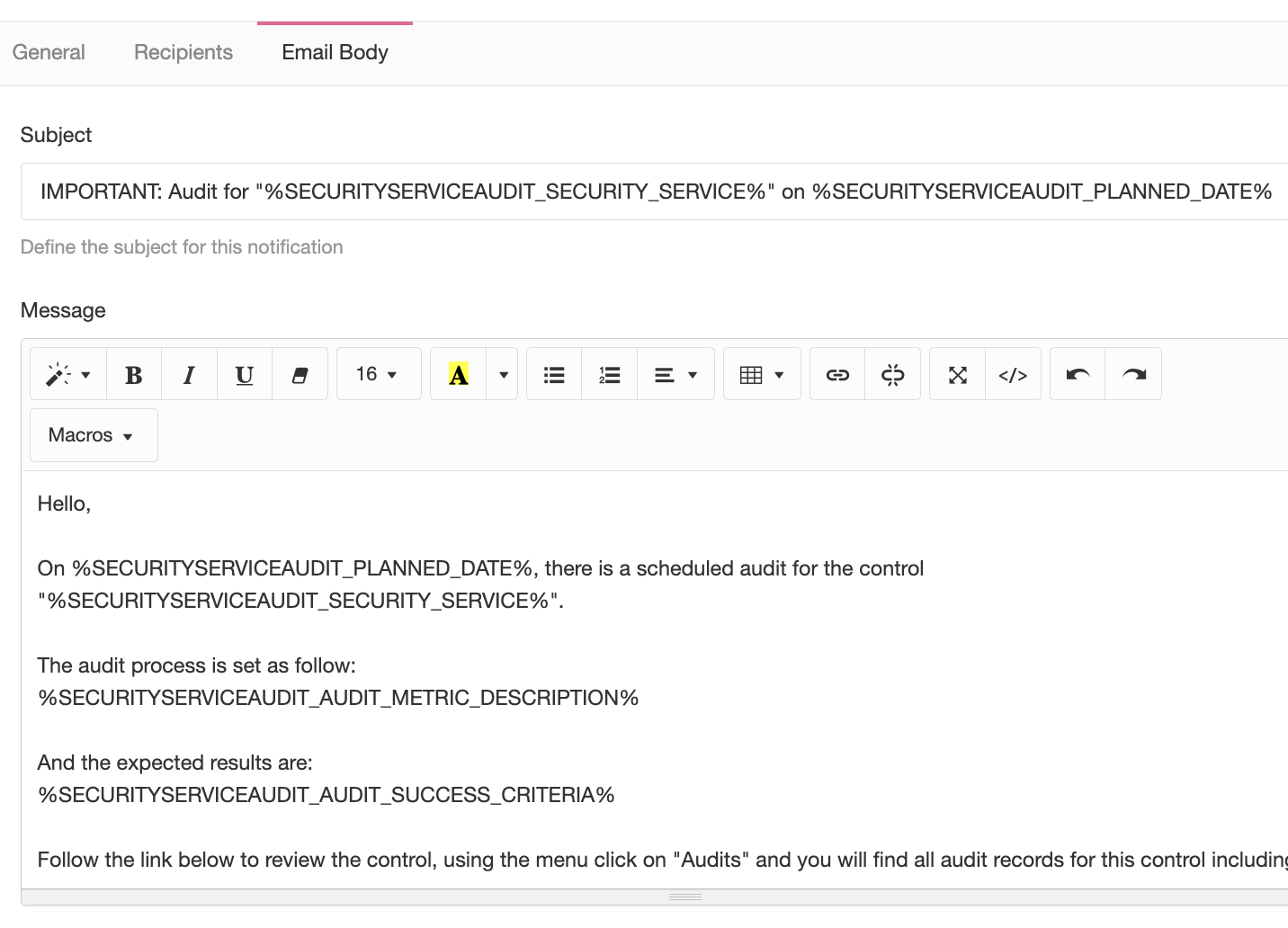
You can customise the email Subject and Body as well.
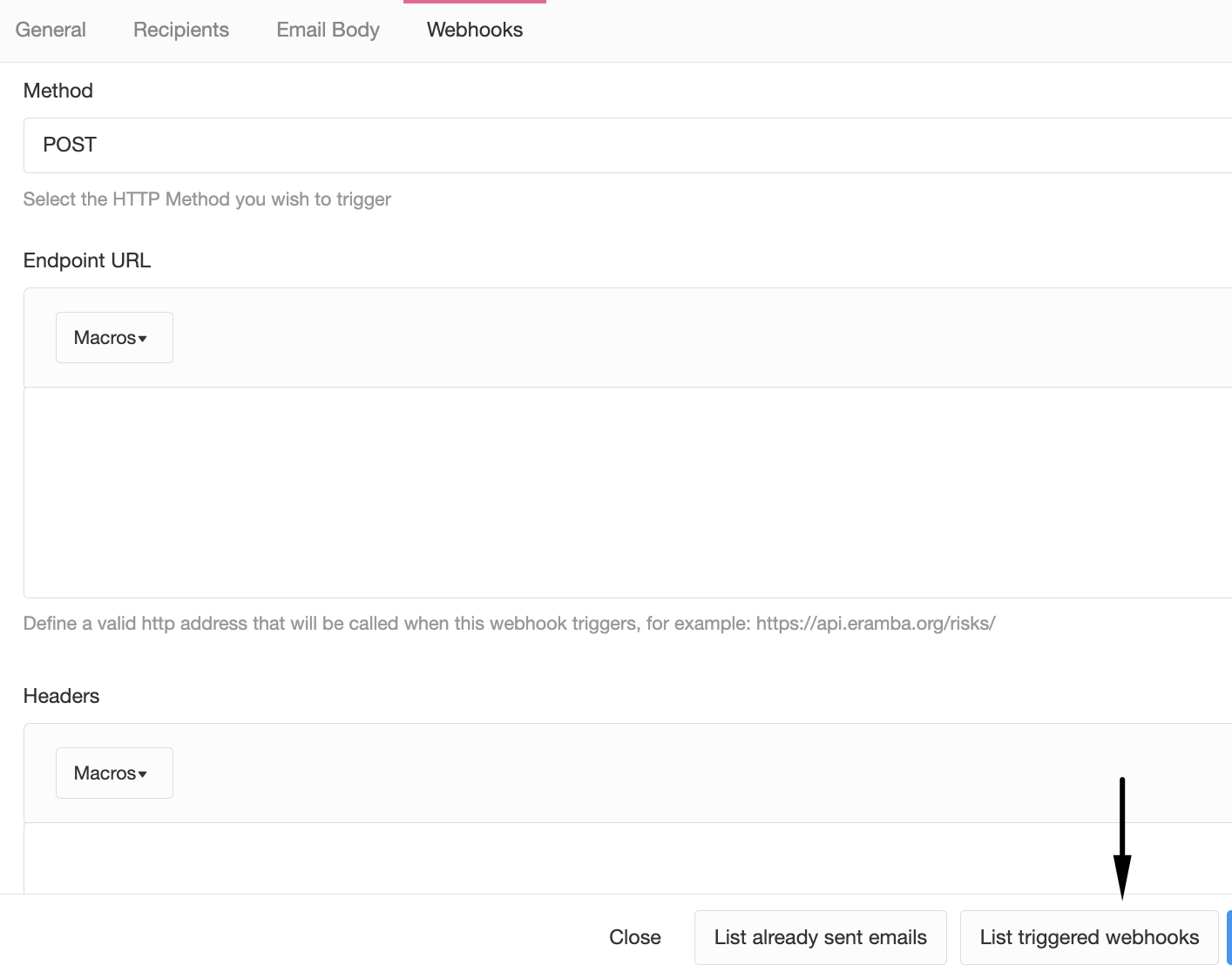
If you have opted for Webhooks (on the first tab) a tab will be displayed showing you all REST settings.
Comments & Attachments
The Comments & Attachment notification has up to four possible tabs:
- General
- Recipients
- Body
- Webhook
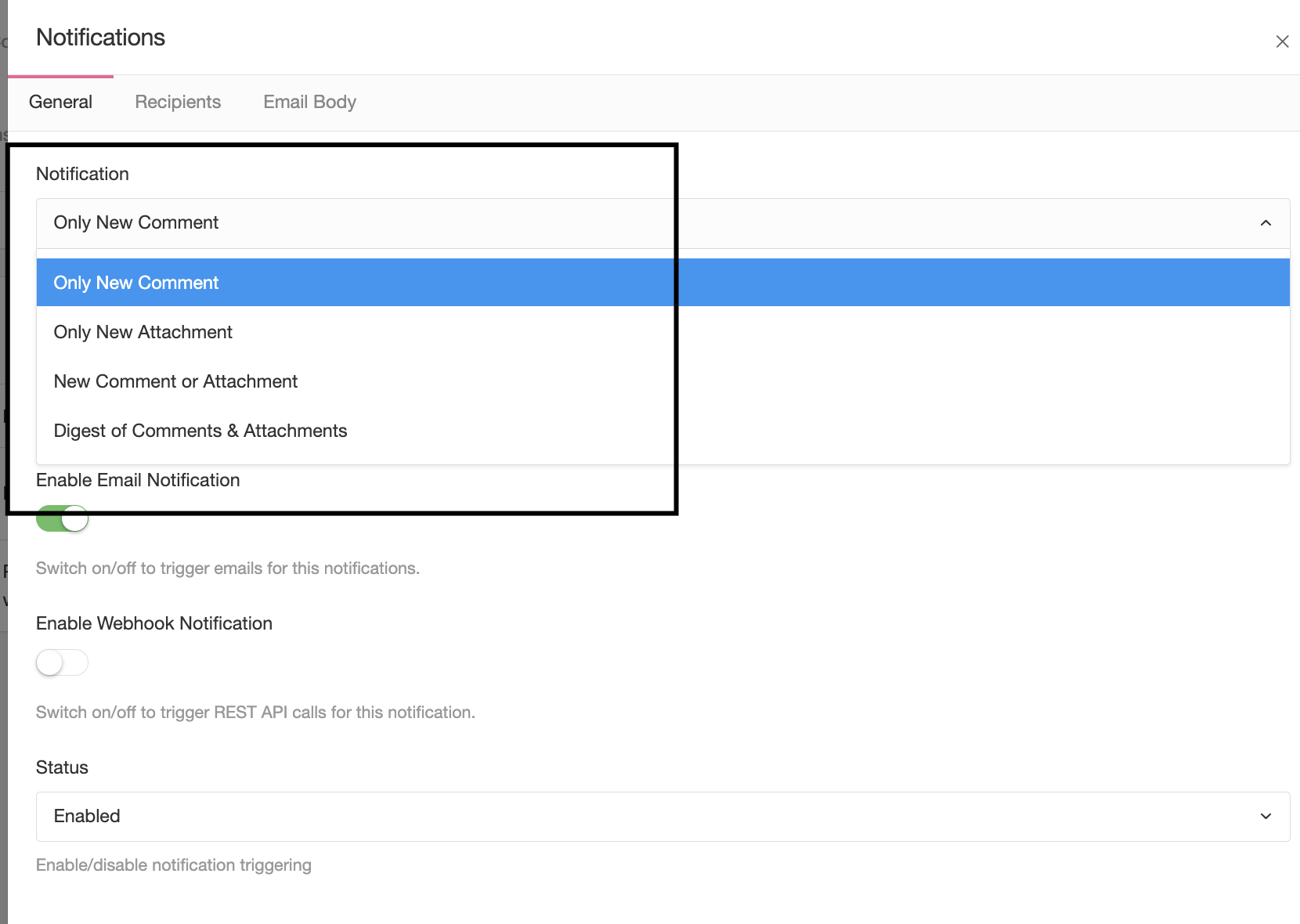
On the general tab, the most important field is the first one where you choose the condition that will trigger the notification.
- Comments Only: when someone submits a comment, eramba will immediately trigger an email
- Attachments Only: when someone submits an attachment, eramba will immediately trigger an email
- Comments & attachments: when someone submits one or the other, eramba will immediately trigger an email
- Digest options: instead of sending emails for every comment or attachment, eramba will send a daily digest.
On the recipient tab, you have the same options as the Warning type of notification. Most of the time you will use "Custom Roles" to trigger emails and you will most likely re-use the same settings you have on your Warning notification (because you want the same people to be notified).
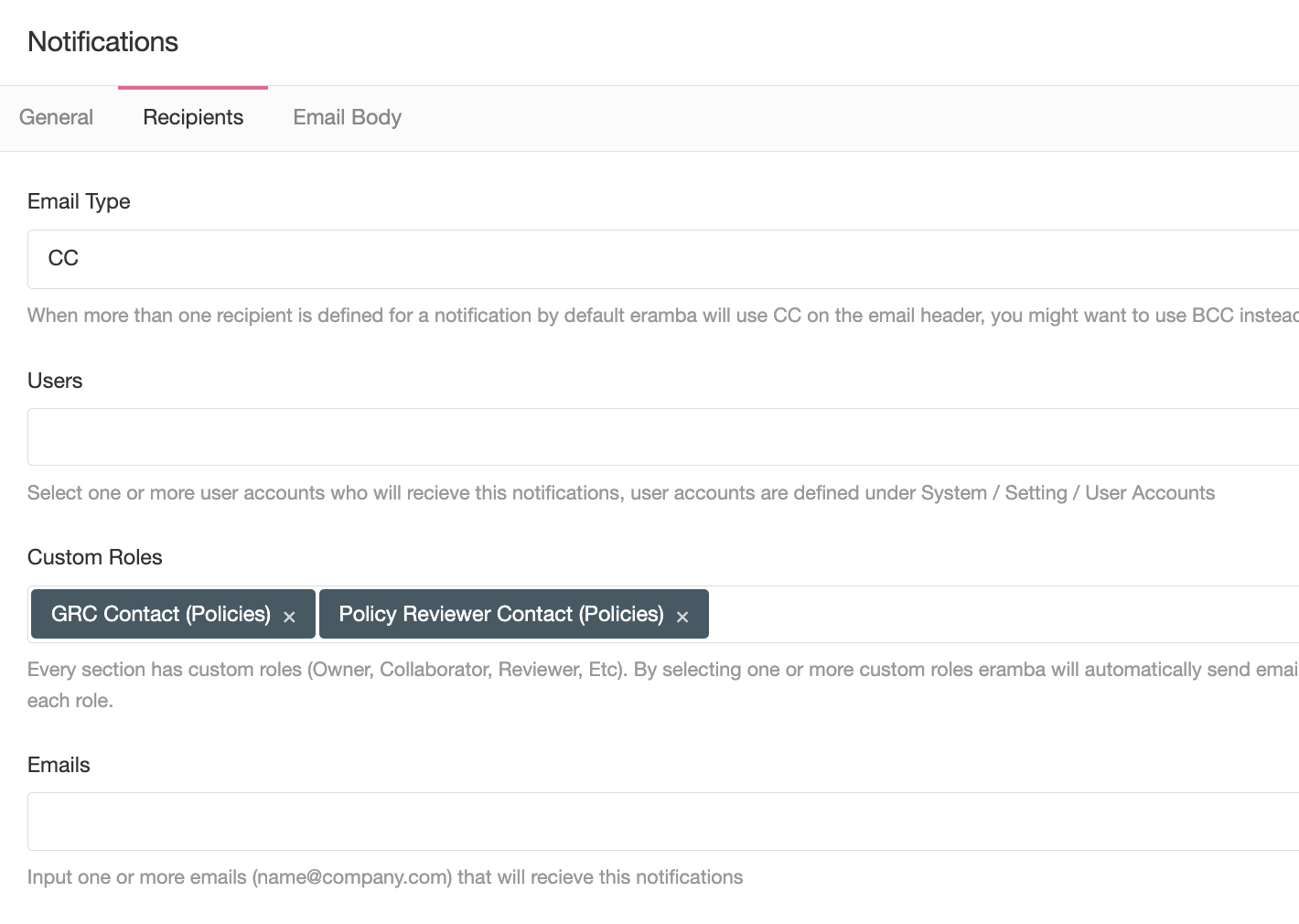
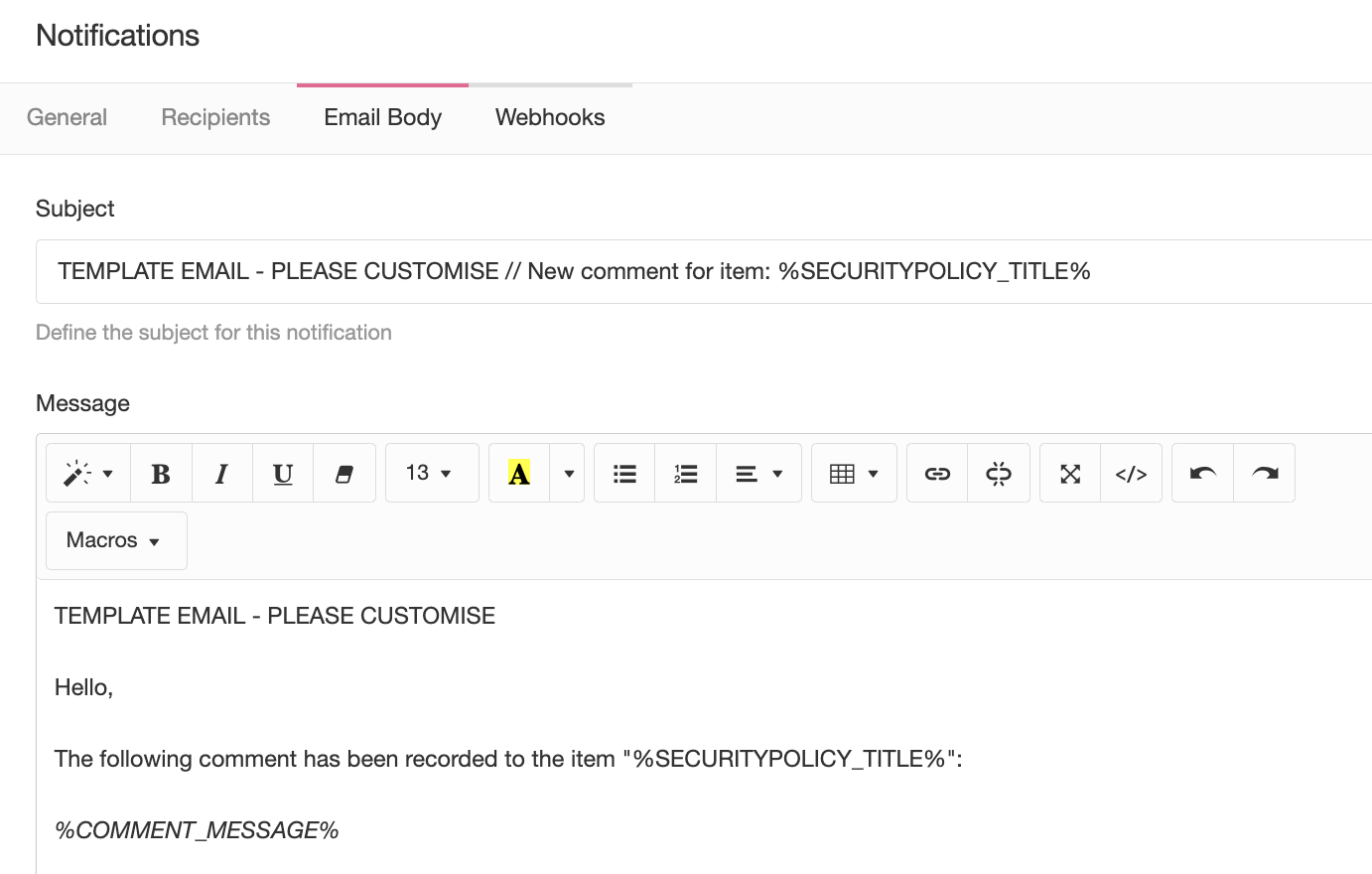
You can adjust the body and subject of the email sent or define Webhooks. In both cases, you can use macros to inject attributes of the item (title, deadline, description, etc) that triggered the notification.
Report
The report notification has three possible tabs:
- General
- Recipients
- Body
On the general tab, the most important field is the first one where you choose the condition that will trigger the notification.
- Filter: you will select the filter you wish to email
- Report: you will select the report template (section type) you wish to email
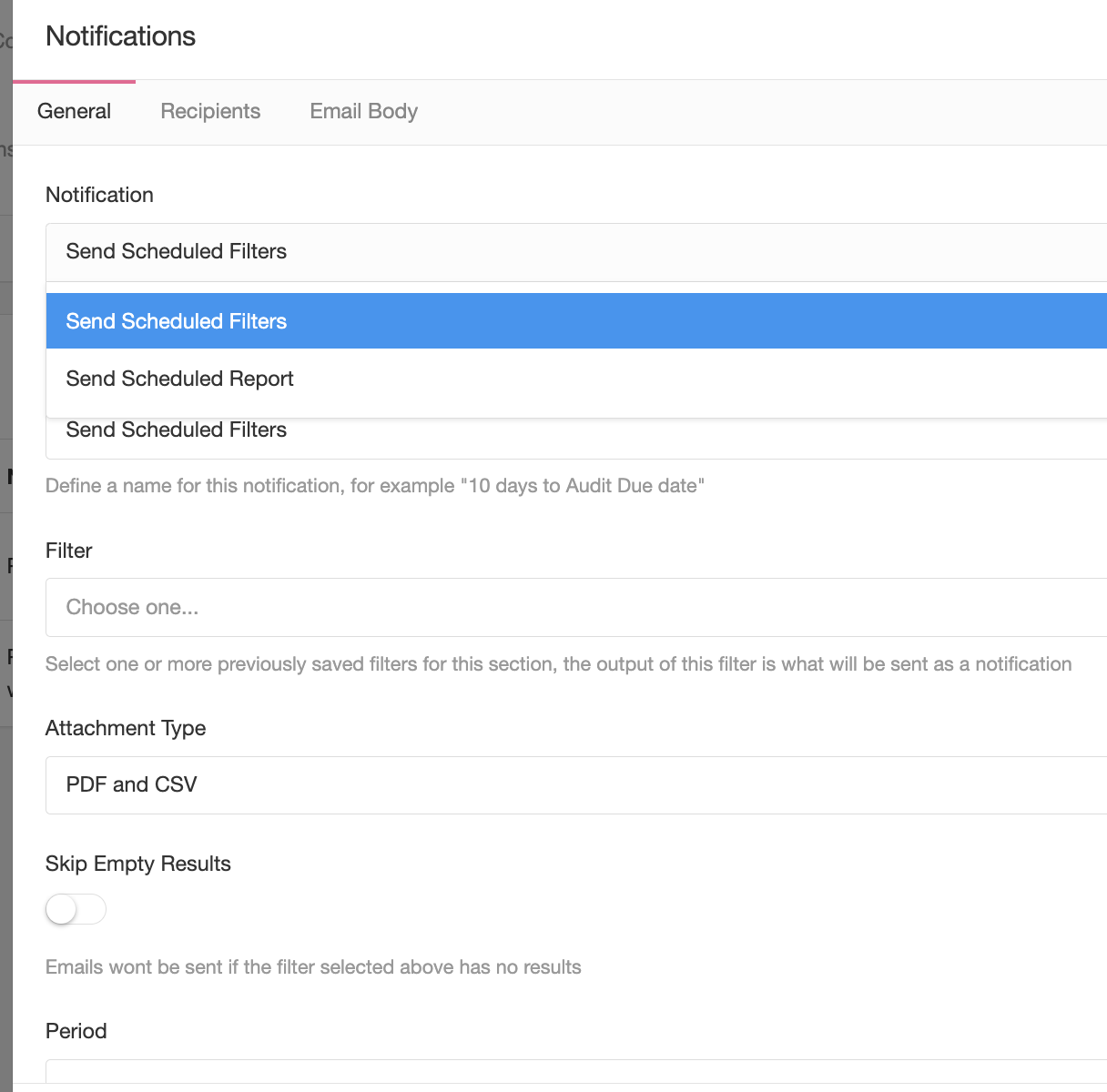
If you wish to send filters, you can also choose in which format you want them to be attached. Graphical Reports use PDF by default.
In the scenario where Filters are sent, you can choose if you want to trigger emails in the scenario where the filter produced no results. For example, if the notification runs every 10 days and in one instance the filter when executed produces zero matches, then the email will not be sent.
The period is an important parameter, it tells eramba how often (in days) you wish eramba to execute the report or filter and send it by email.
The recipient tab provides three options, basically, who should receive the report. There is no "Custom Role" option as in the previous notification types because these notifications are not triggered by an Item in the module.
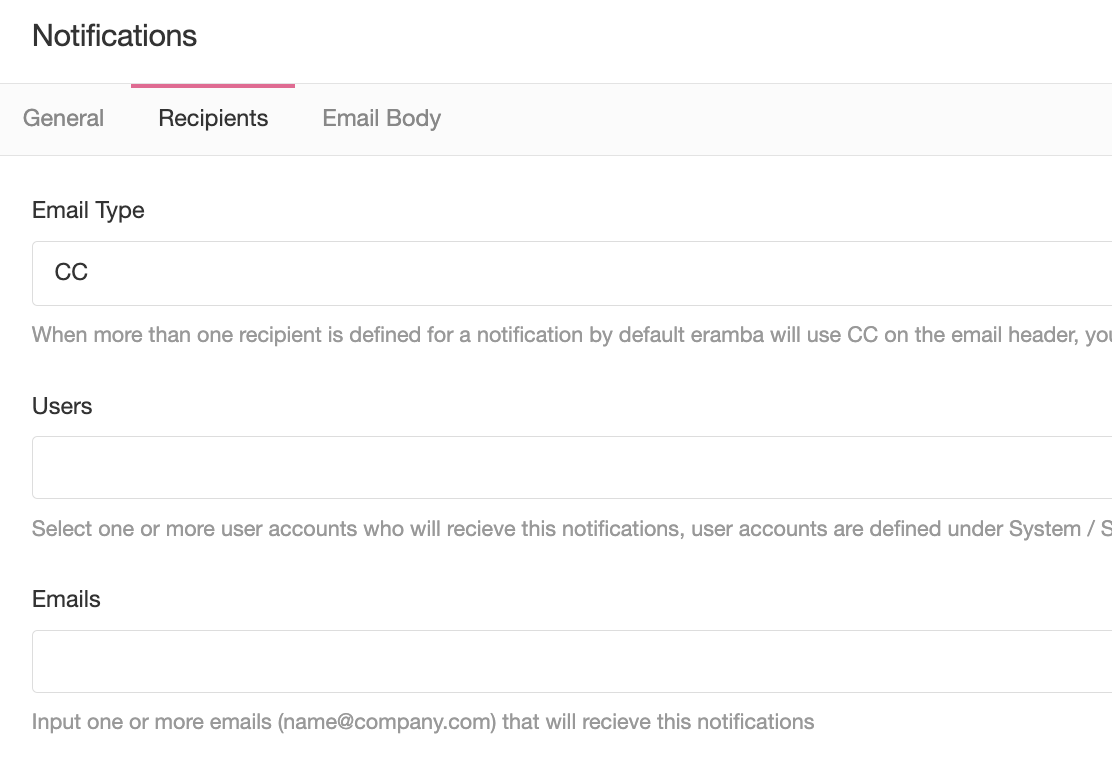
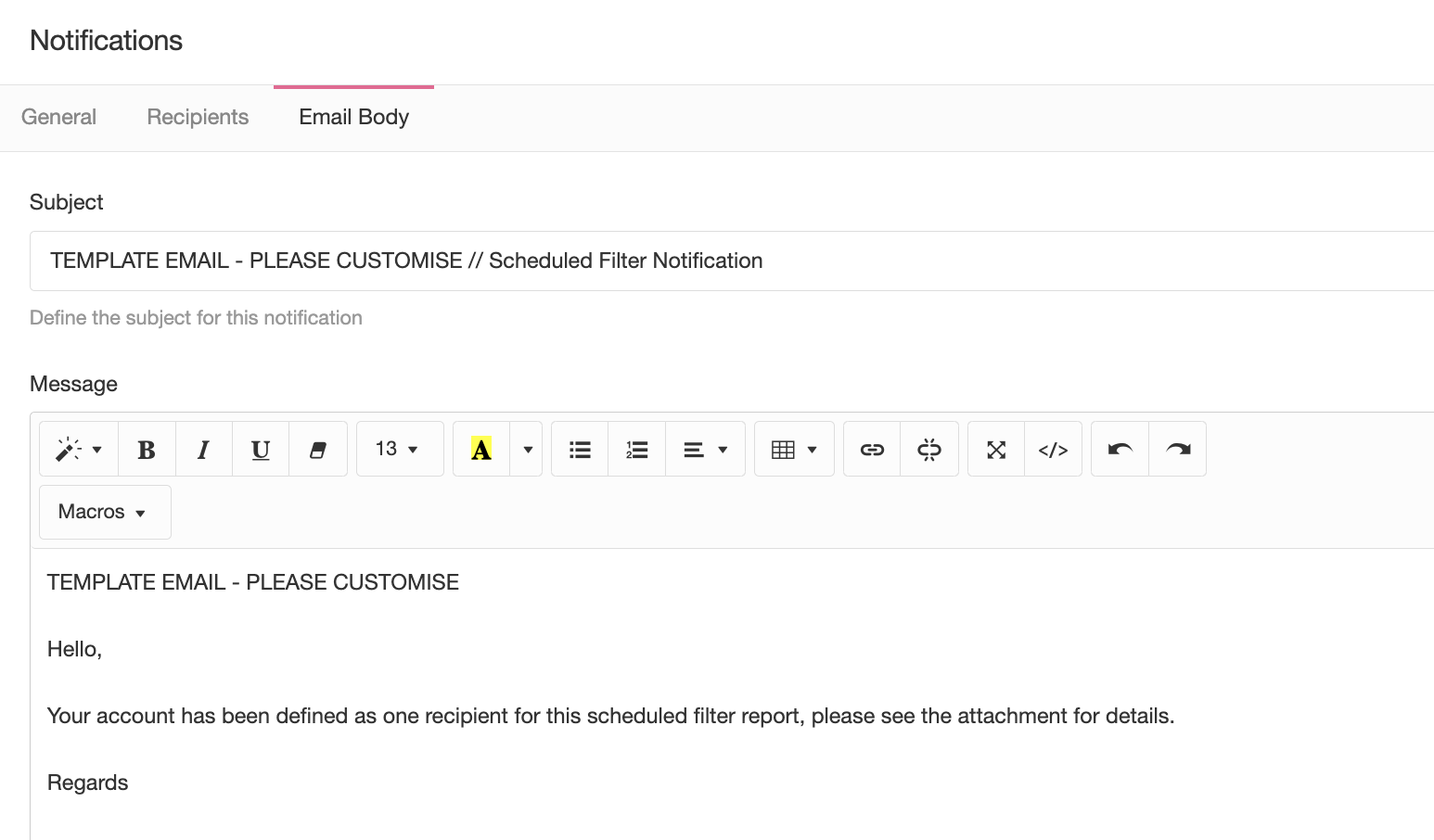
You can customise the subject and body of the email, there is no macro option in this case because these types of notifications are not triggered by a specific item.
Awareness
The Awareness notification has up to four possible tabs:
- General
- Recipients
- Body
- Webhook
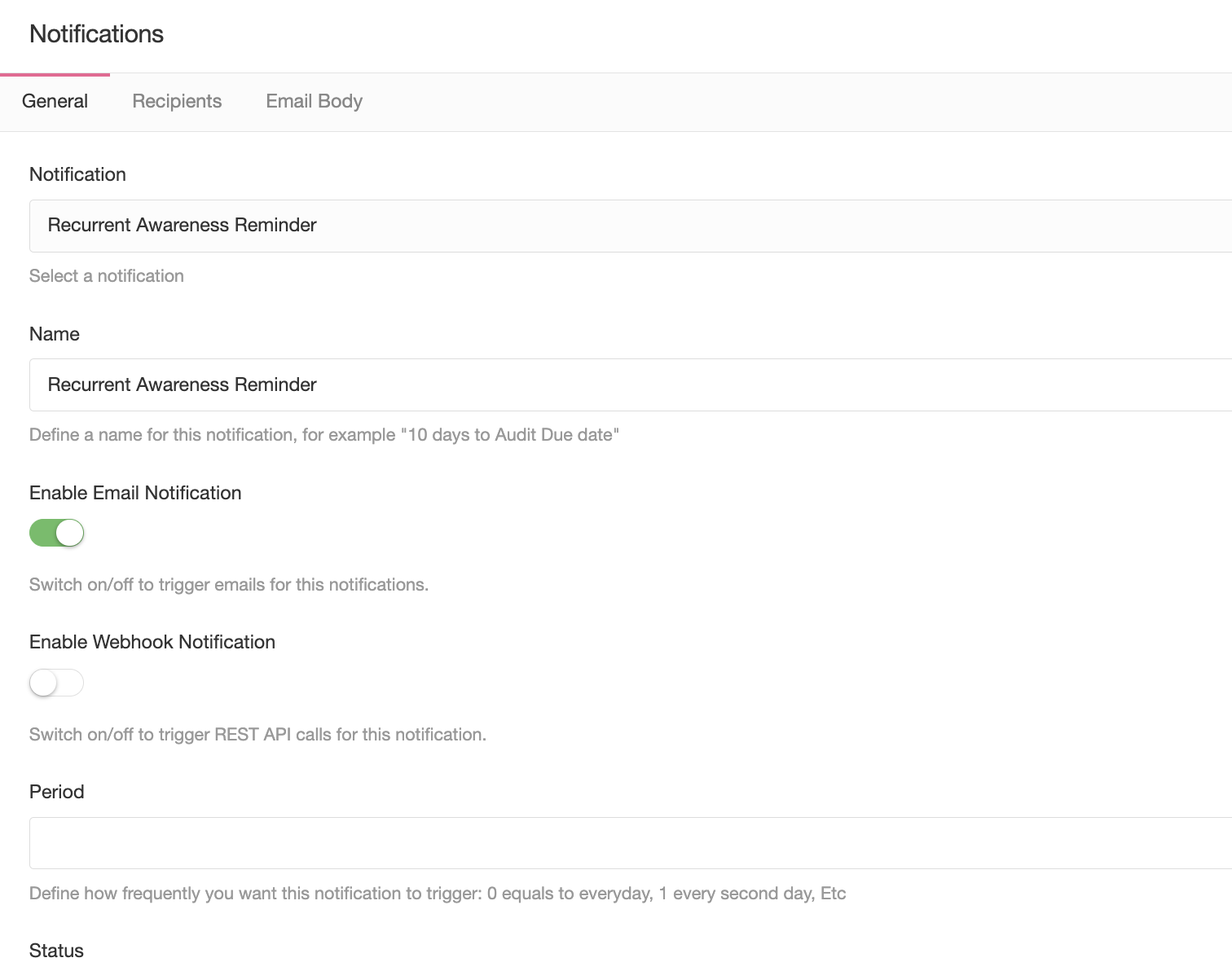
On the general tab, the most important field is the recurrence field, this tells eramba how often it should trigger an email for every item on that module.
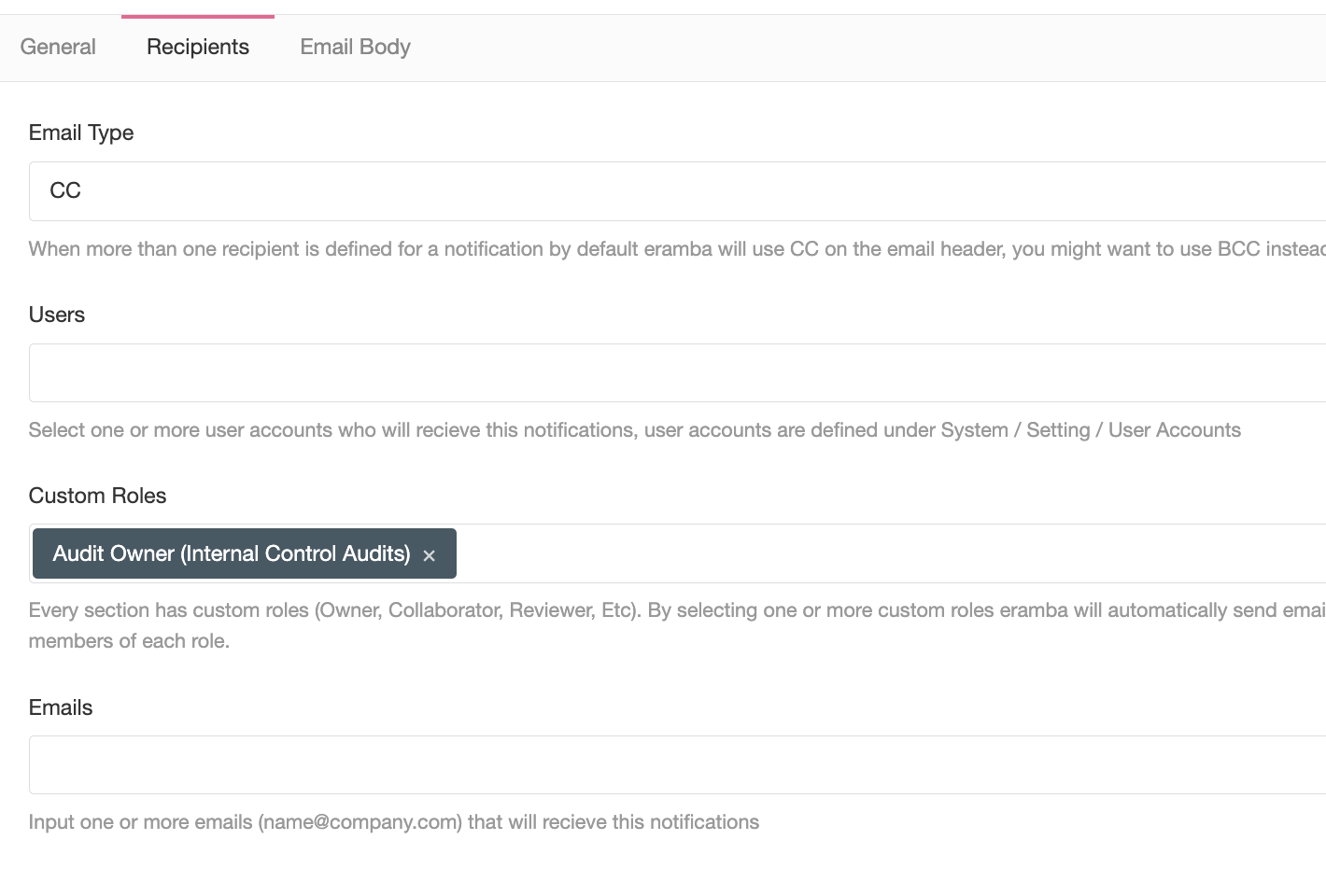
On the recipient tab, you have the same options as the Warning or Comments & Attachments type of notification. Most of the time you will use "Custom Roles" to trigger emails to whoever is related to the item that triggered this notification.
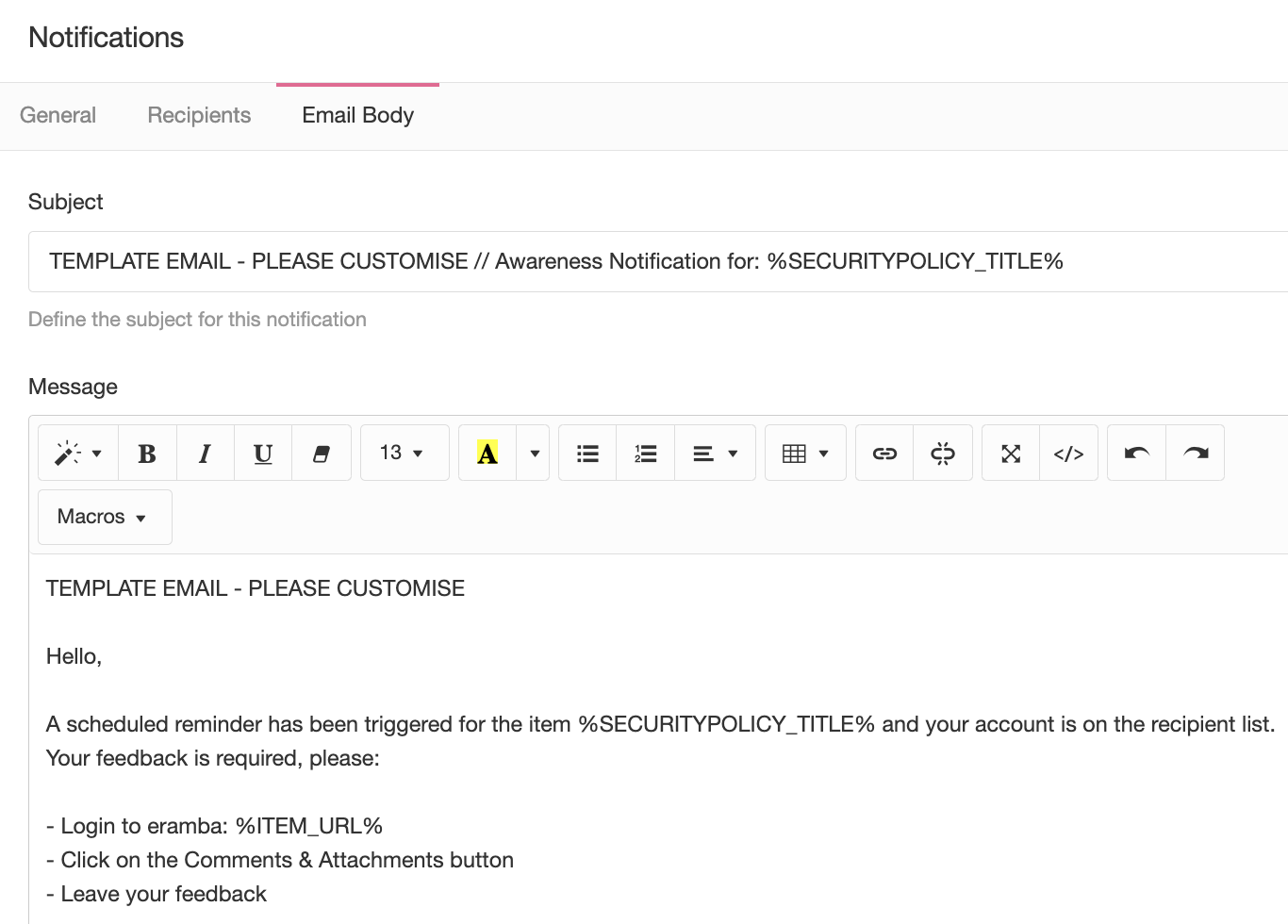
You can adjust the body and subject of the email sent or define Webhooks. In both cases, you can use macros to inject attributes of the item (title, deadline, description, etc) that triggered the notification.
Recipients
On every notification you can choose to send emails or REST calls, by default the "Email option" is selected. Report notifications can only send emails.
You will be given three or four options, you can choose one or combine them:
- Users: select one or more users or groups that will receive this notification
- Custom roles: select one or more roles (from the list of modules in the module you are creating the notification) that will receive the notification. For example: If you are in the Policy module, the roles will be "Policy Owner", "Policy Reviewer" and "GRC Contact".
- Emails: write one or more emails that will receive this notification.
The "Custom Role" option is important when working with Warning, Comments & Attachments and Awareness notifications.
For example, imagine you want to create an Awareness notification on the Policy module that, every 50 days, reminds the Policy Reviewer Role that they own a policy.
When you create the notification, on the recipient tab you must use Custom Roles and set the "Policy Reviewer" role as the recipient.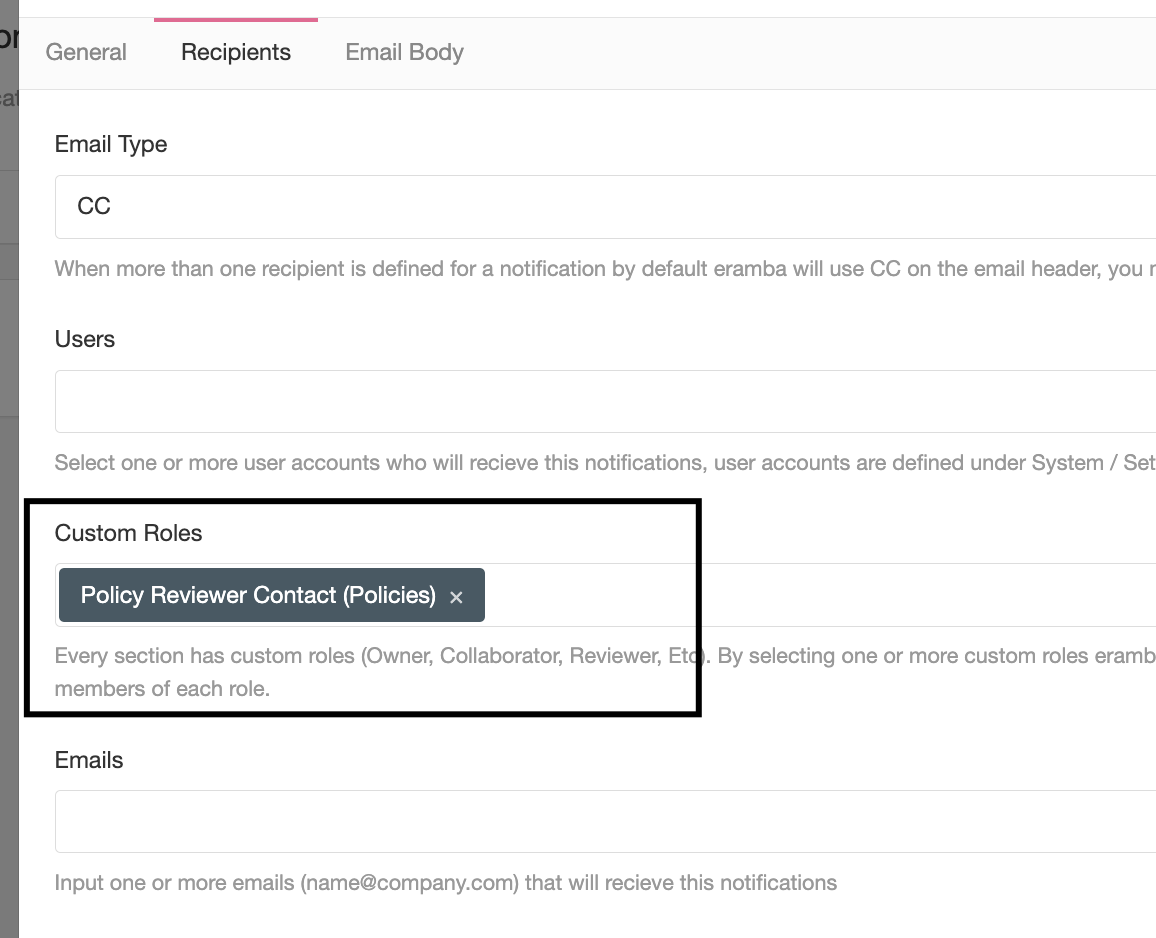
The reason is that when this notification runs, it applies to ALL items on that module and every item will have a defined Reviewer. You do not know who that person will be, you simply need to point to the reviewer, whoever eramba finds there will receive the notification.
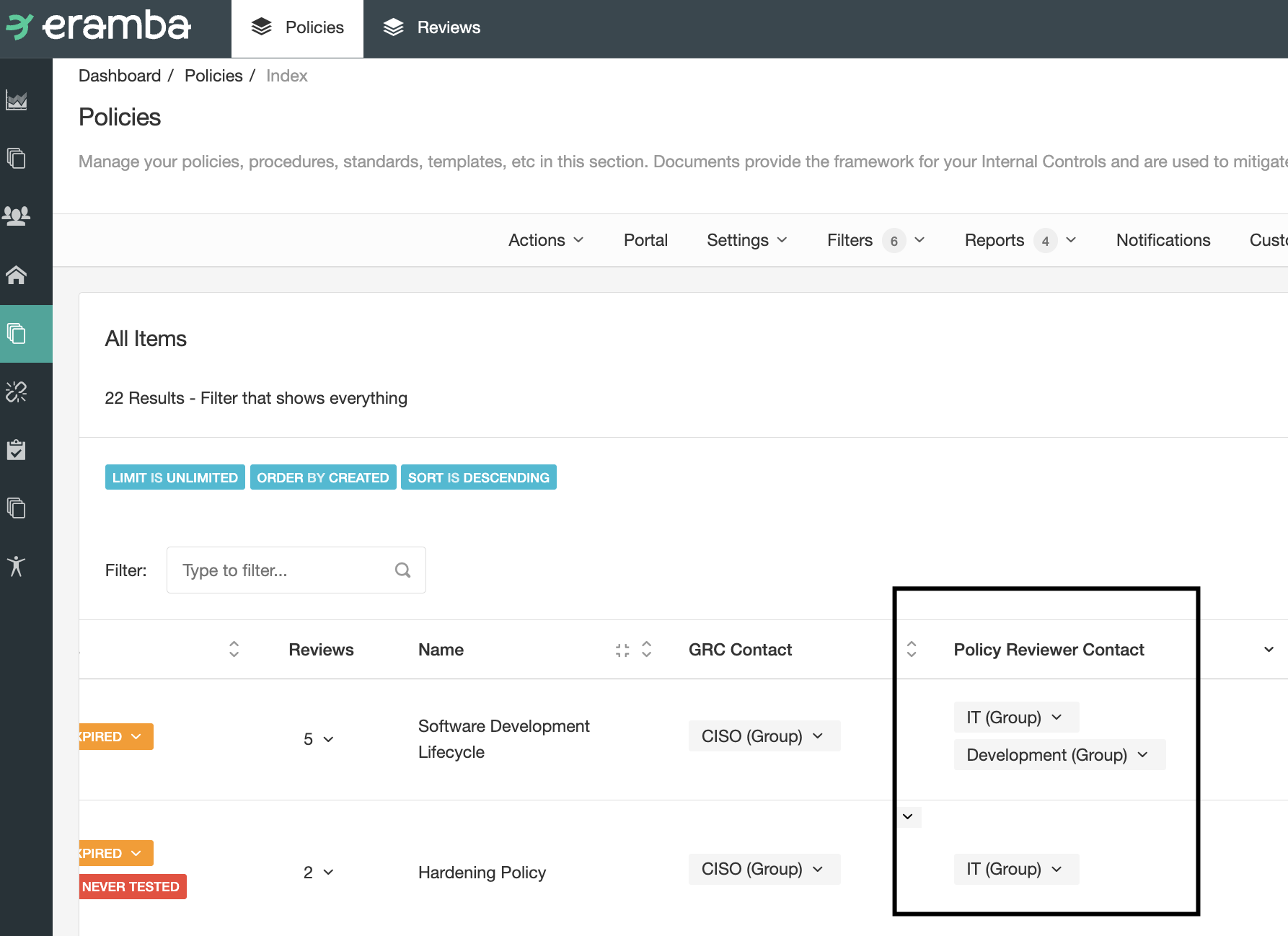
This same situation happens when you are doing Warnings or Comments and attachment notifications. Some modules have sub-modules, for example, the Policy module has a sub-module called Reviews.
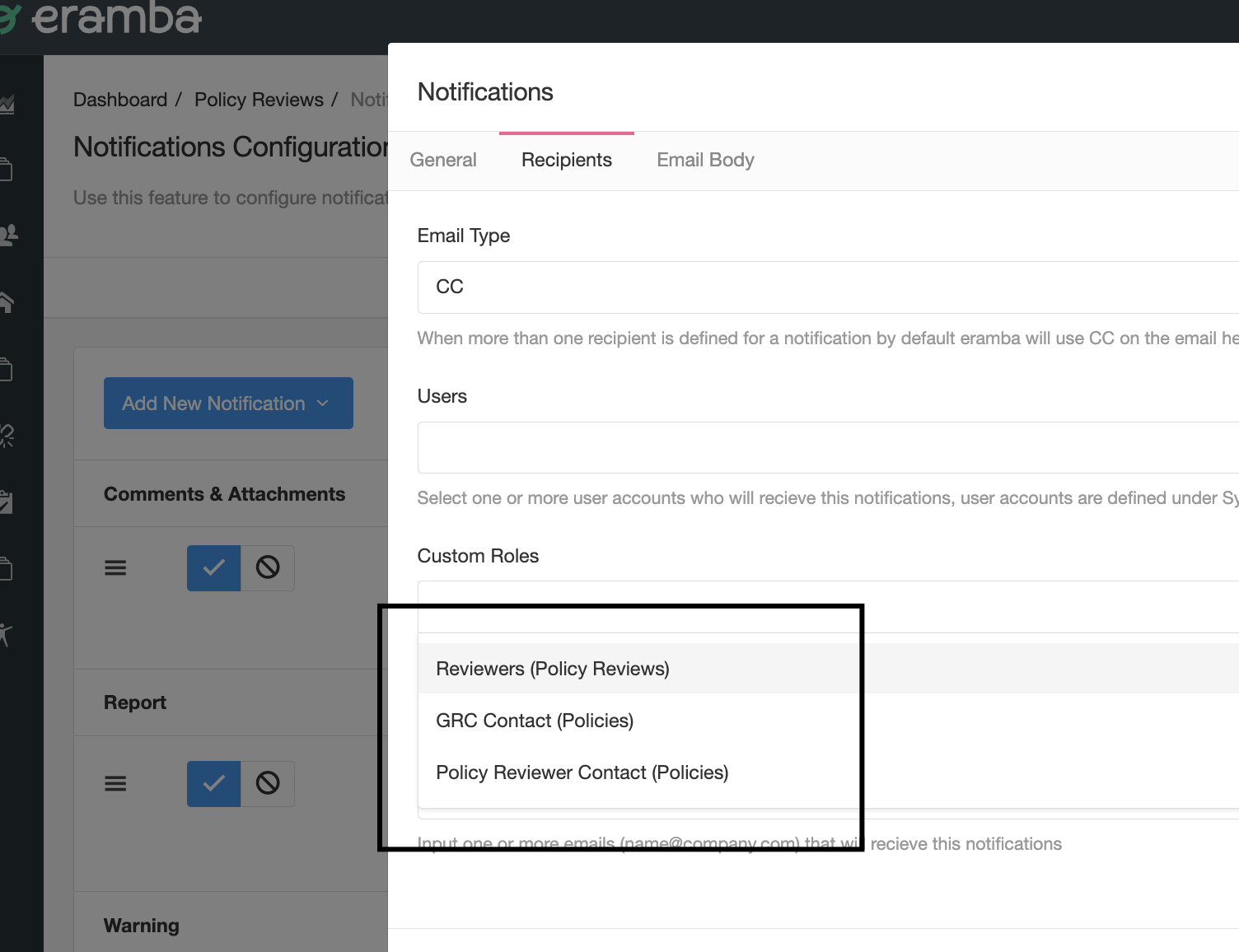
If you want to create a notification that triggers 1 day before a planned review date, the warning notification must be created on the "Review" tab, because it is on that tab where that deadline is stored. When selecting the recipient you will notice more than one role, this is because you can also select the "Policy" module roles as well as the "Reviewer" module roles, and notice the brackets used in the roles.
Body and Macros
On every notification you can define the subject and body of the email, in the Warning, Awareness and Comments & Attachment notifications you can use macros that will display attributes of the item that triggered the notification.
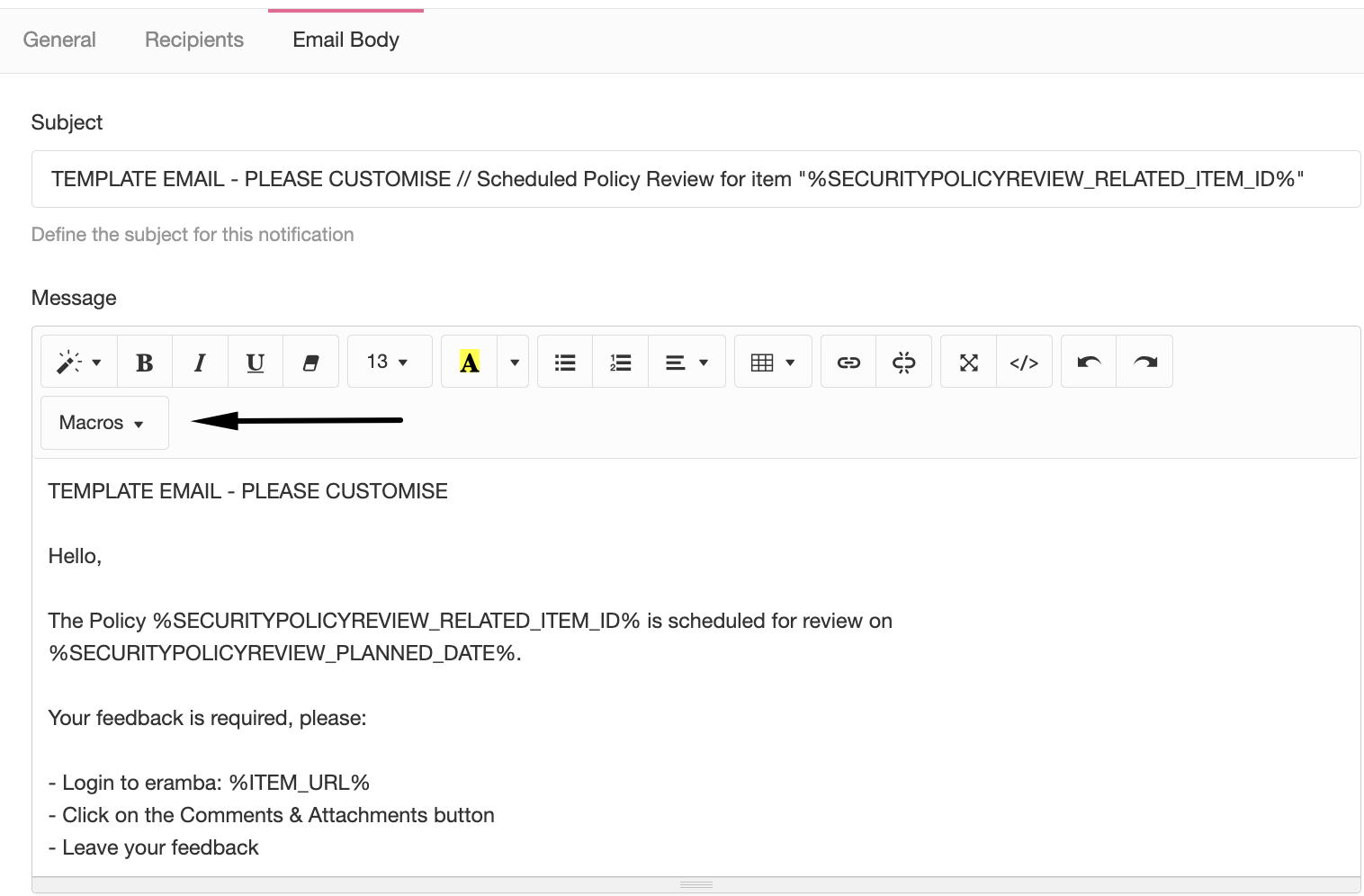
If the Policy named "Security Policy" triggers a -1 warning notification, you can inject the title of that policy into the body (as shown in the screenshot above).
REST Settings
If you select the option of REST APIs when creating the notification you will be asked for:
- Request Type (GET, POST, Etc)
- Endpoint (URL)
- Headers
- Payload
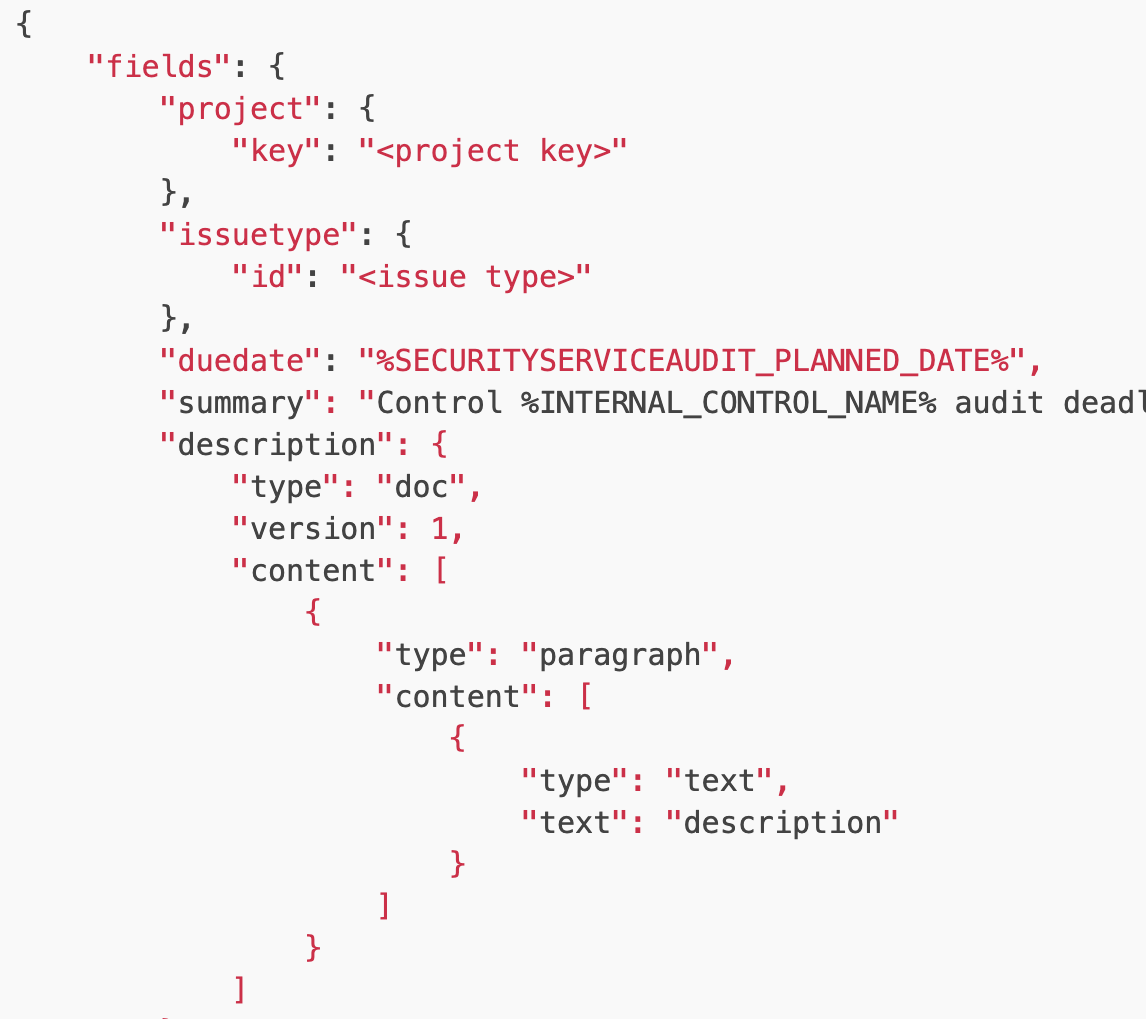
You can use macros (as explained in the previous section) on your requests, for example, the screenshot below shows how a macro is part of the JSON payload.
Built-in Notifications
Templates
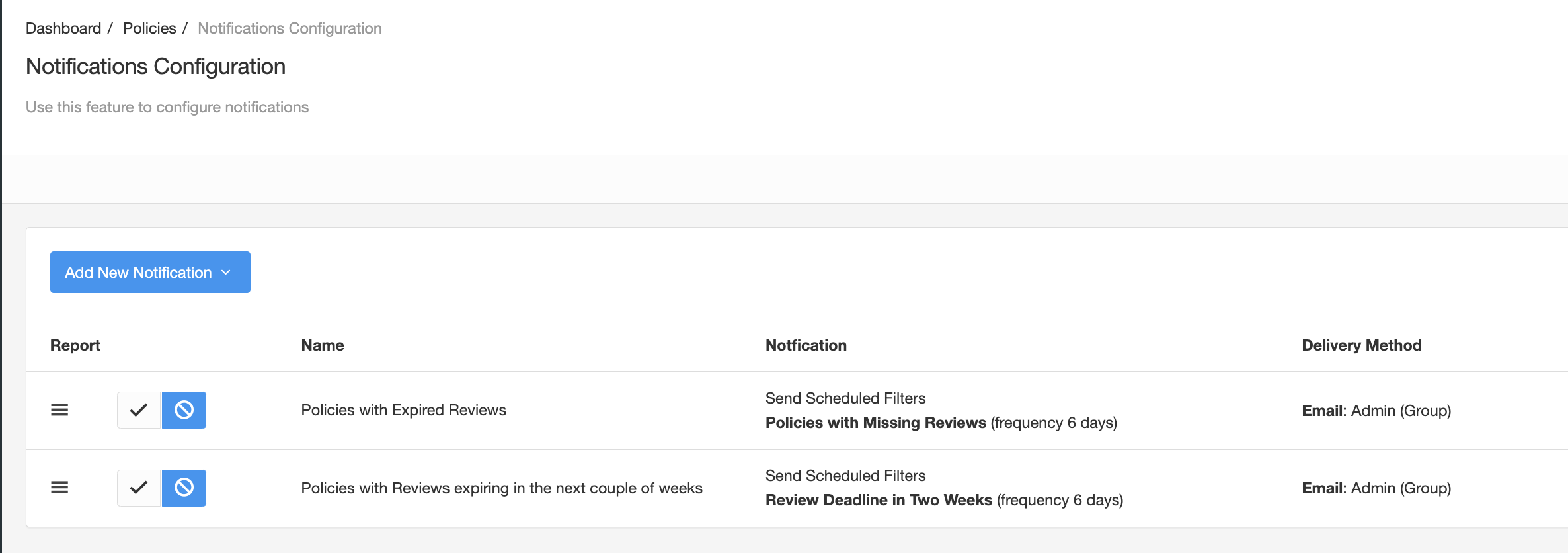
On most modules and sub-modules you will find under "Notifications" a list of pre-configured notifications. The screenshot below shows built-in notifications for the Policy Review module.
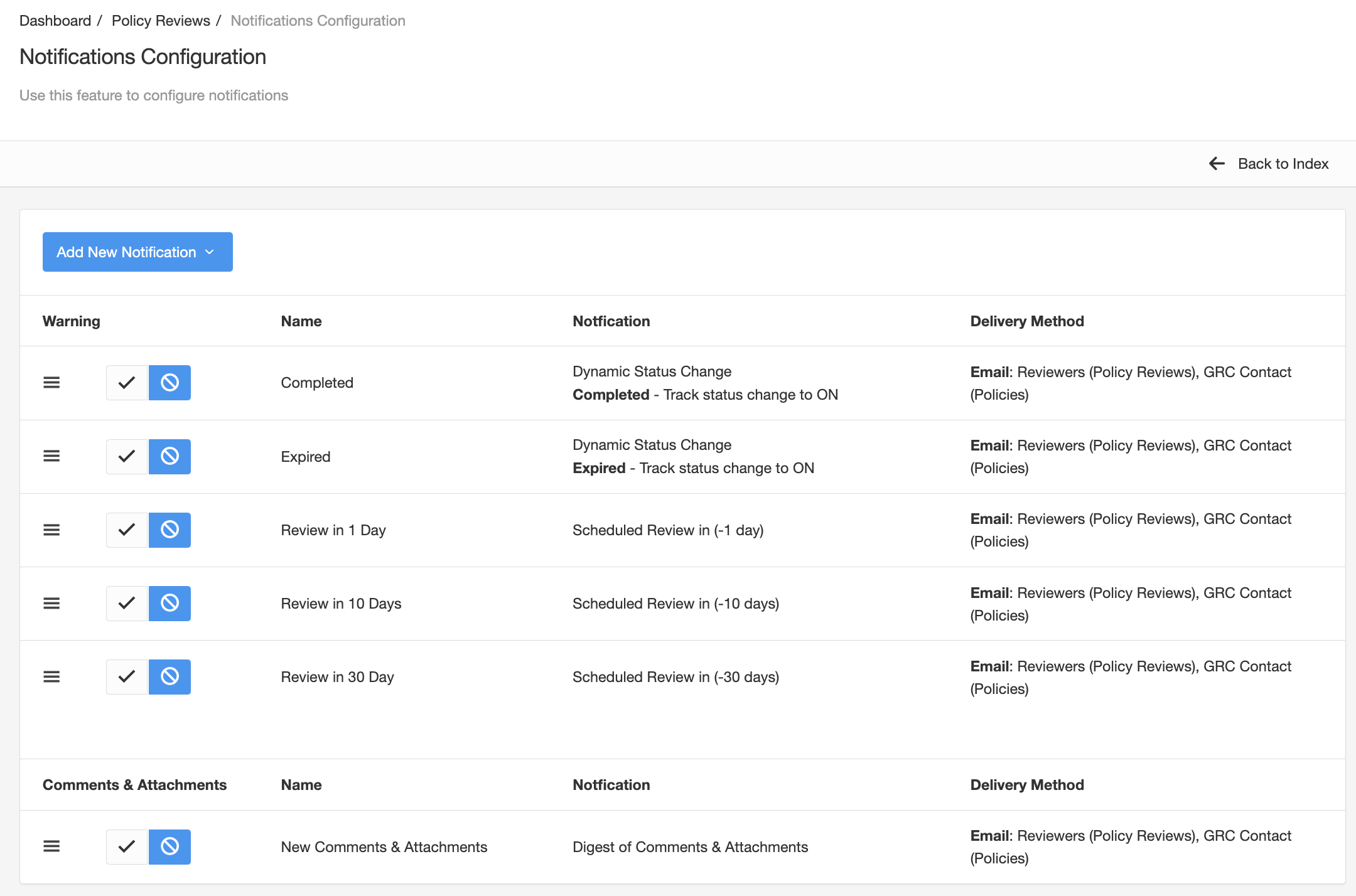
There will be built-in notifications for all three key types of notifications:
- Warning
- Reporting
- Comments & Attachments
Adjustments
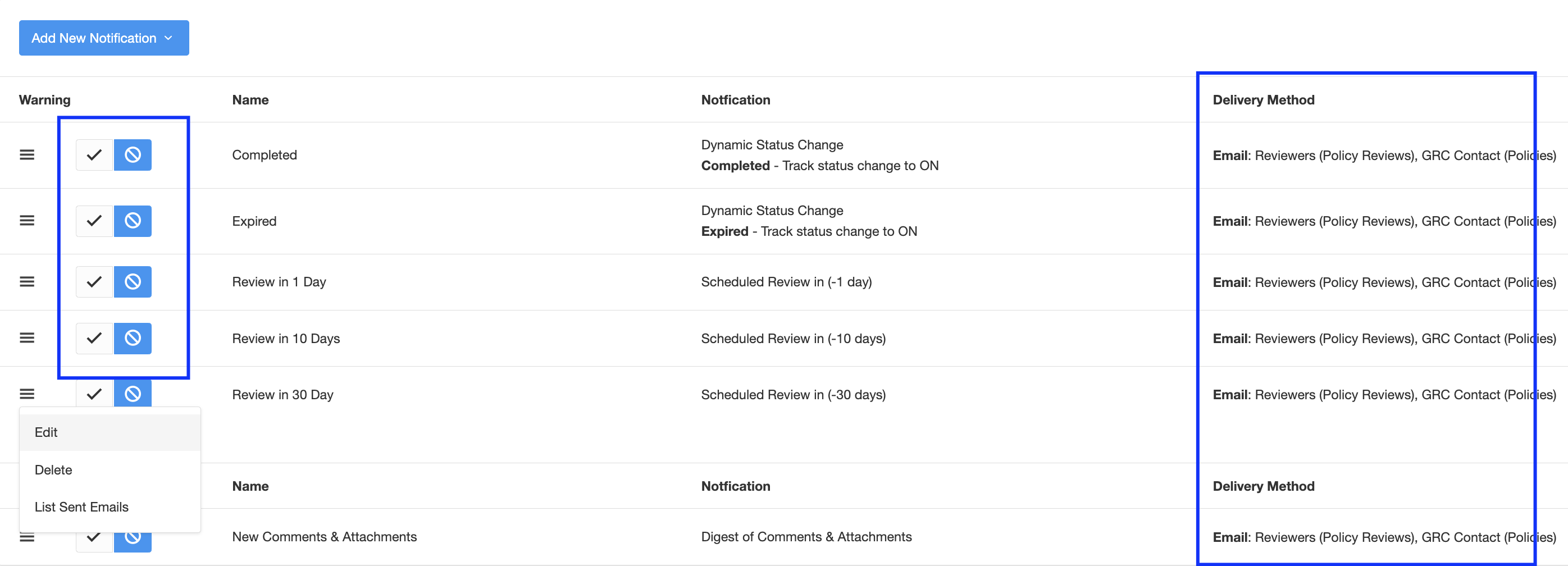
On the list of built-in notifications, you might need to make some adjustments in particular:
- Mail body and subject
- Recipients
Simply edit the notifications make modifications and enable them.
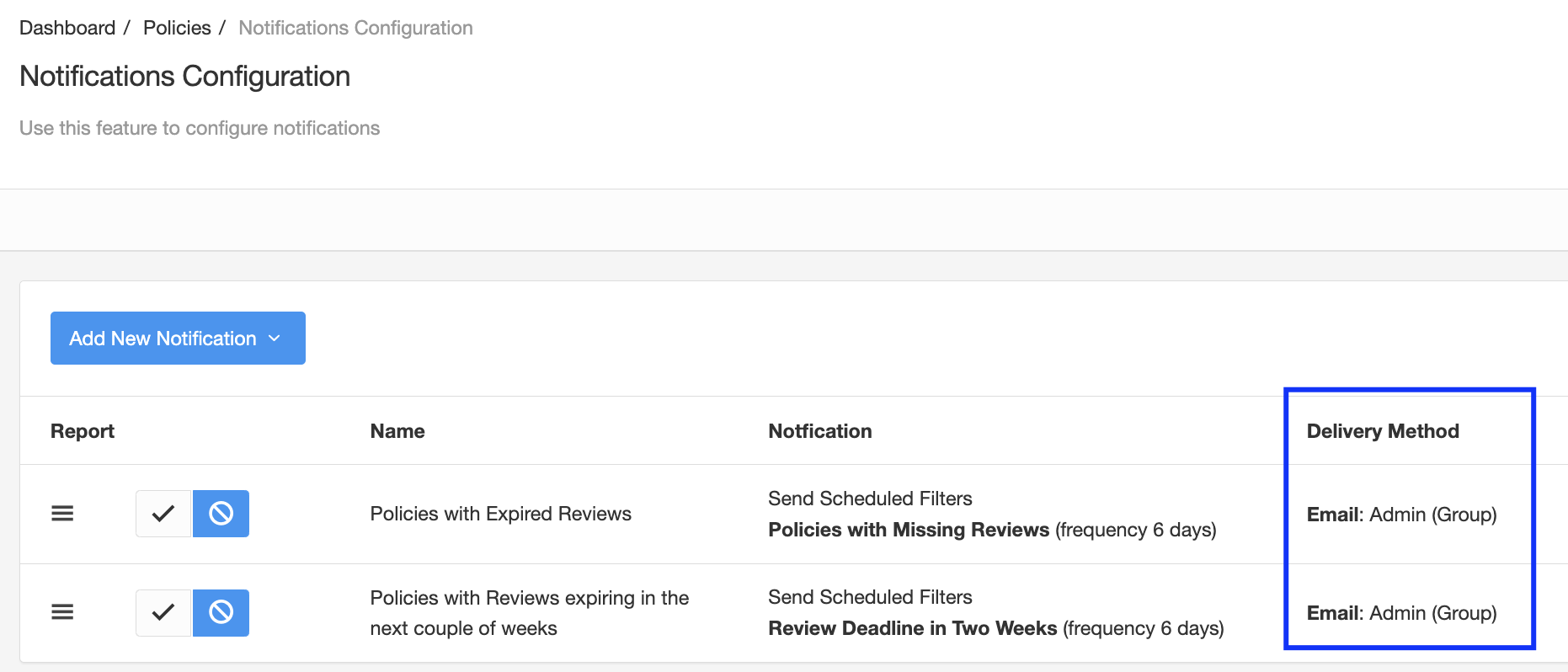
Report notifications have as a default recipient the "Admin" group, which most times should not be used by anyone other than the admin account. We recommend you edit these notifications and adjust the recipient to your account.
Notification Strategy
There are many ways notifications can be used in eramba. This section shares the typical scenarios based on the maturity of the organisation so you can define what suits you best.
Scenarios
Every module in eramba has items and these items go through many different scenarios, the more you customise eramba the more scenarios you will have. The Notification Suggestions section lists more scenario samples, and the following table shares a few of them:
| Module | Situation |
| Risk |
|
| Internal Control |
|
| Policy |
|
What we typically want is to trigger some form of notification when these scenarios take place and notify someone (the owner role mentioned before) or something (a remote system if you are doing integrations for example).
In eramba, these scenarios are triggered by Dynamic Status or pre-defined Warning notification scenarios. What happens after the notification triggers depends on the type of feedback you need, feedback is discussed below.
Comments & Attachments
Every item in the software (Risk, Risk Review, Project, Task, Exception, etc) has Comments and attachments associated, this is the place where we collect and store feedback from everyone.
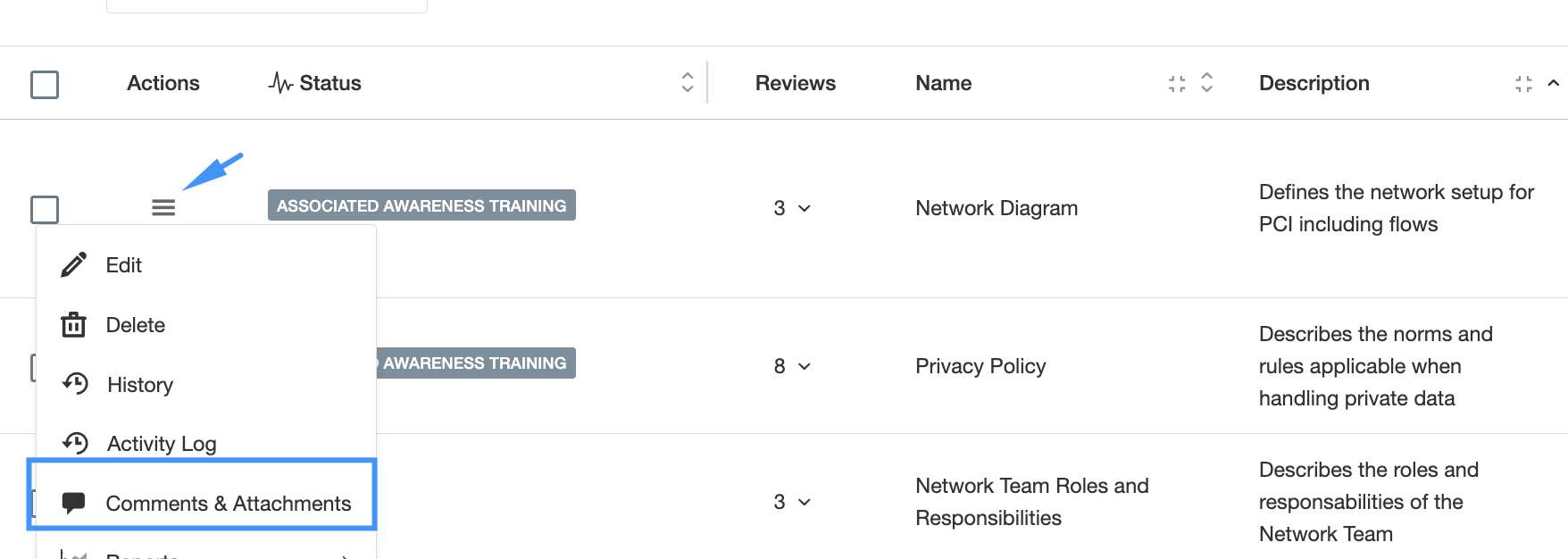
Comments & Attachments is the place where feedback (you will read later what this is) is collected, this allows a very detailed trail of conversations to be recorded.
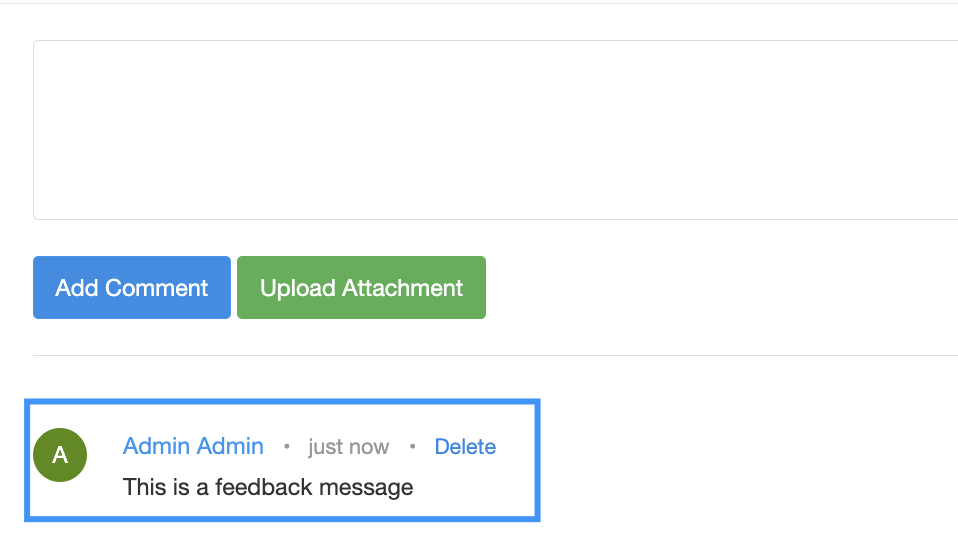
Feedback
A key use case when using Warning notifications is what we call "Feedback".
When a scenario takes place you typically want those that are related to the item that triggers the scenario to provide you with some input, what input depends on the item:
- Risk: risk review feedback
- Audit: evidence to test a control
- Policy: feedback on the review of a policy
- Etc
In eramba, you have two general types of feedback:
- Offline: eramba will trigger a notification to those related to the item but the feedback will be done between them using emails, slack or internal meetings. Once the feedback has been collected, those on the "GRC" role will log into eramba and upload this feedback.
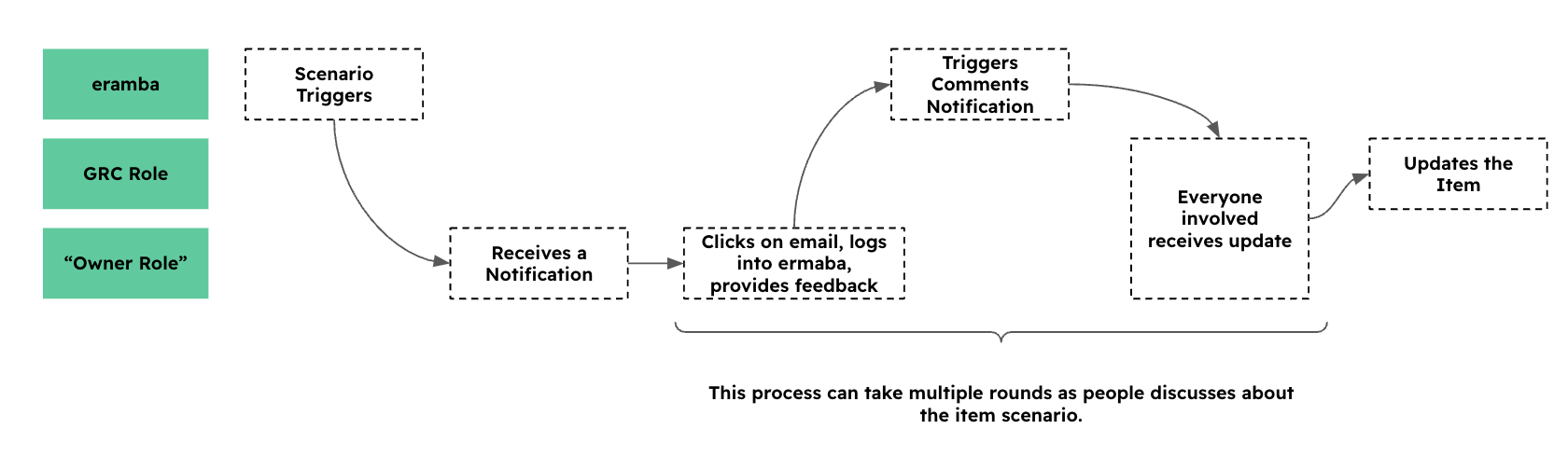
- Online: eramba will trigger a notification to those related to the item and they will click on the email they received and provide feedback directly on the item. This will trigger another notification to everyone involved (telling them someone provided feedback on the item). This process can repeat many times, eventually, the GRC role will log into eramba and update the item (close review, audit, exception, etc).
The diagram below shows the online feedback review:
The diagram below shows the offline feedback review:
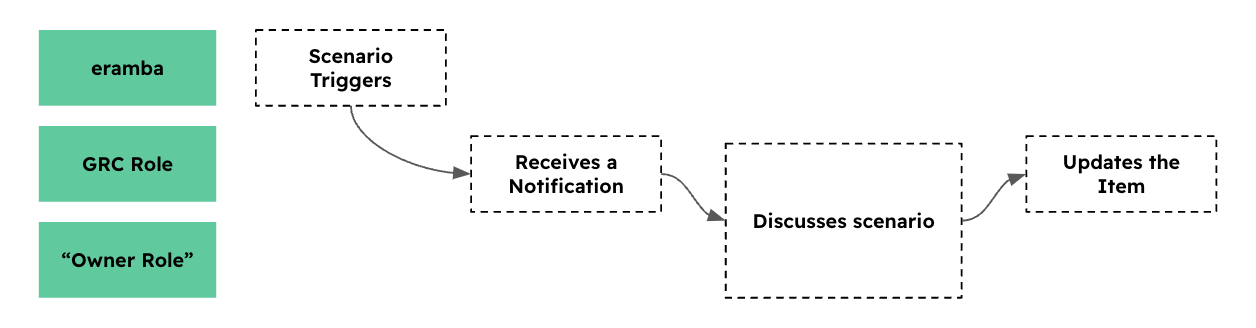
The offline method has the advantage of making it much simpler for people around your company, they don't have to log into eramba and do anything there. It is highly recommended for companies that are just starting with eramba.
The online method will require accounts for people around the organisation (those who own something in eramba) and their permissions will need to be adjusted so they can not edit, delete or create items, just provide feedback.
Remember that these notifications are created by you and the recipients do not need to be strictly as shown in the diagrams above. You need to define a workflow that works for you and adjust notifications accordingly.
Maturity
As nice as automation sounds, sending emails to everyone in the organisation can be a problem if these people are not expecting them. For that reason, we strongly advise users to devise a gradual notification and automation strategy.
The table below shows the type of notifications we recommend based on your organisation's strategy and in particular maturity.
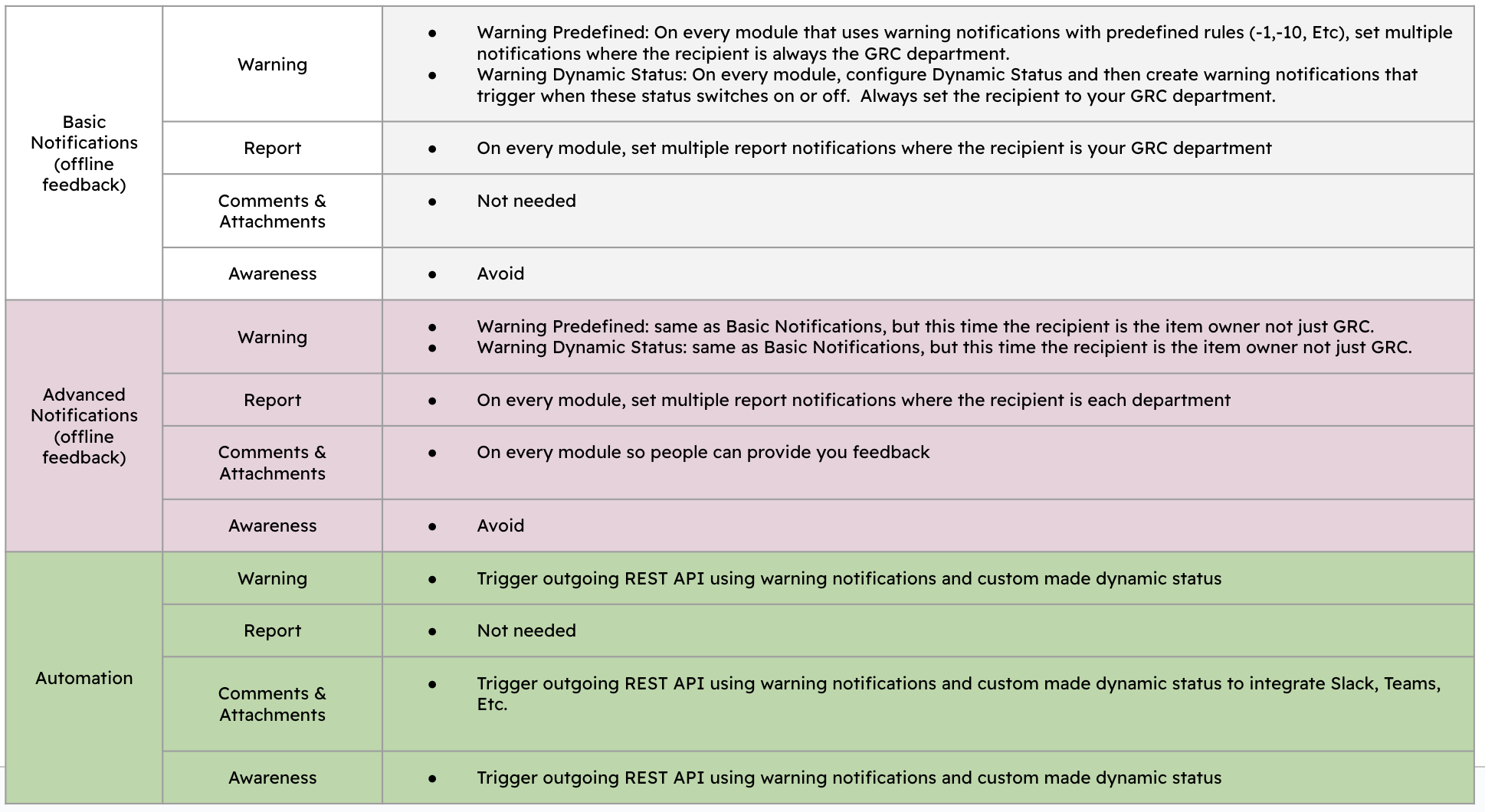
As you can see from the table above, in the "Basic Notifications" stage is that you send notifications that always go to your GRC team no matter who owns the item that triggered the notifications in the first place. For example, if a Risk is owned by IT, the notification when the review is due will go to GRC instead of IT. Your GRC department will then conduct an "Offline" feedback for that Risk. Report notifications are also sent to your GRC team alone, for example, if you create a report that lists "All Risks that must be reviewed next week" you will send that to you, no matter who owns those Risks.
When you progress on your automation journey, you will move to more advanced notifications. The notifications are largely the same as the ones you configured in the Basic stage, but this time the recipients will be other departments (IT, HR, etc.). Following the example, the notification will go to "IT" and if you want the GRC team in CC.
The advanced stage focuses on automation and integration with other tools. Notifications in this stage don't trigger emails instead they use REST APIs. This allows you to initiate integrations with other tools and systems.
Conclusion
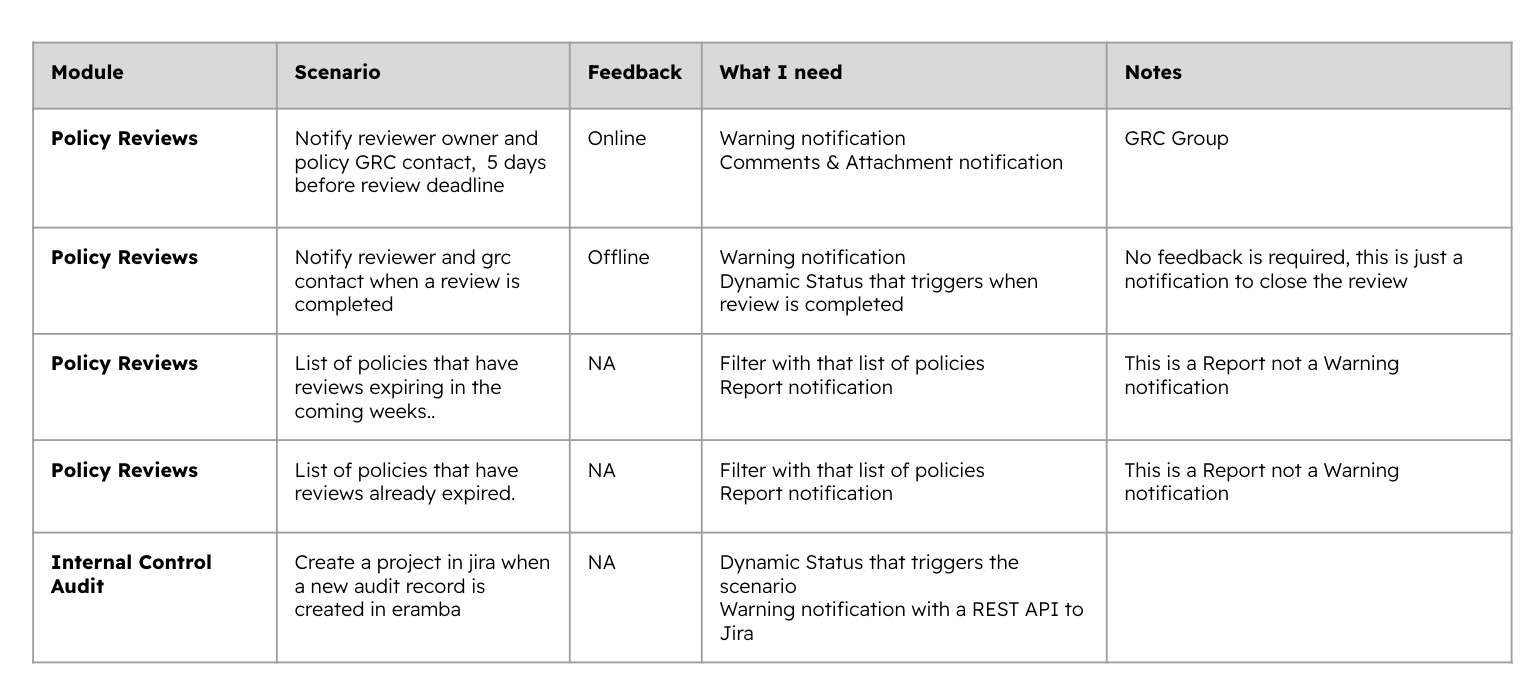
At this stage, you should define the following:
- What modules you will be using (based on your use cases)
- For each module, what scenarios you need to identify to trigger notifications or REST calls
- What type of feedback you want to use (Offline or Online)
- What configurations (notifications, dynamic status, filters, etc) are needed in order to make this work
Predefined Scenarios
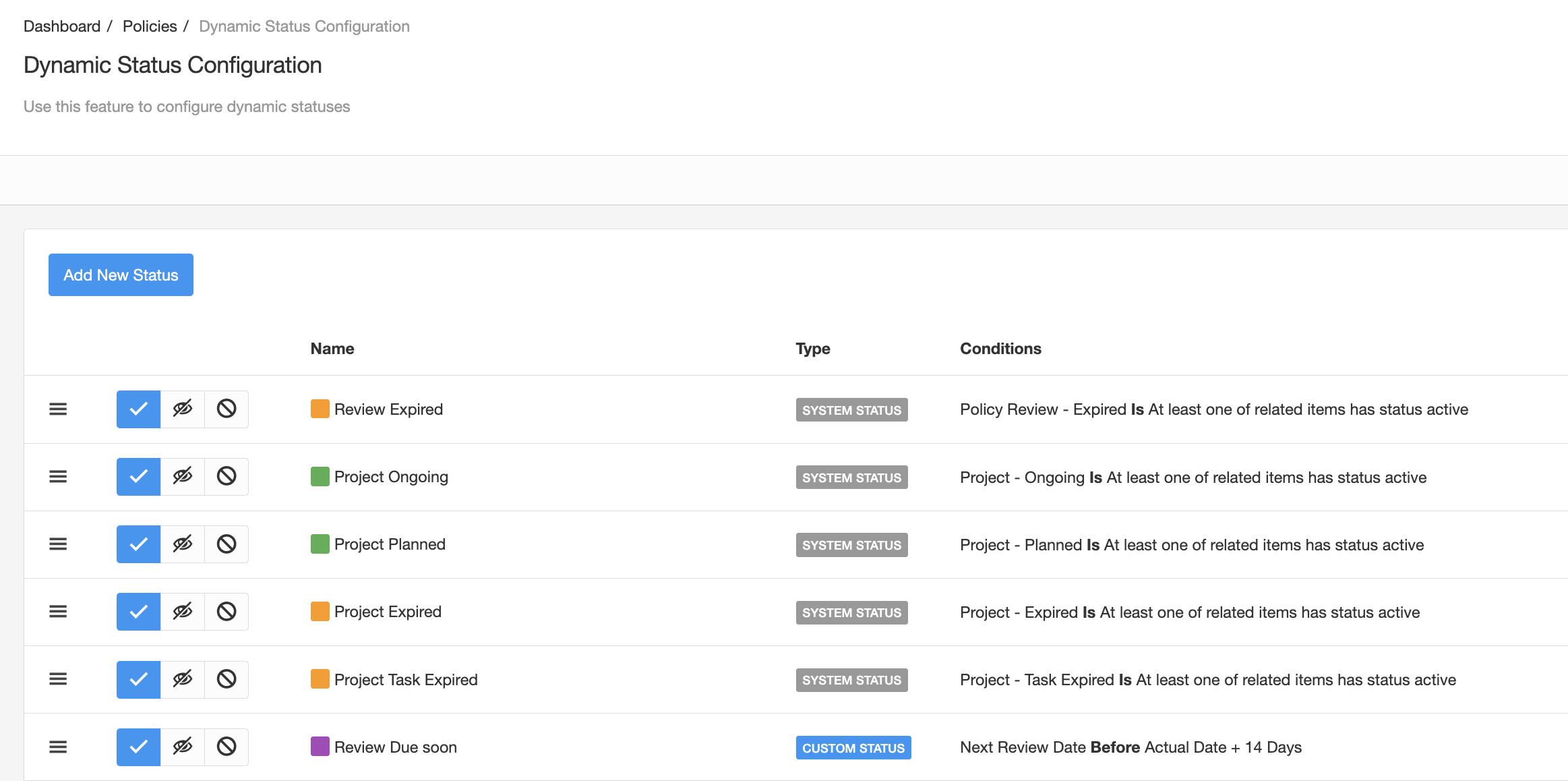
Almost every module in eramba comes with predefined notifications (warning, report, etc), filters and Dynamic Statuses you can leverage to trigger your desired use cases. They will still need adjustments to completely match your needs but will certainly help you for inspiration.
Testing Notifications
Once you create notifications you will want to test them, to see how the email looks like and in particular test what users will see when they click on the link provided on the email and access eramba.
Testing Objectives
Depending on the type of notification you have the type of testing you will do:
- Check email is sent to the right recipient
- Check the email body/subject macros are correctly formatted
- Check email recipients can log in to eramba and see what you want them to see
It is important that you consider at least the aspects mentioned above in your testing. Every notification you create has a button in the form that lets you see what emails the notification has triggered.
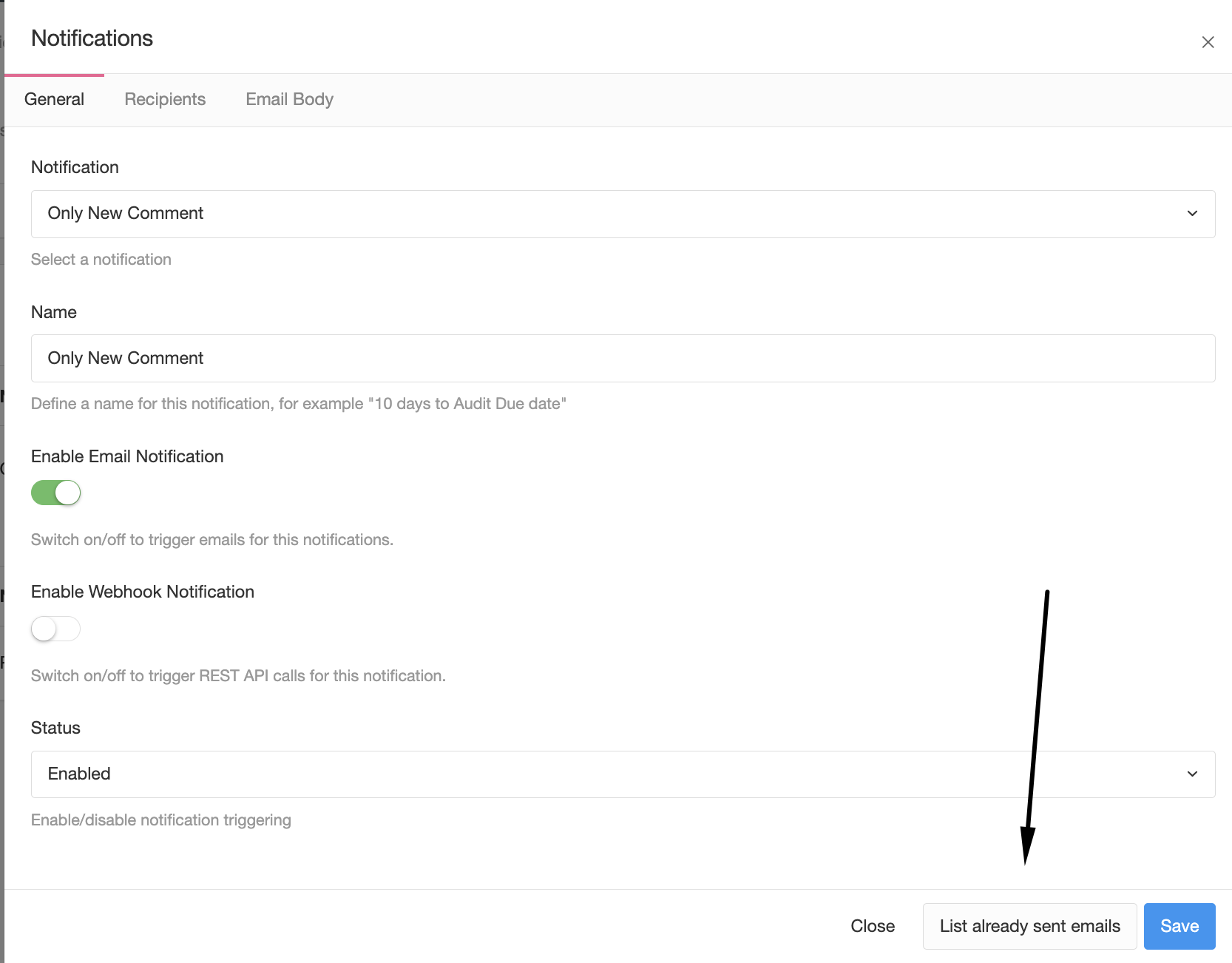
This button is a shortcut to the email queue (Settings / Email Queue) where emails are queued before being delivered (the queue is processed every hour). The rate at which they are processed is defined in the email settings (Settings / Email Settings).
If you are working with Webhooks, all requests will have a similar option.
Process
The process used to test notifications is the same for Warnings, Comments and awareness. Testing report notifications is a little different and much simpler.
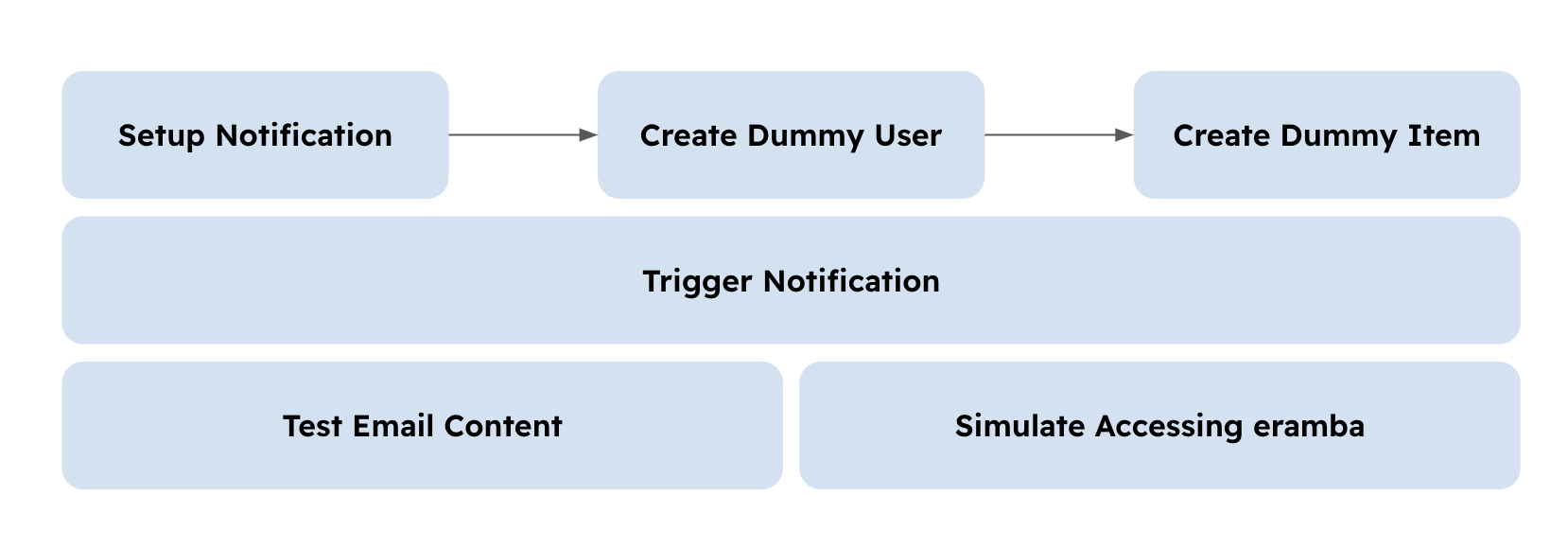
To test notifications you will need:
- Set up a dummy account in eramba with your email and access permissions that match those that you will grant users on that module. This is only really needed if you are doing online feedback.
- Setup the notification you need and want to test
- Create an item on the module and assign that dummy user.
Then you need to trigger the notification, this is done in different ways depending on the notification you want to test:
- Comments & Attachment: you can trigger them immediately, simply write a comment that will trigger the notification.
- Awareness: they will trigger at midnight, you can not test them sooner than that as the batch process that processes them runs only at midnight.
- Warning (Deadlines): you need to create an item with a deadline in "two days" from today, and create a notification that warns you "one day before". At midnight the notification batch process will trigger the notification.
- Warning (Conditions): depending on the condition you might be able to trigger them immediately. For example Audit "Fail" or "Pass", you can edit those values anytime.
- Warning (Dynamic Status): if you can trigger the status anytime then you can test this anytime as well.
Once the email is sent you can test the content of the email and click on the link provided to test the user permissions. You might need to "adjust" permissions and log out - log in a few times until they work as you intend them to work.
Notification Logs
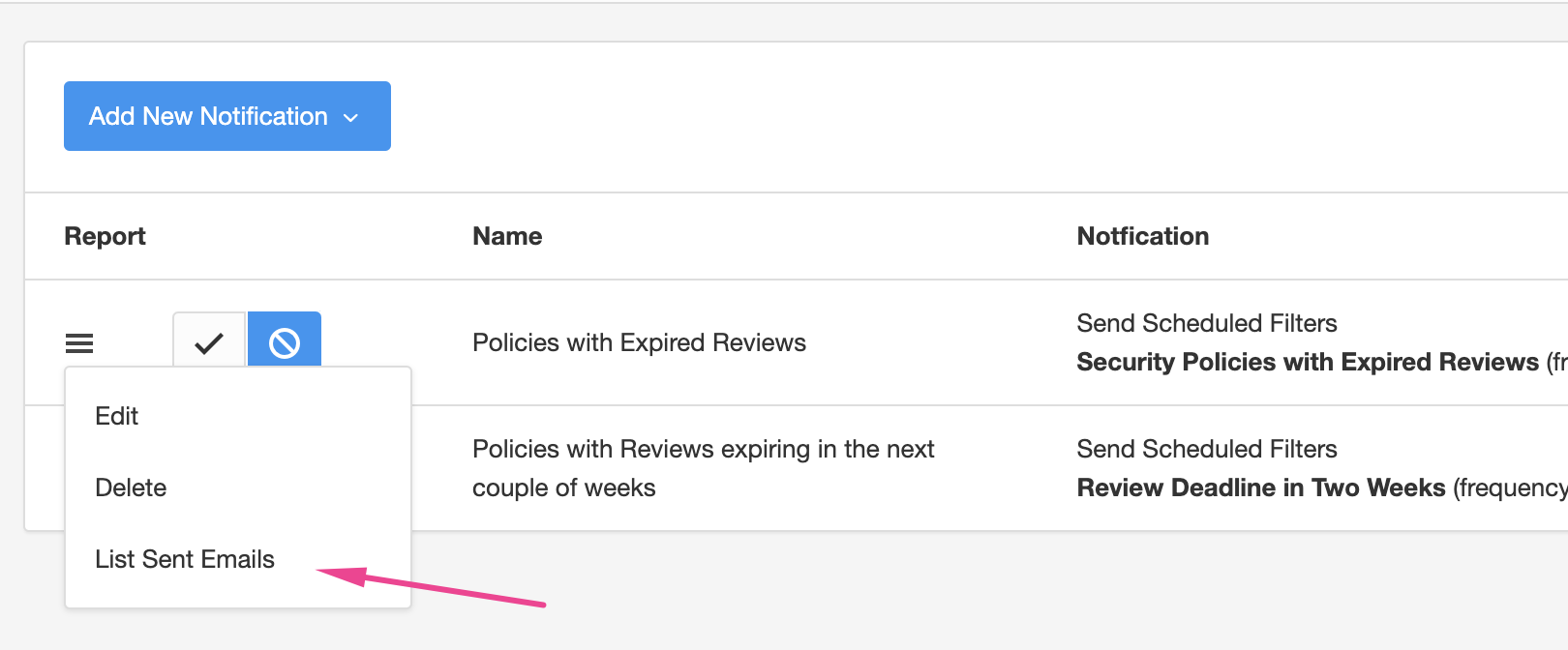
When a notification triggers it sends the email to a queue (accessible at System / Settings / Email Queue). You can review what emails notifications have triggered by selecting your notification, clicking on the menu and on "List Sent Emails".
This will redirect you to "System / Settings / Email Queue" with a filter that will list only the emails sent by this notification. If there are no emails listed is because the notification has not triggered any email.
Notification Suggestions
The following table gives you some ideas of common notification scenarios that can be used on most Eramba modules. Remember these are some ideas but there are endless ways how these fields can be used.
| Module | Notifications Scenarios (these notifications can be created using custom Statuses and Warning notifications) |
| Settings / User Management |
|
| Internal Controls |
|
| Internal Controls / Audits |
|
| Policies |
|
| Policy Reviews |
|
| Risk (All Three) |
|
| Risk Reviews (All Three) |
|
| Risk Exceptions |
|
| Policy Exceptions |
|
| Compliance Exceptions |
|
| Projects |
|
| Project Tasks |
|
| Incidents |
|
| Awareness Programs |
|
| Online Assessments |
|
| Online Assessments / Findings |
|
| Compliance Analysis |
|
| Organization /Third Parties |
|
| Organization / Business Units |
|
How-to Guides
Connect eramba to Slack
Authorise eramba in your Slack workspace so Slack can be used as a delivery channel.