Introduction
Introduction to the Compliance Findings Module
The Compliance Analysis Findings (or sometimes called Compliance Findings module) is used to record auditor findings. On each record you can set owners, deadlines and asociate the finding to the exact compliance requirement that failed.
Anytime you receive an ISO, PCI, Etc auditor finding, you can record it on this module.

You can assign the finding to people responsible to ensure whatever did not work is corrected and ensure accountability.
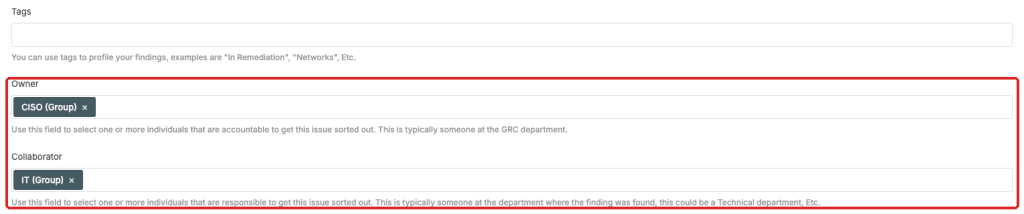
If you prefer to call these roles differently you can rely on the customisation feature where any field can be added, edited, removed and re-organized in the module.
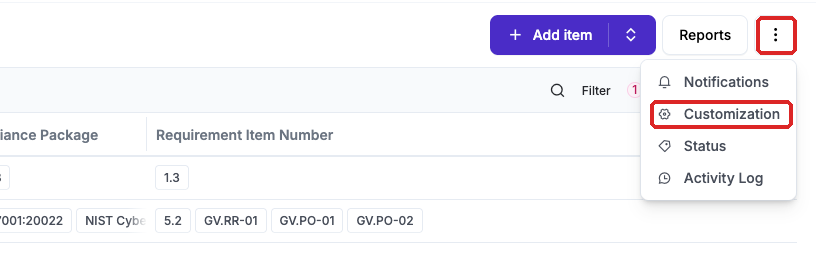
Deadlines can be defined on each finding, eramba will send notifications against this date so you can collect feedback from those responsible for the finding. You will use filters in litereally thousands of different ways to search data in the module and export it any time using CSV format. You can also send the output of these filters to your email at regular intervals.
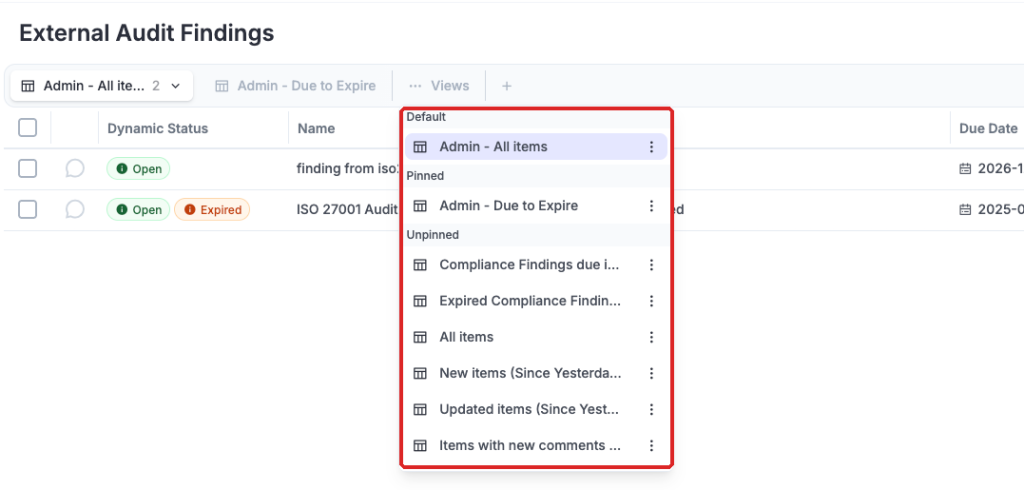
Statuses are automtically trigger based on the finding status (open or closed) and the deadline defined on the finding, this is useful to quickly understand how these findings are.

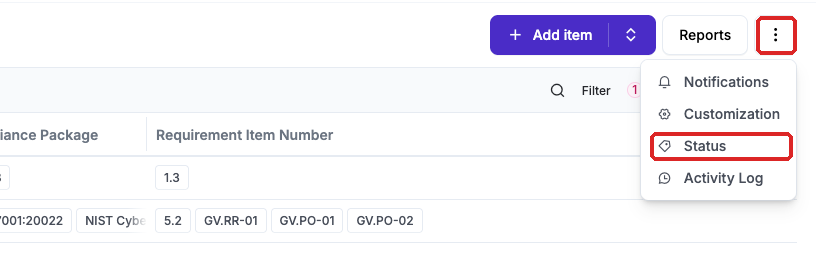
Anytime these status change you can trigger email notification letting those responsible for the finding know about the status change. You can define your own statuses using any condition you wish using the status functionality.
Operation
Configuring the Compliance Findings Module
Introduction
Setting up the Compliance Analysis module involves the following steps:
- Optional: Customize the Module Form
- Optional: Adjust default Filter Columns
Customise the Form
We strongly recommend that you define a form that everyone involved in th module in your organization will understand, particularly if you plan to add or remove fields.
- Click Customization on the menu bar.
- Add, hide, and rename fields and tabs as you wish.
- You can repeat the steps above on other tabs.
Note that some fields cannot be hidden. If you want to add fields, you have multiple options to choose from: text field, paragraph, date, dropdown, multi-select dropdown, integer, etc. To learn how the Customisation functionality works in details please review its documentation.
Adjust Filter Columns
Before using any module we strongly advice you to adjust the default columns shown at the "All Items" filter. You might not need to see all of them or you simply might want to re-order them from left to right in a different way. For this configuration you will need to use the filters functionality, review its documentation for details.

Creating a Compliance Findings
Introduction
In this episode we will explain you how to create a Compliance Analysis Finding. You can create them one by one or using CSV Imports.
Creating a Finding
To create an Compliance Finding, click on “Actions” and then “Add.” (“Import” can be used for importing multiple policies at once.)
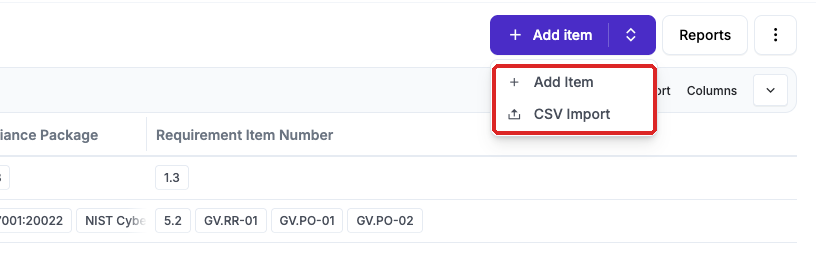
A form will then appear. Most of the fields are pretty obvious, but some might not be straightforward, so we’ll cover them in more detail in this guide.
Requestor
Every Compliance Finding has two roles: "Owner" and “Collaborator.” These roles must be assigned to an eramba user or group (System > Settings > User Management). Remember we always recommend using groups for these roles.
- Owner: is typically the GRC person that recevied the finding and has an interest in getting in it fixed
- Collaborator: is the person that has to perform some activity (typically a corrective plan) in order to correct the issue
Start, Closure Date and Status
Findings have two dates (“Due Date”) and status (“Open” and “Closed''), and these two field types are related to each other.
- While a finding is valid (meaning it is still applicable), the “Due Date” should have a value (some date) and the status should be set to “Open”. If the “Due Date” is in the past, the Exception will be automatically applied to an “Expired” status, indicating that the finding should have already been reviewed.
- When an exception is no longer needed, the status should be set to “Closed”.
Reviewing Compliance Findings
Introduction
After creating items in the module you will most likely need to track their progress and changes with the help of the people involved in them. The method we describe in this episode is assuming you contact these people over email or personaly, get their feedback and update it on the items Comments & Attachments. This method does not require notifications or any action from the people involved.
Collect Feedback
This method is called "Offline" because it requires you to meet the people involved (as explained before: over email, telephone, personally, Etc) and then you (or them) login into eramba and click on the items Comment & Attachment option.
In there they can provide any type of feedback they want. You can also reply to that feedback creating a trail of discussions.
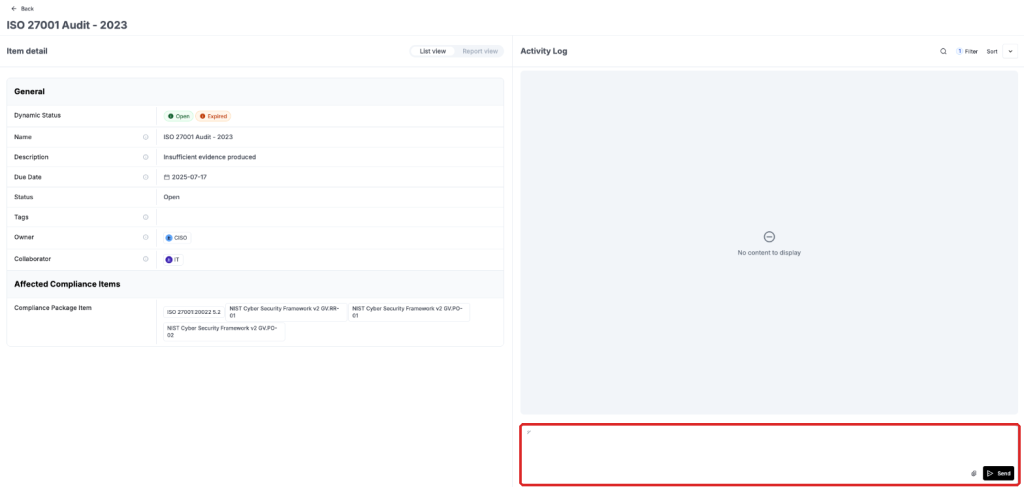
Update the Record
Parties involved in the Compliance Finding process can record their feedback until an agreement has been reached (approved the exception, agreed on an extension, close the exception, etc). Then your options are:
- If the finding is to be extended, simply edit the finding and change the “Due Date.”
- If the exception is to be closed set the status to “Closed.”
Remember that all changes are logged on the “History” feature (above Comments & Attachments). It is easy to tell what was changed, by whom and when.
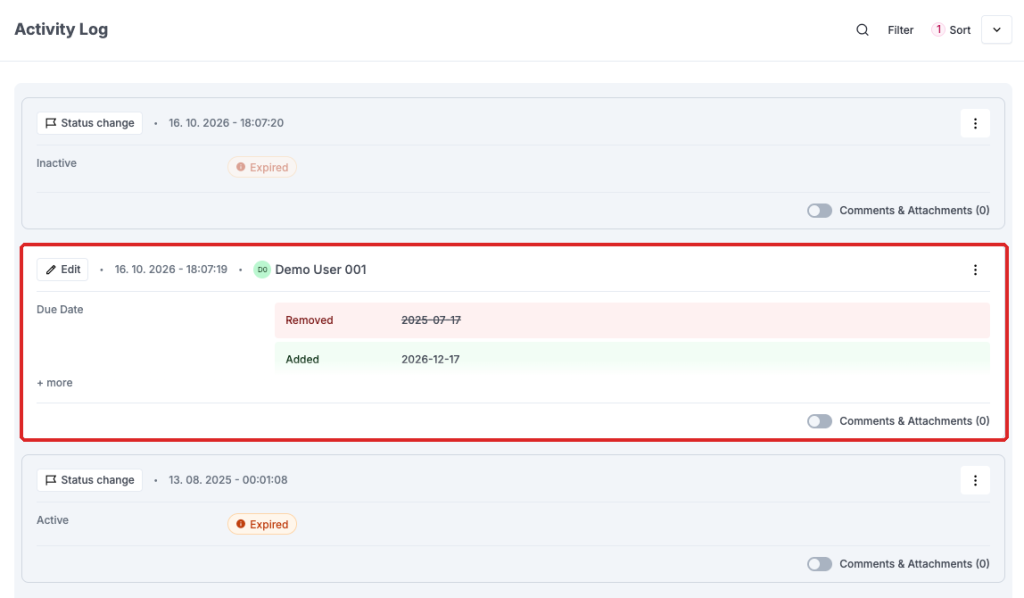
Still have questions?
Write to support@eramba.org or ask the community on the forum.