Course Introduction
This basic course introduces the eramba user interface, including how it is arranged, how to manage views, how to organize data, and how to navigate the system. It must be completed before using eramba.
Primarly this course requires you to undertand "Theory". Implementing a core eramba "Use Case" require this module, for that reason these "Use Case" guides make constant regerence to this course "Theory" and "Videos" sections.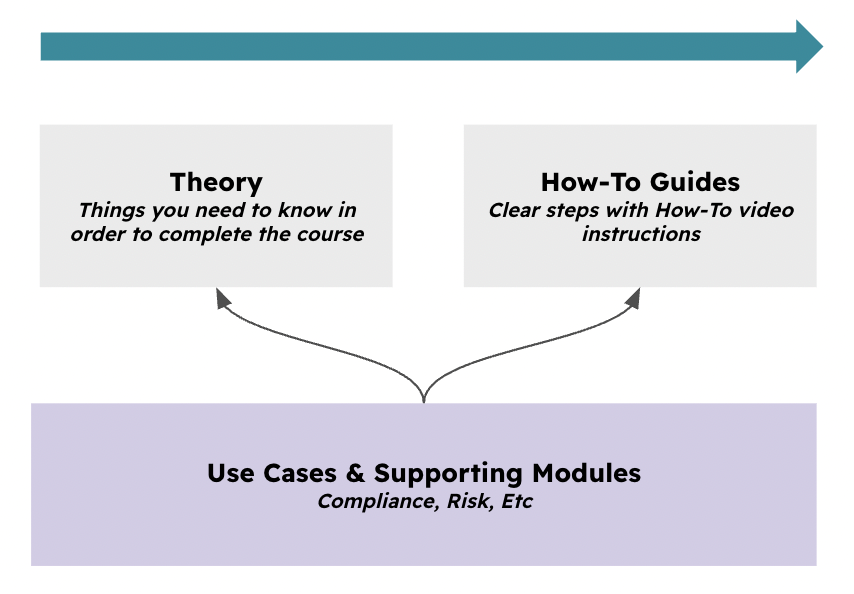
This chapter covers the following topics
-
How to move around the user interface
-
What is a module and how they are structured
-
What are views and how to use them
-
Item Options
Supported Versions
The user interface and views apply to both on-premise and SaaS deployments, as well as Enterprise and Community editions.
Scope
The entire software uses this user interface
Theory
Dashboard
For more information review the Reporting documentation
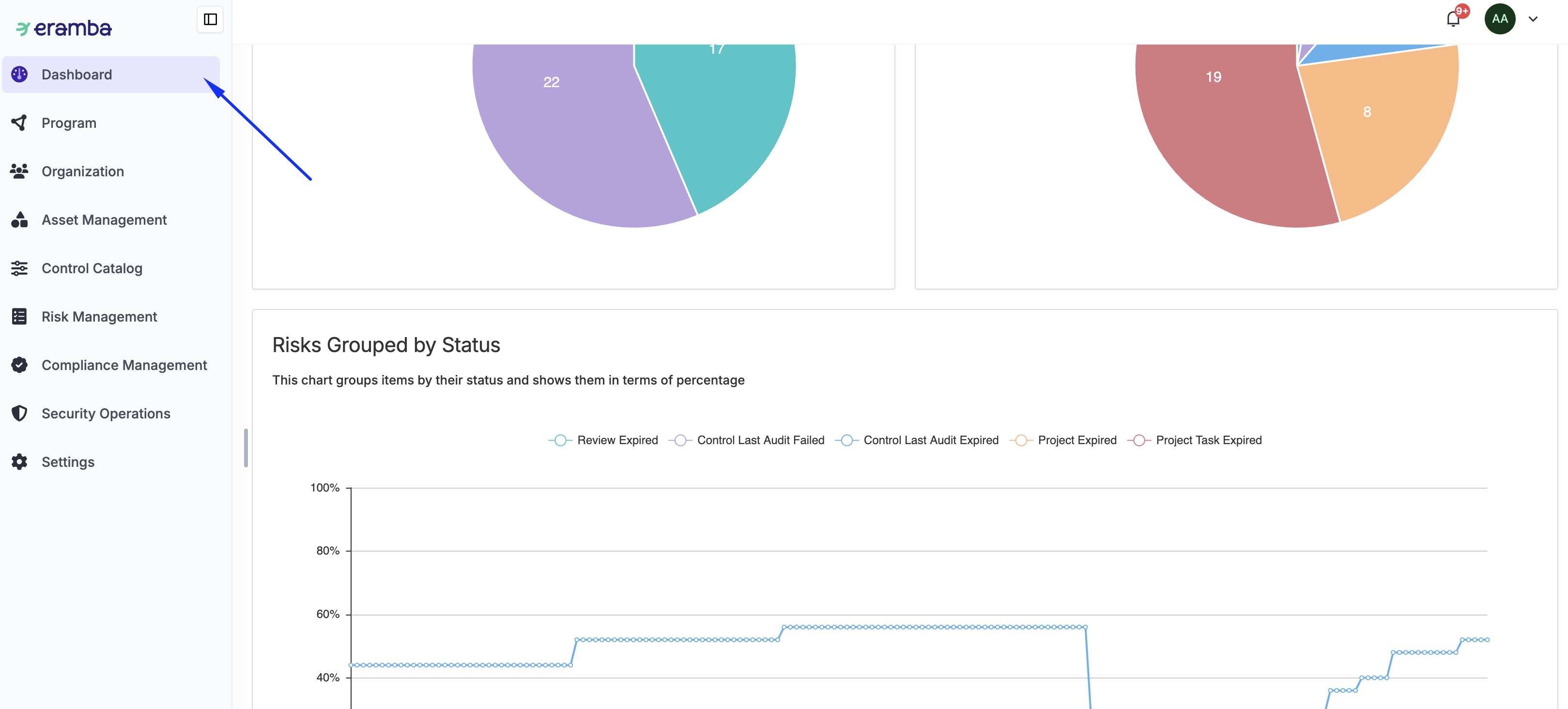
After logging into eramba, and once data is available in the system, you will see a landing dashboard populated with charts from various modules, including compliance, risks, controls, policies, and more.
Administrators can customize this dashboard to display specific charts tailored to their needs.eramba offers over 200 charts, providing comprehensive visual insights across all areas of the platform.
User Profile
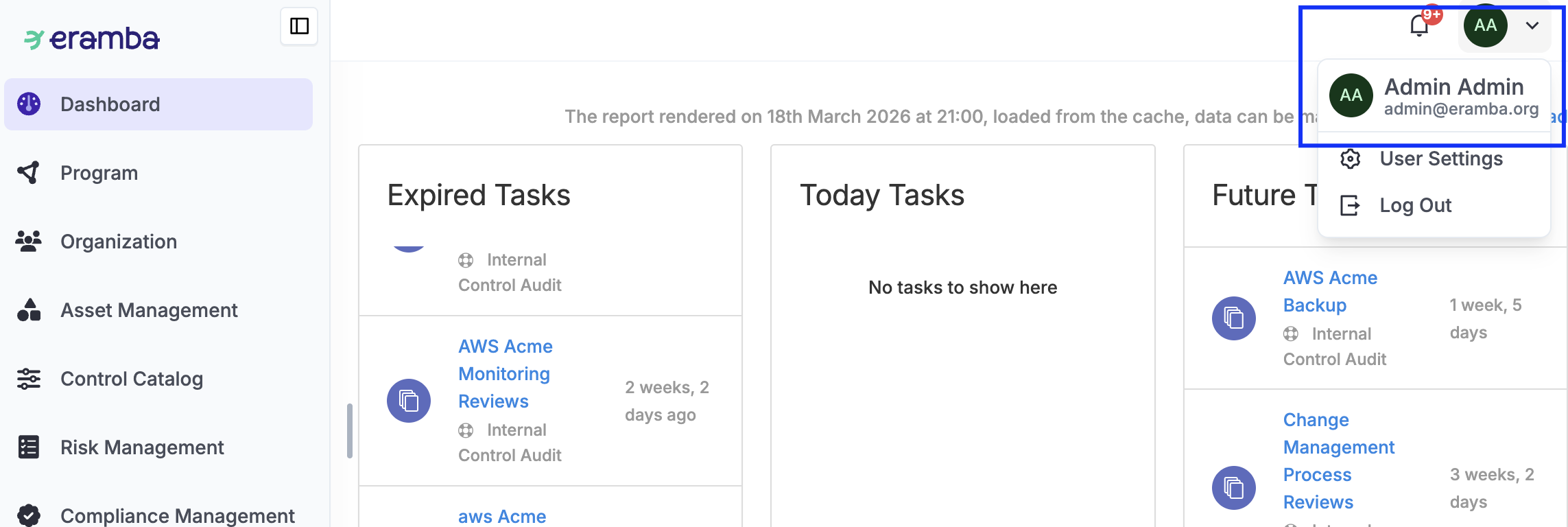
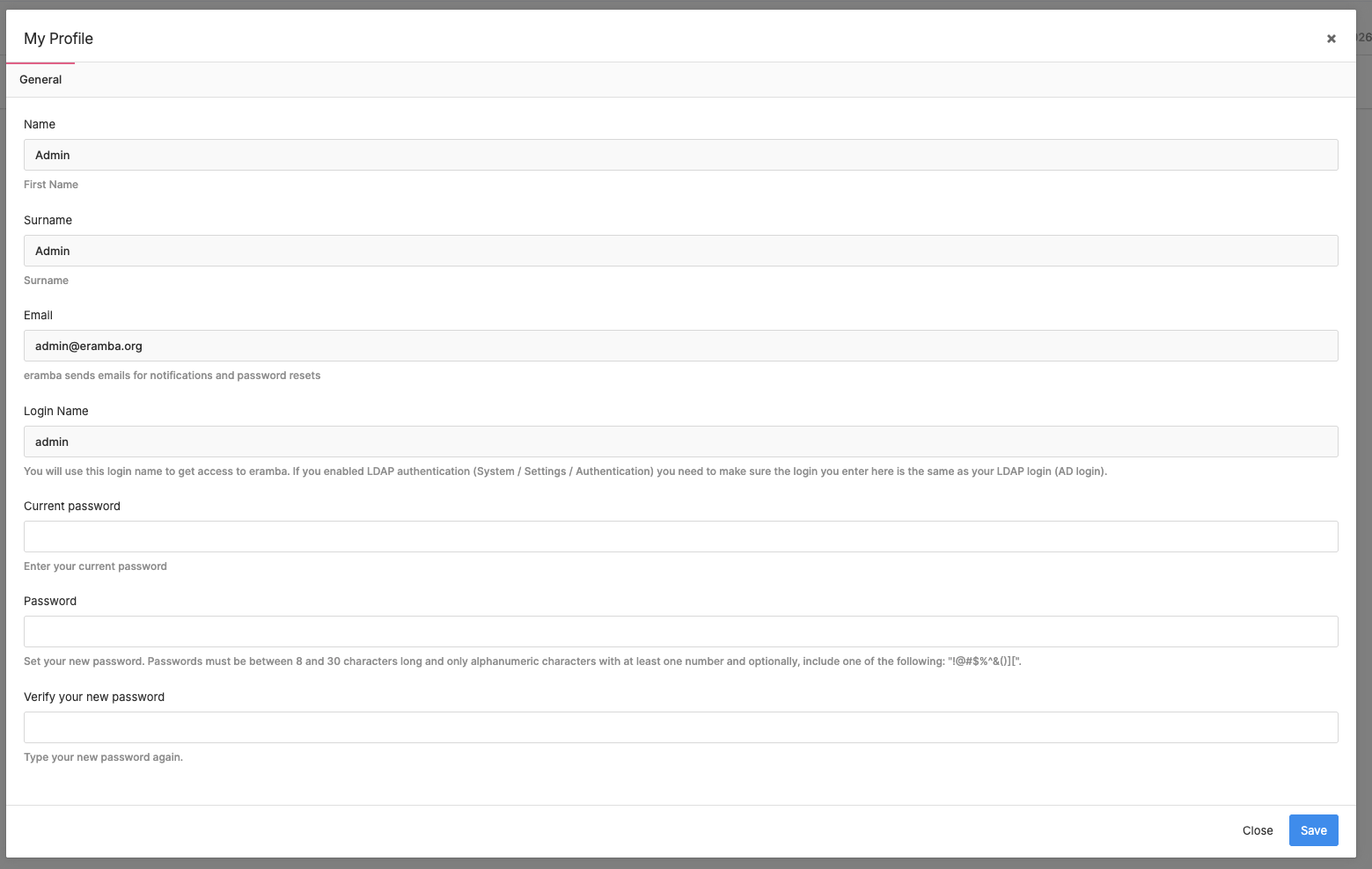
In the top-right corner, you will find the user settings for your account. From this menu, you can log out or change your password.
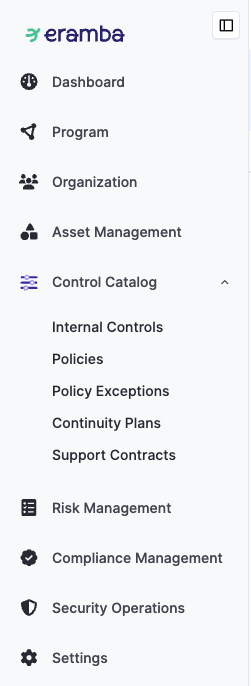
Module Sidebar
eramba features different modules in the left sidebar. Clicking on a module will display its sub-modules. The logo at the top can be customized at Settings / Application configuration / Appearance.
Module Features
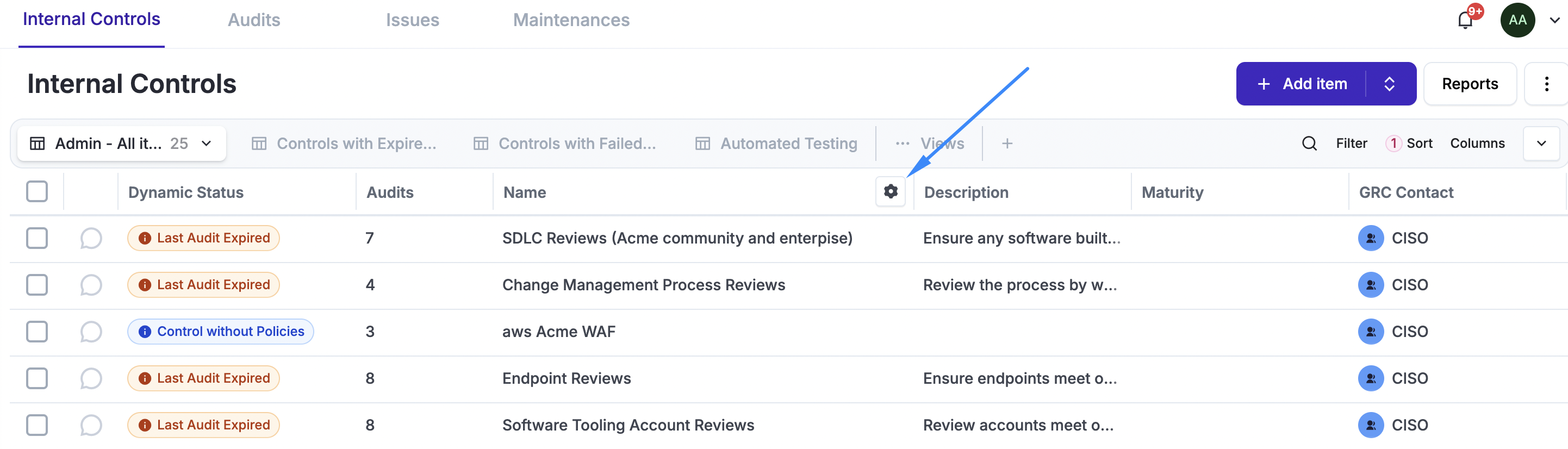
Once you access a module, you will notice at the top that there might be “Tabs,” sometimes one, sometimes more, as in the image below (Audits, Issues, etc.). Each one of these tabs is a sub-module that has a direct relationship with the parent module (Internal Control in the image below).
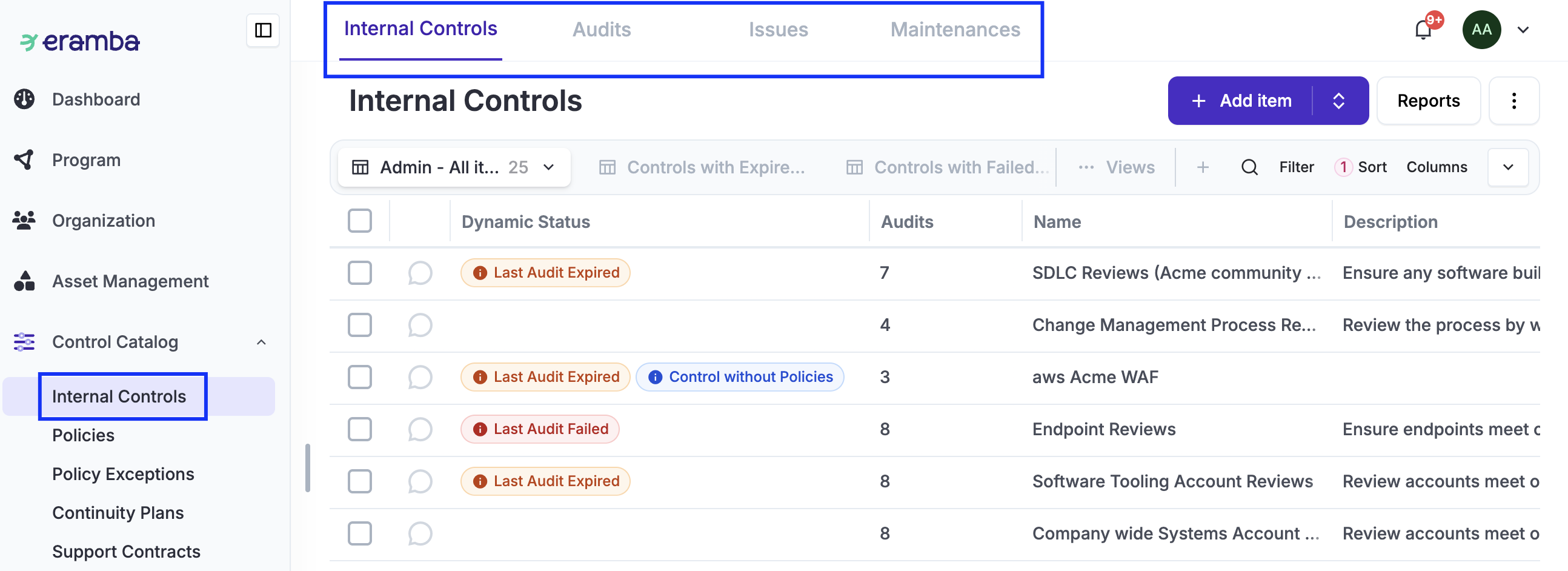
The Add button allows you to either add an item manually or import a .CSV file. When clicking the Add button, a form will appear (this form can be customised).
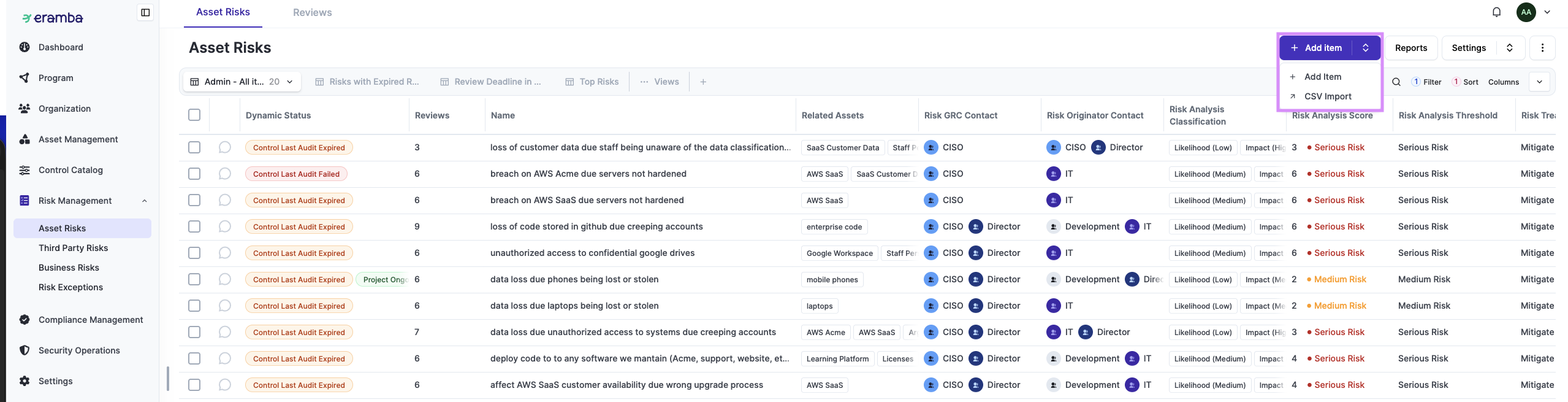
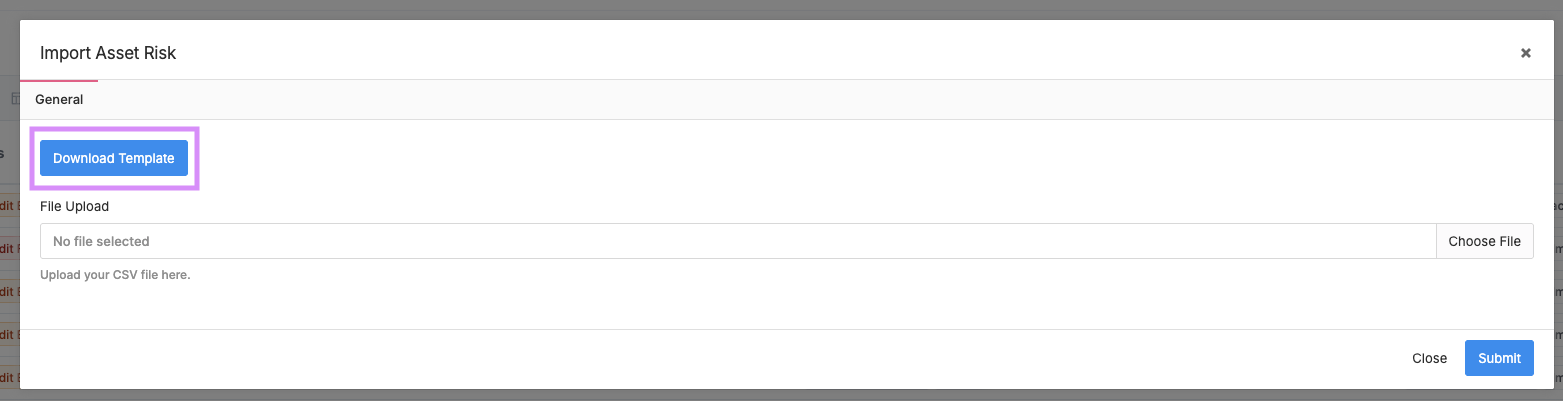
When clicking the CSV button, you can download the template, which can then be filled out and imported into Eramba.
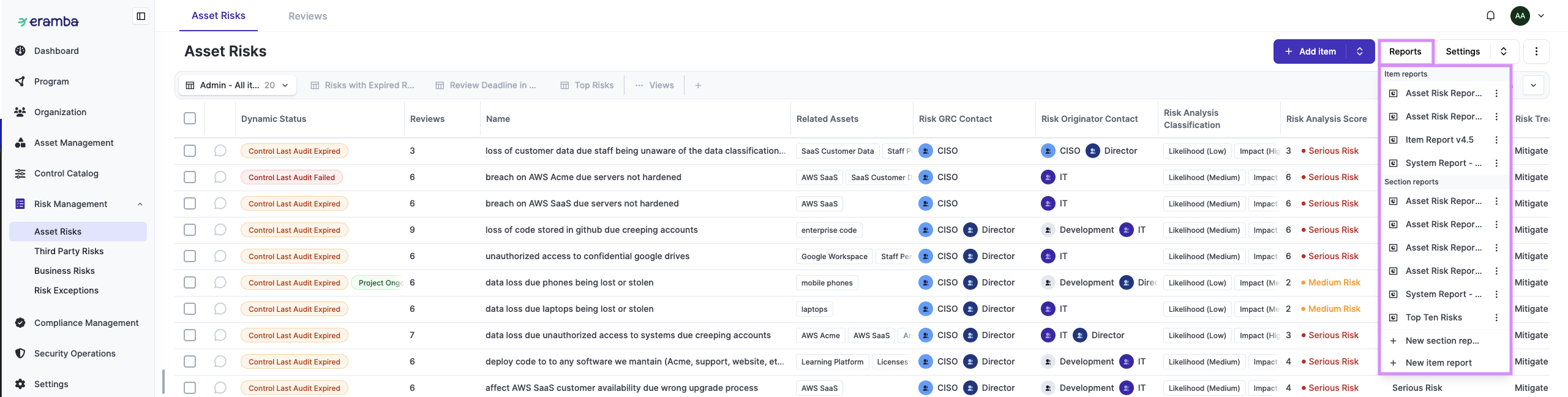
The Report button allows you to view current available item and module reports. System reports cannot be deleted, but you can create your own reports or duplicate system reports. Only module reports are loaded here; item reports cannot be loaded from this button.
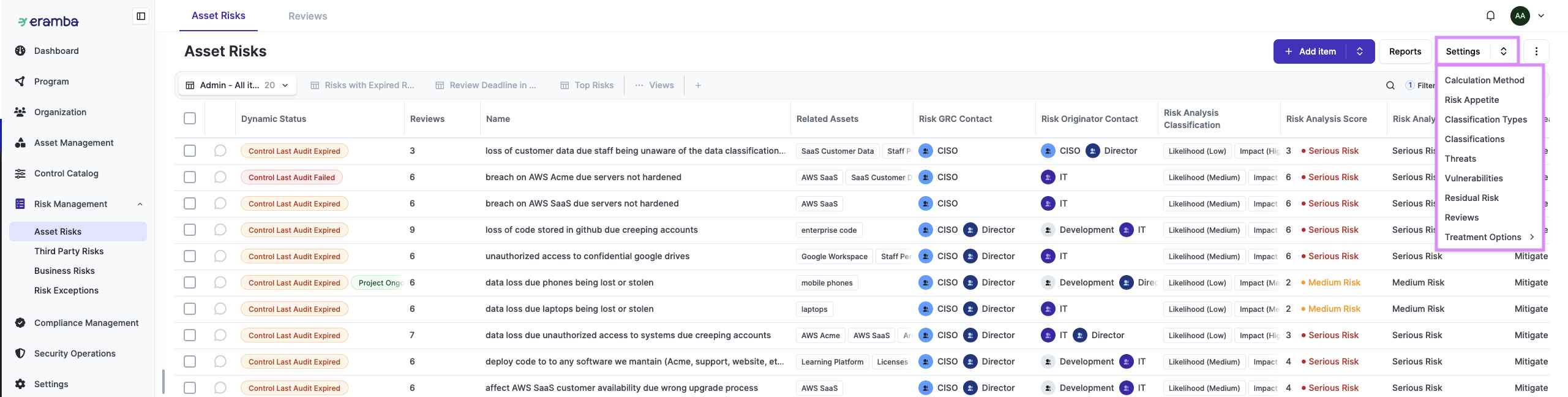
Some modules, such as Risks, will have a Settings button. These settings are used when a module requires specific configurations or customizations.
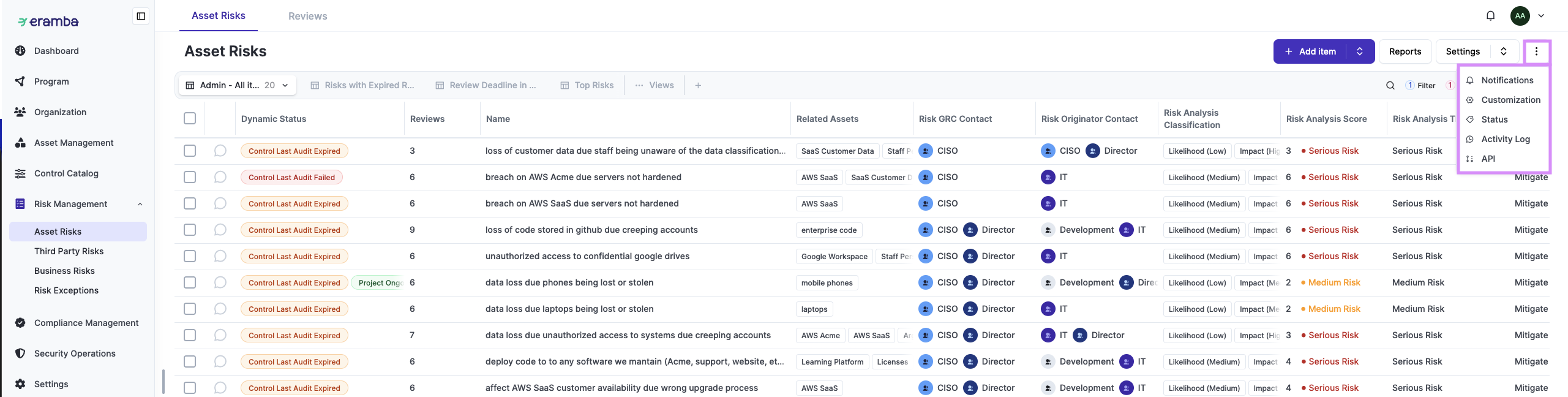
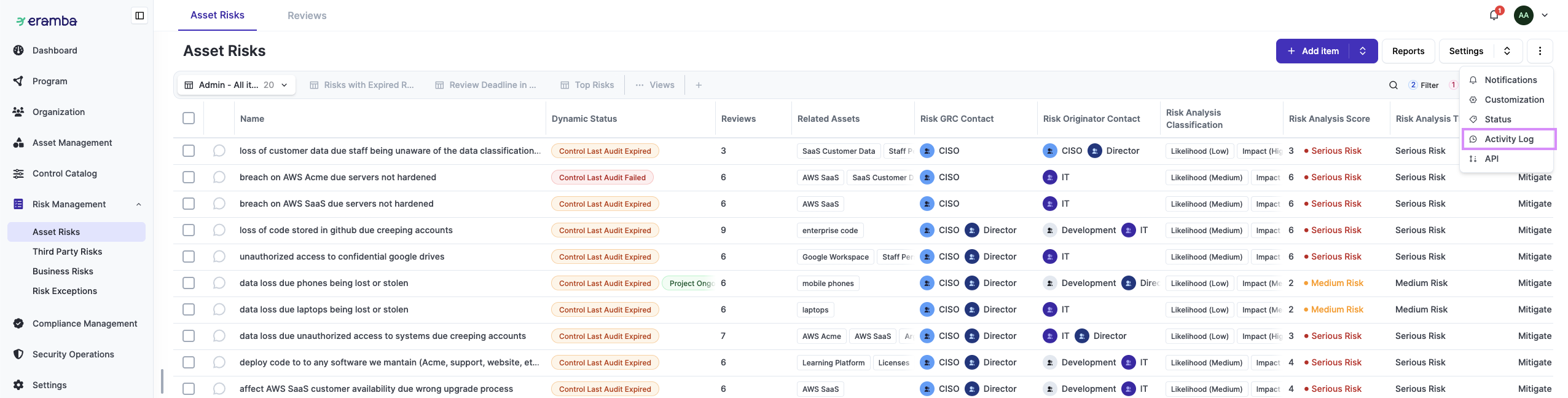
The Common Features are located in the button with three dots. These features are common across almost all modules in eramba and work the same way in each module. Community does not include most of these features. Each common feature has its own documentation guide:
-
Notifications: define notifications
-
Customisations: adjust the web-form fields
-
APIs: connect to eramba using REST APIs
-
Activity Log: view detailed records for each item (changes, notifications, etc)
-
Automation: execute automations
-
Status: configure dynamic statuses
Module Views
Views are the primary way to manage information in eramba. For example you can create views on the Risk module such as:
- All Risks (apply no filters and list all Risks)
- All "High" Risks (filter risks by "High")
- Top 10 Risks (sort all risks by score and limit to only 10 results)
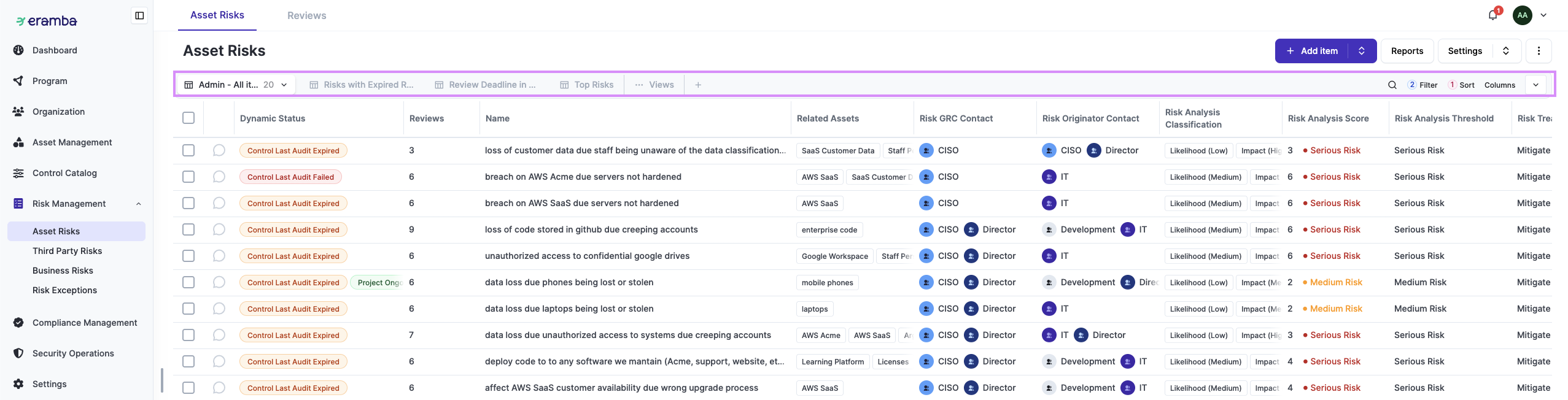
These views will show items on the module based on your settings for:
- Filter
- Sorting
- Column Layout
- Search Bar
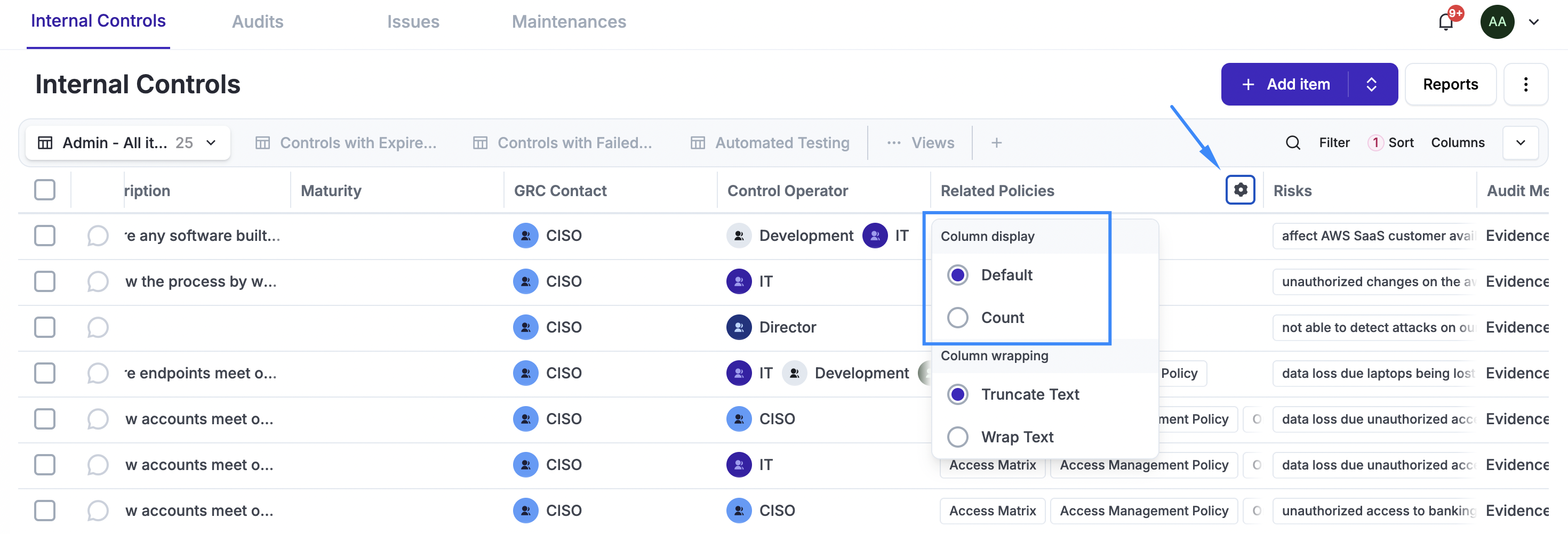
Columns can be resized, hidden, and shown. Depending on the content of the column, the column can:
-
Text: wrap the text
-
Dynamic Status: show the icon, name, or both the icon and name of the status.
- Related Module: Some columns show the number of related items. This can be shown as a number or as a list of items. For example, in the list of Internal Controls, you will see a column that shows related “Policies”, as these two modules are related.
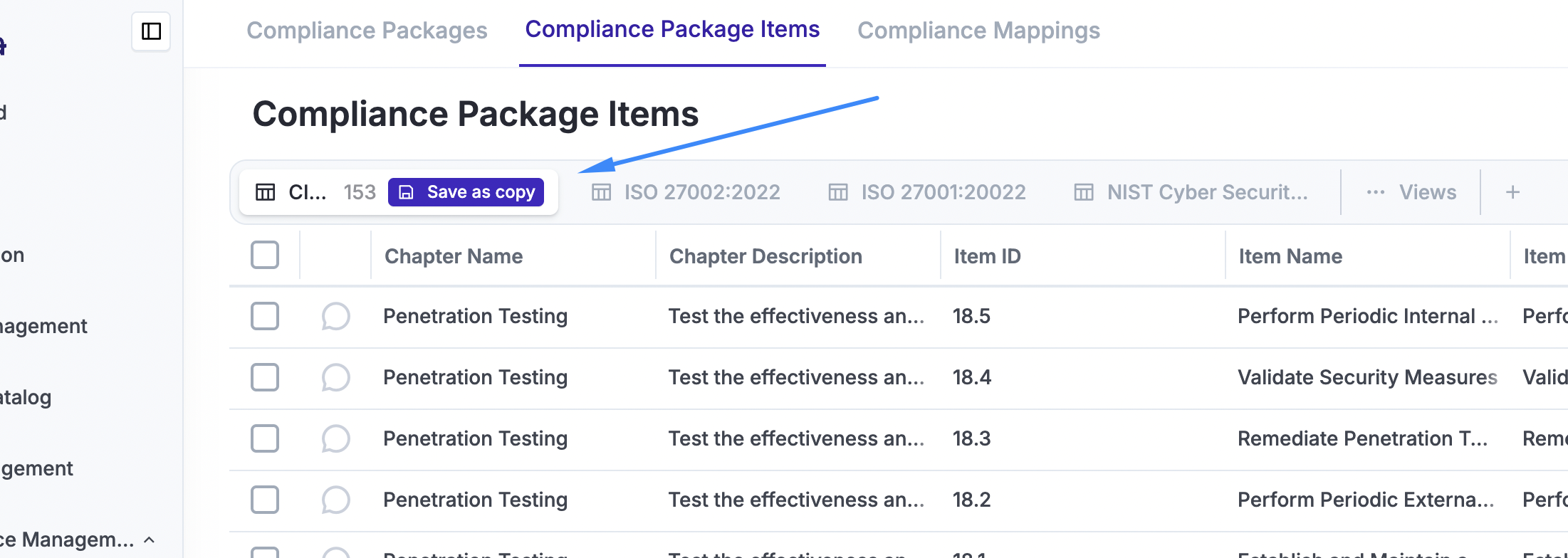
Every time you access a module, you will see a set of “default” views used to help customers visualise items quickly. These views can be modified temporarily (filters, sorting, columns). If you leave the module, the changes will be lost unless they are saved as a new view (your view).
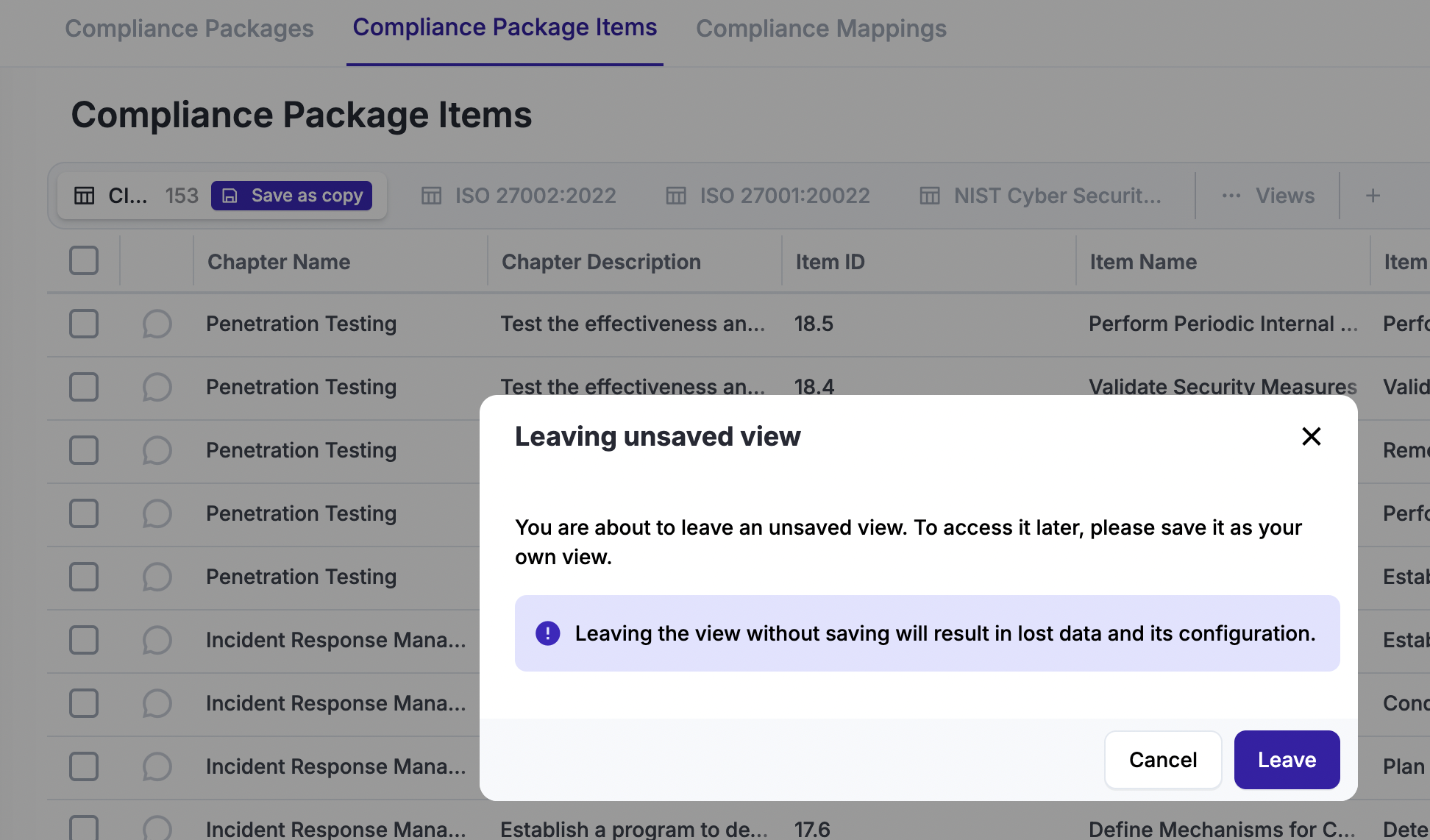
When saving or creating a view, it becomes your personal view. You can define:
-
Who else in eramba can see the view
-
Who else in eramba can edit the view
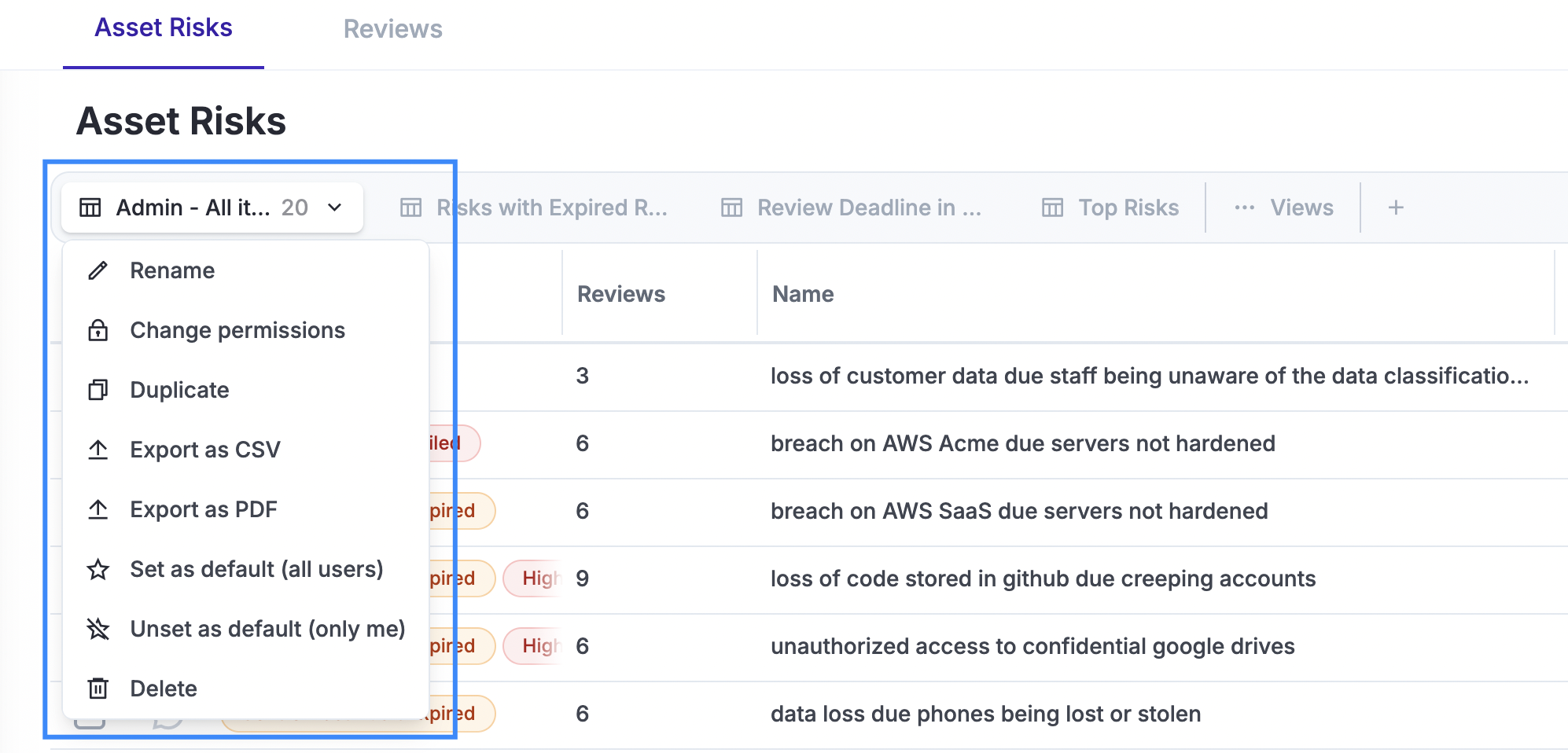
Views include various functionalities, such as:
-
Exporting to PDF/CSV
-
Pinning or unpinning
-
Making a view your “Default” view every time you load a module
-
Making a view the “Default” for everyone else, unless they have defined their own view
-
Who else in eramba can see the view
-
Who else in eramba can edit the view
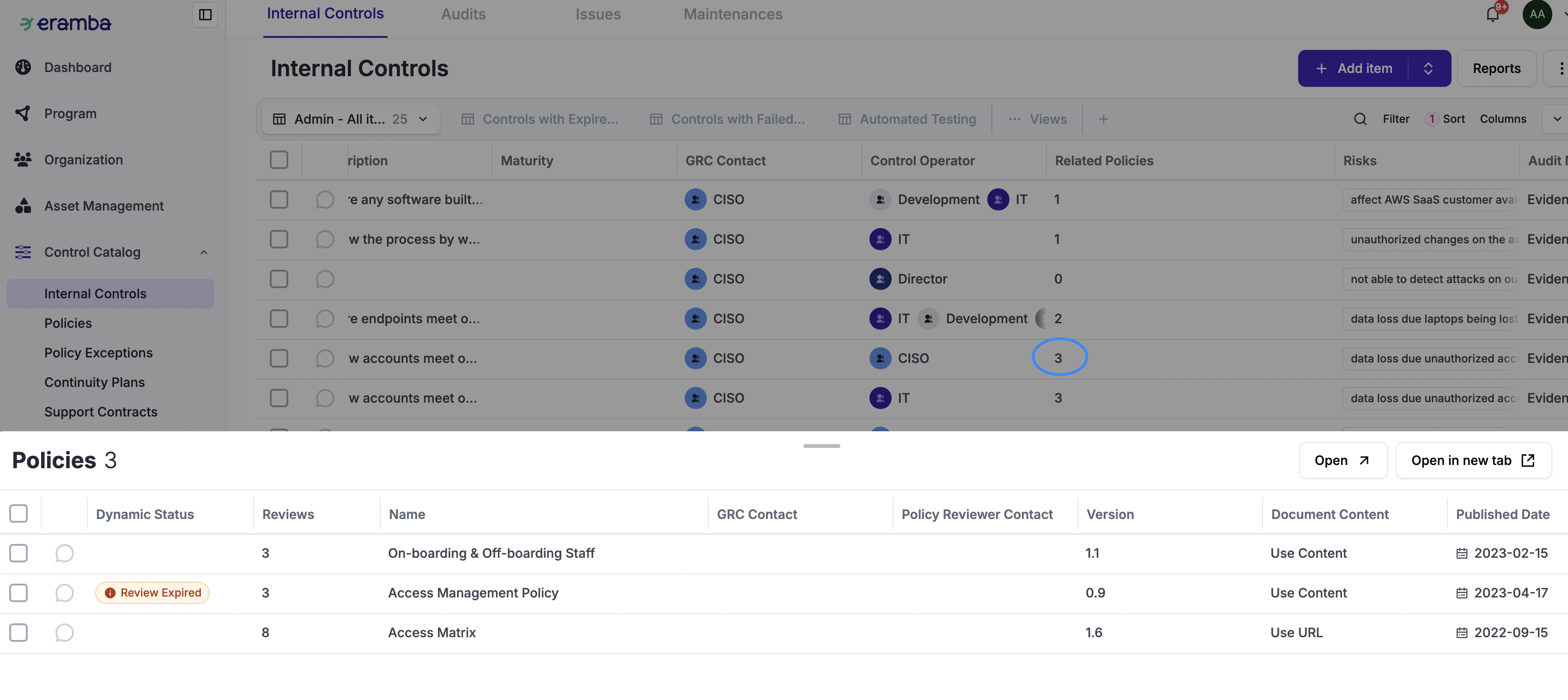
A very important component of views is “Shortcuts”. These are used to quickly see related items. For example, the Internal Control module and the Policy module are related, meaning an Internal Control can have one or more related Policies. You can choose to show such relationships in your columns as item “Names” or as a “Counter”.
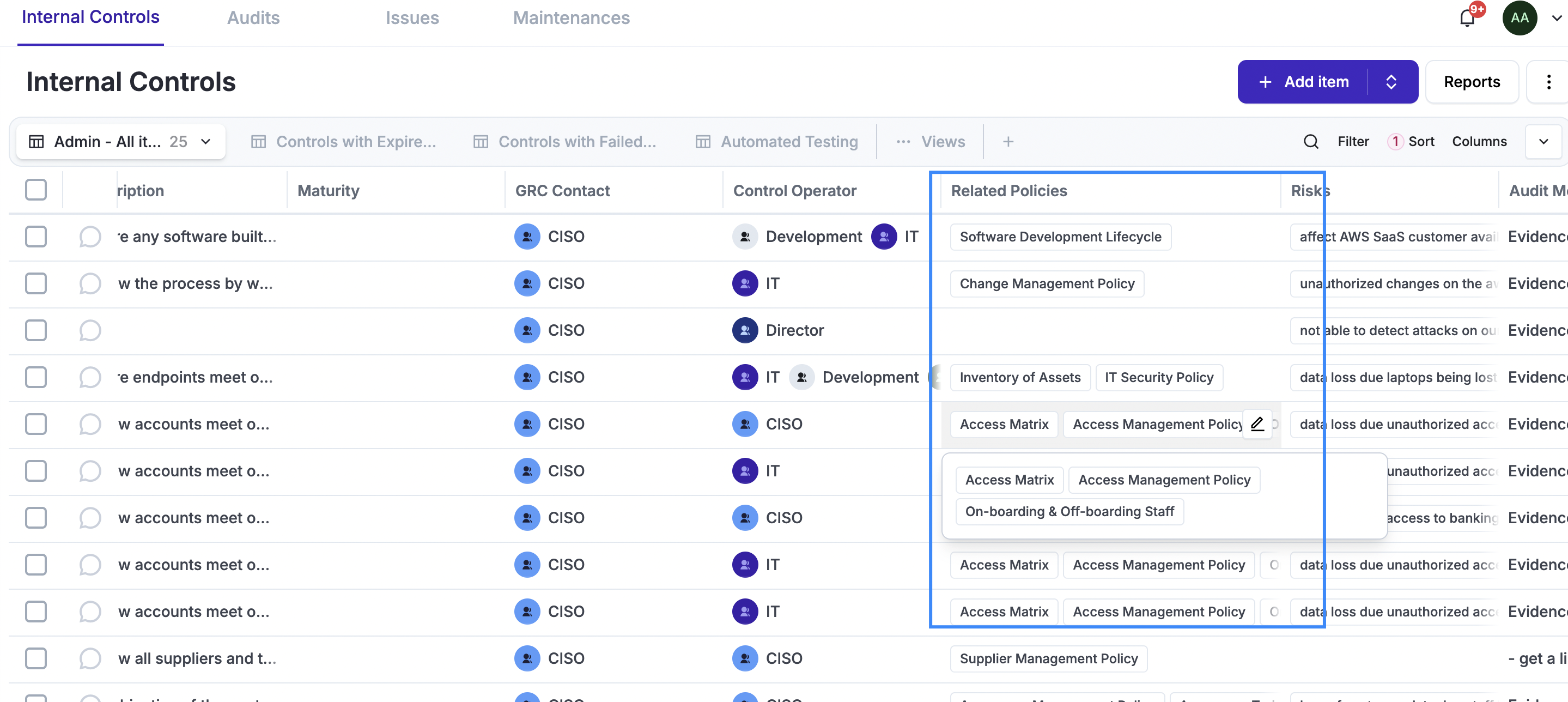
Clicking on the item, whether it is a number or a list of items, opens a drawer from the bottom. This drawer shows the “Default View” for the related module, with the list of selected items.
Item Options
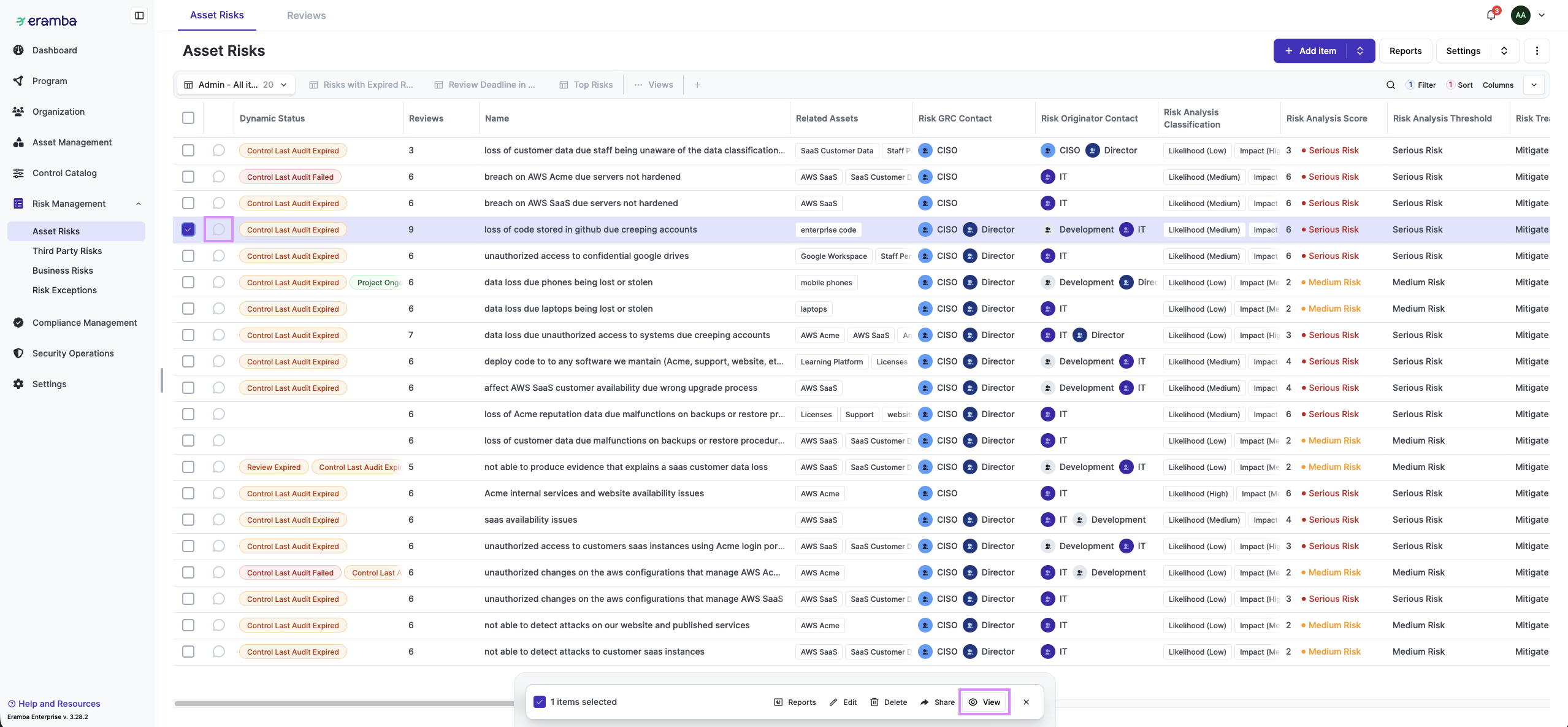
When you select an item in a view, a bottom drawer with available actions will appear. The options available for each item may vary depending on the module. While options may vary depending on the module, the basic options are the following:
-
Reports – Load item reports.
-
Edit – Modify the selected item.
-
Delete – Remove the selected item.
-
Share – Share the item with other users.
-
View – Open the item on the 'Item Detail' module.
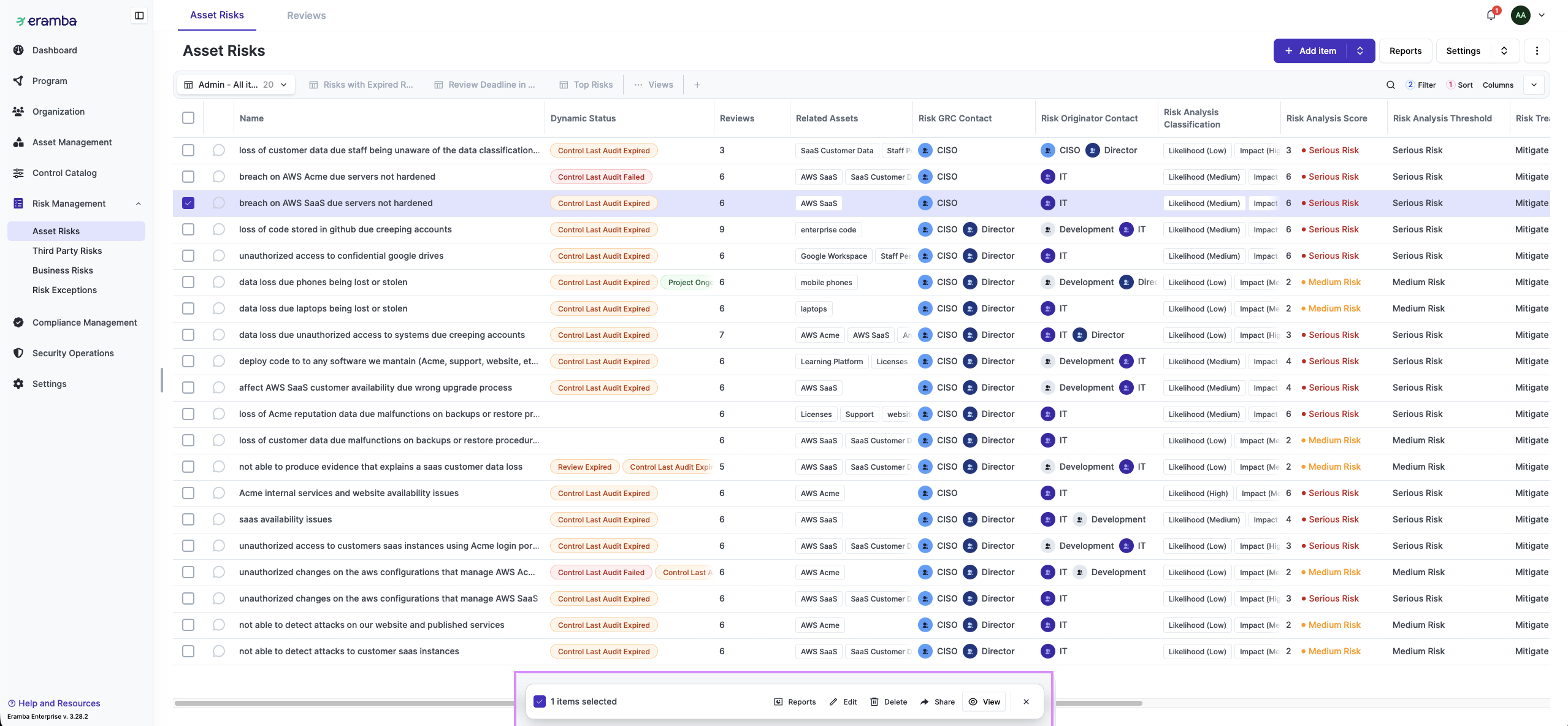
On some modules you can also perform bulk edits when selecting multiple items.
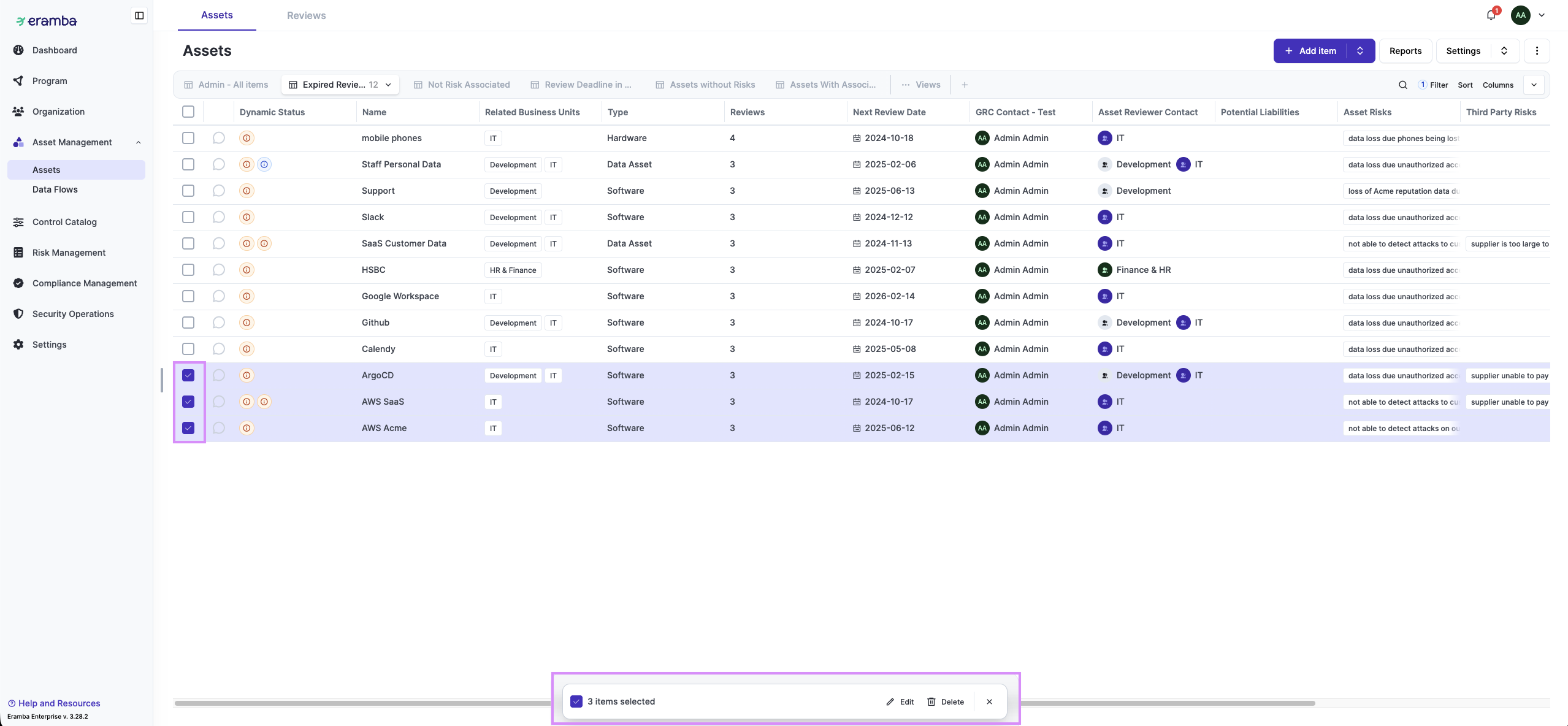
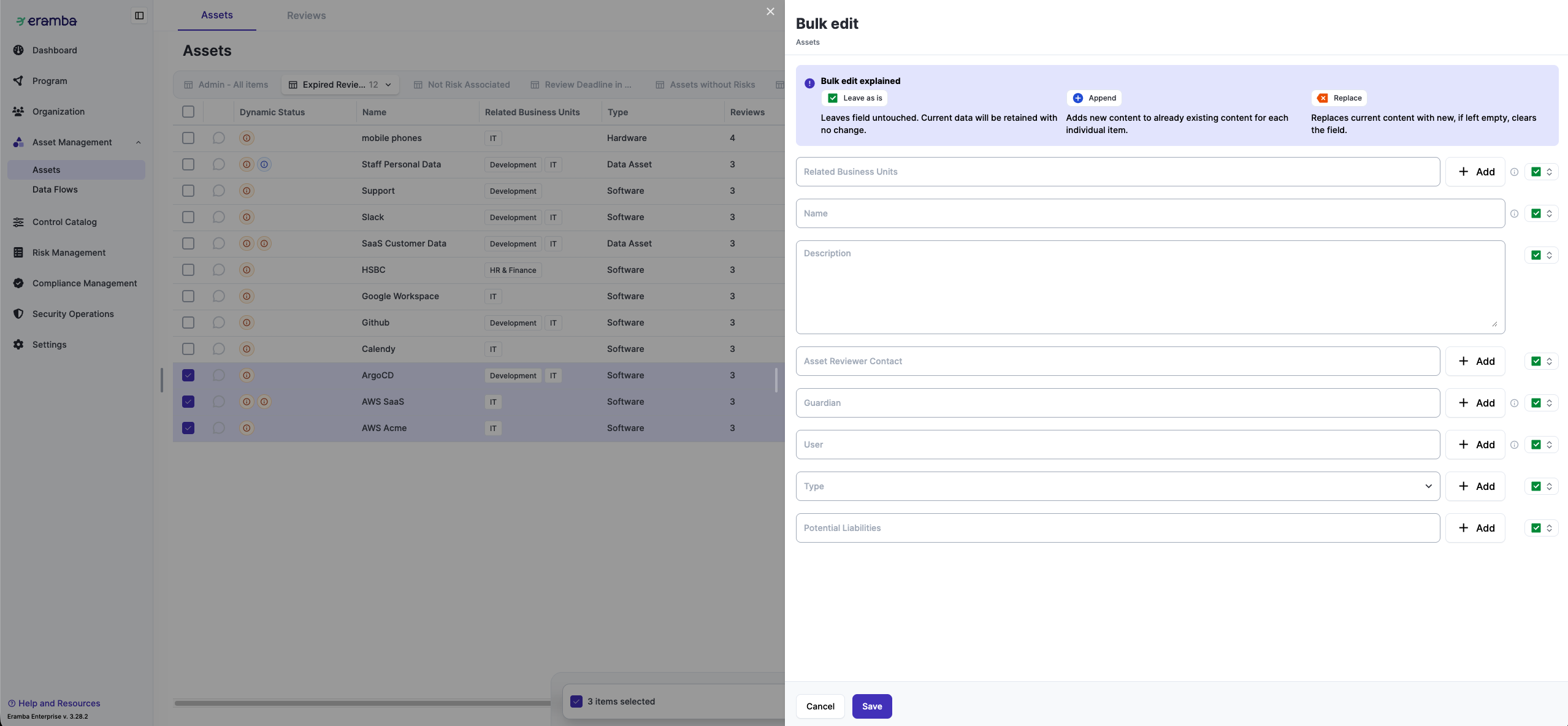
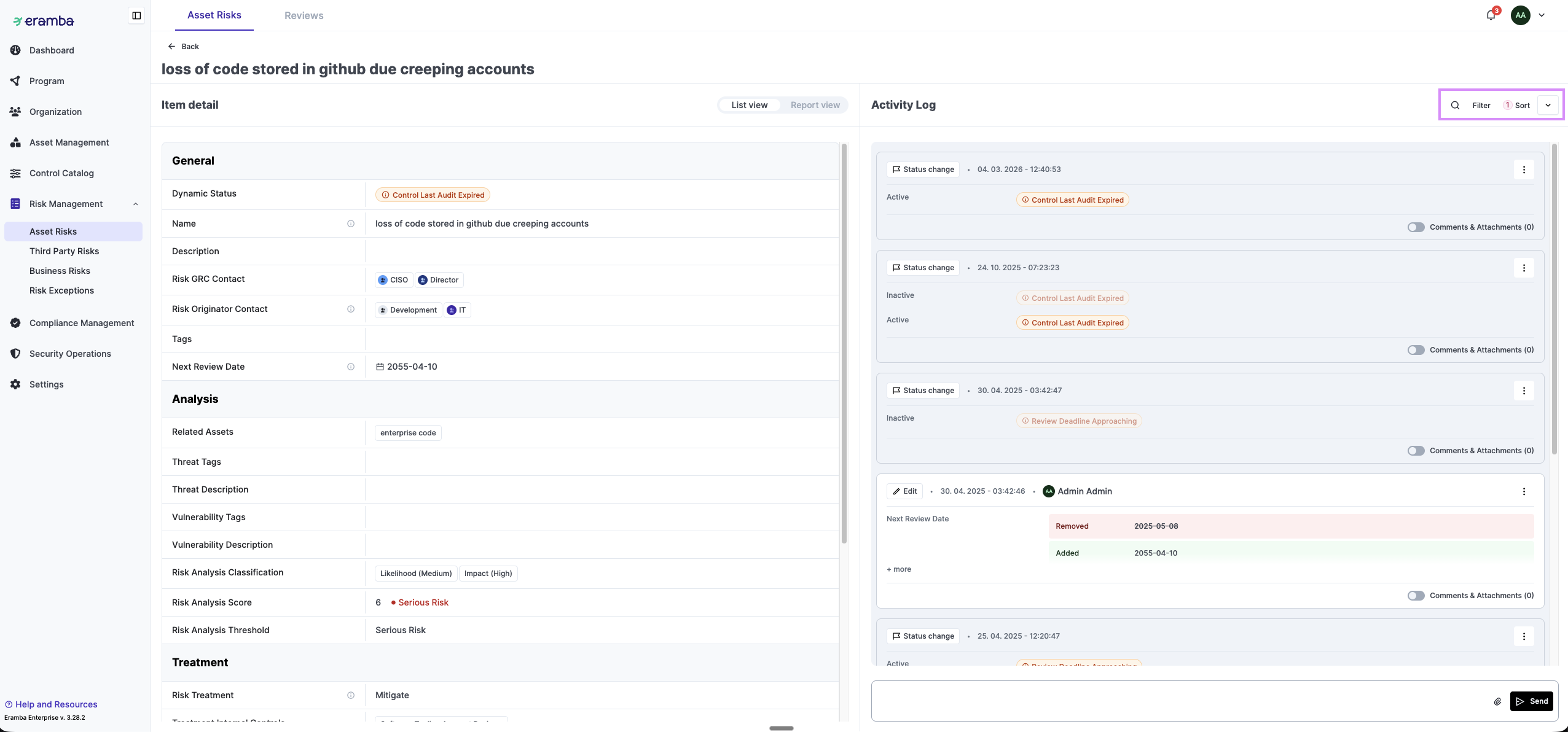
The "Item View" is where you can add comments and attachments, as well as view all information and activity related to an item. By clicking the bubble icon next to the selection box, you will be redirected to the Item Detail view with a filter applied, showing only comments and attachments in the activity log.
The activity reflected here includes: Add, Attachments, Comments, Edits, Notifications, Status Changes, Etc
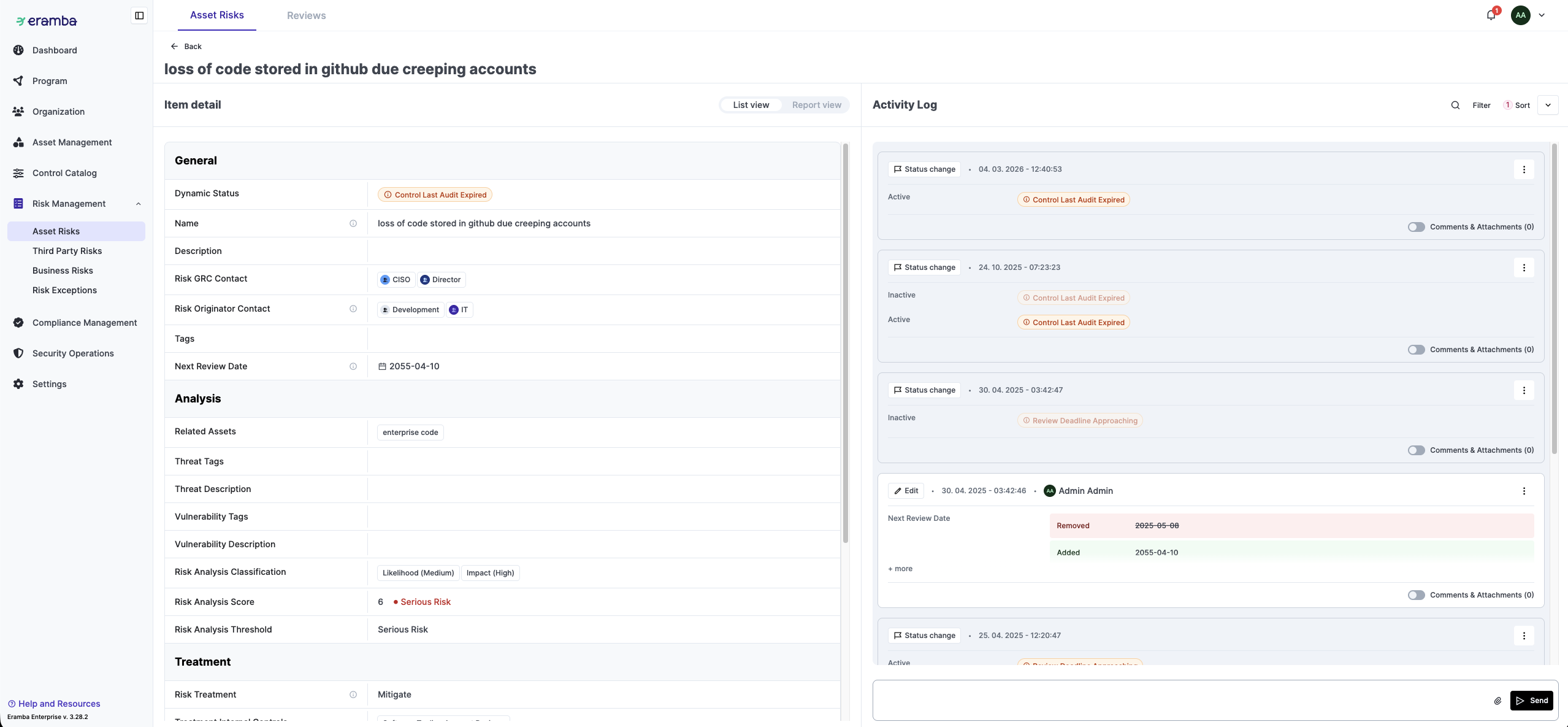
Similar to views, you can use the search bar, apply filters, and sort entries to easily find specific activities.
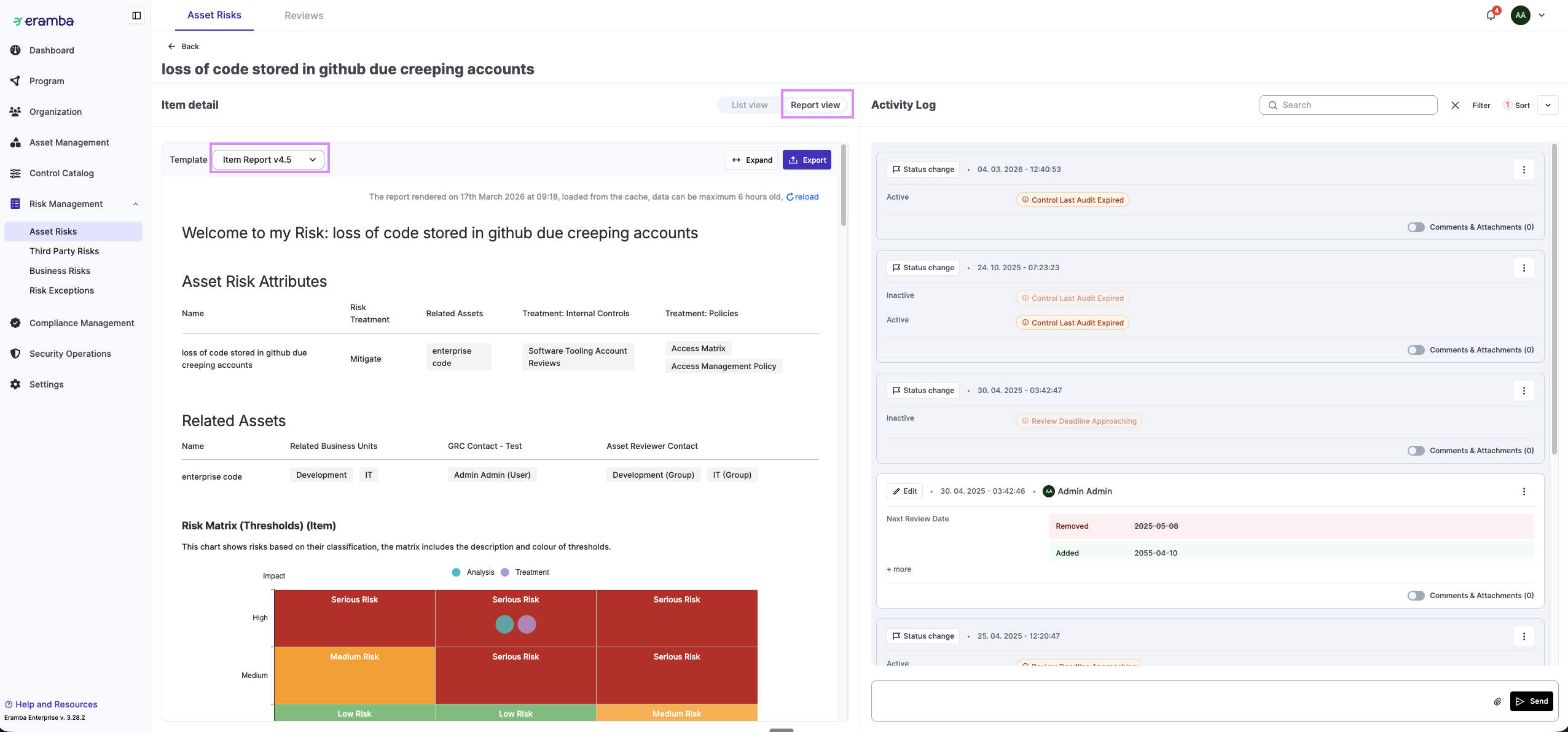
You can also load item reports from the left panel, under the Report View tab.
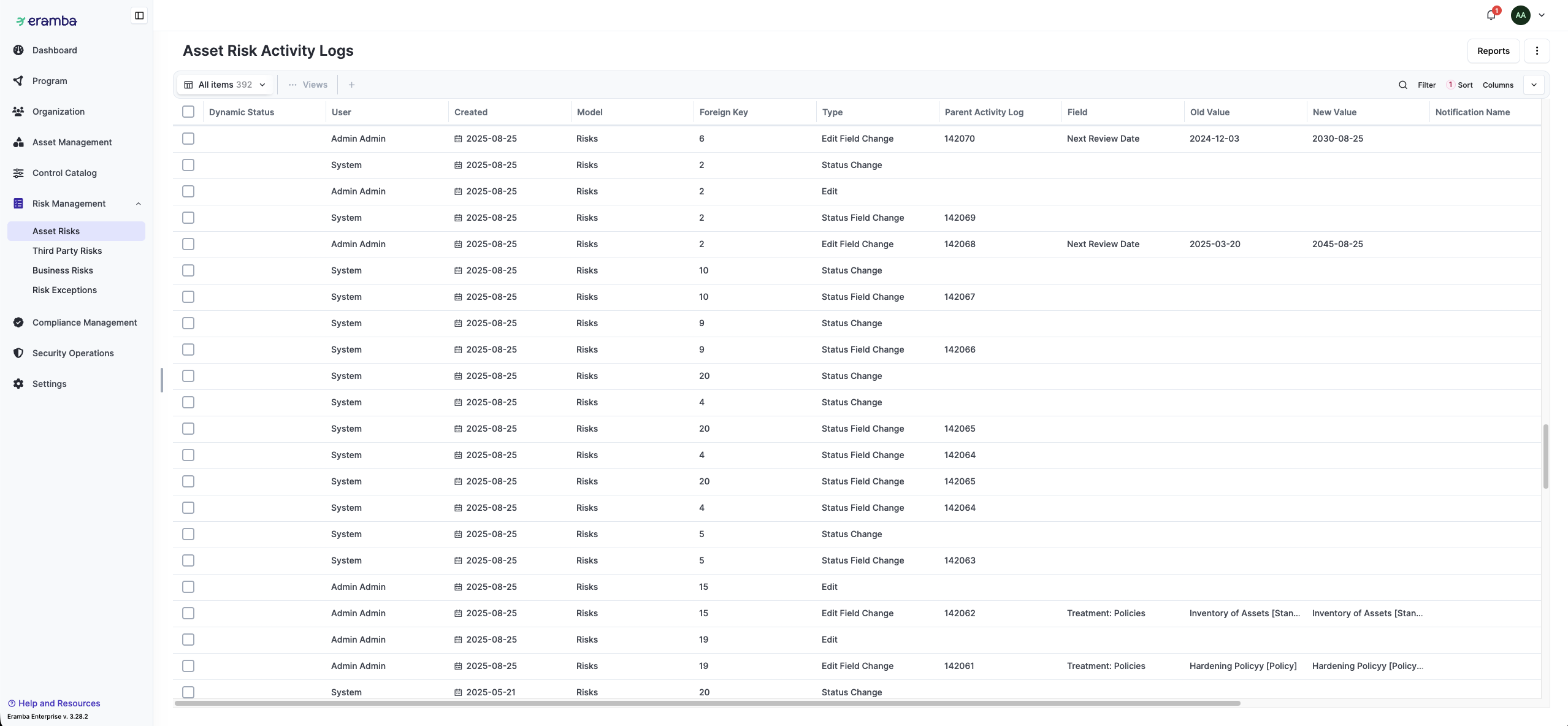
Activity log
Every module in Eramba includes an module Activity Log to track changes to all items on that module items. This Activity Log tracks all items within the module and can be accessed via the Common Features button.
Videos
Create Default View
Create Default View (Others)
Pin System Views
Create Custom View
Still have questions?
Write to support@eramba.org or ask the community on the forum.